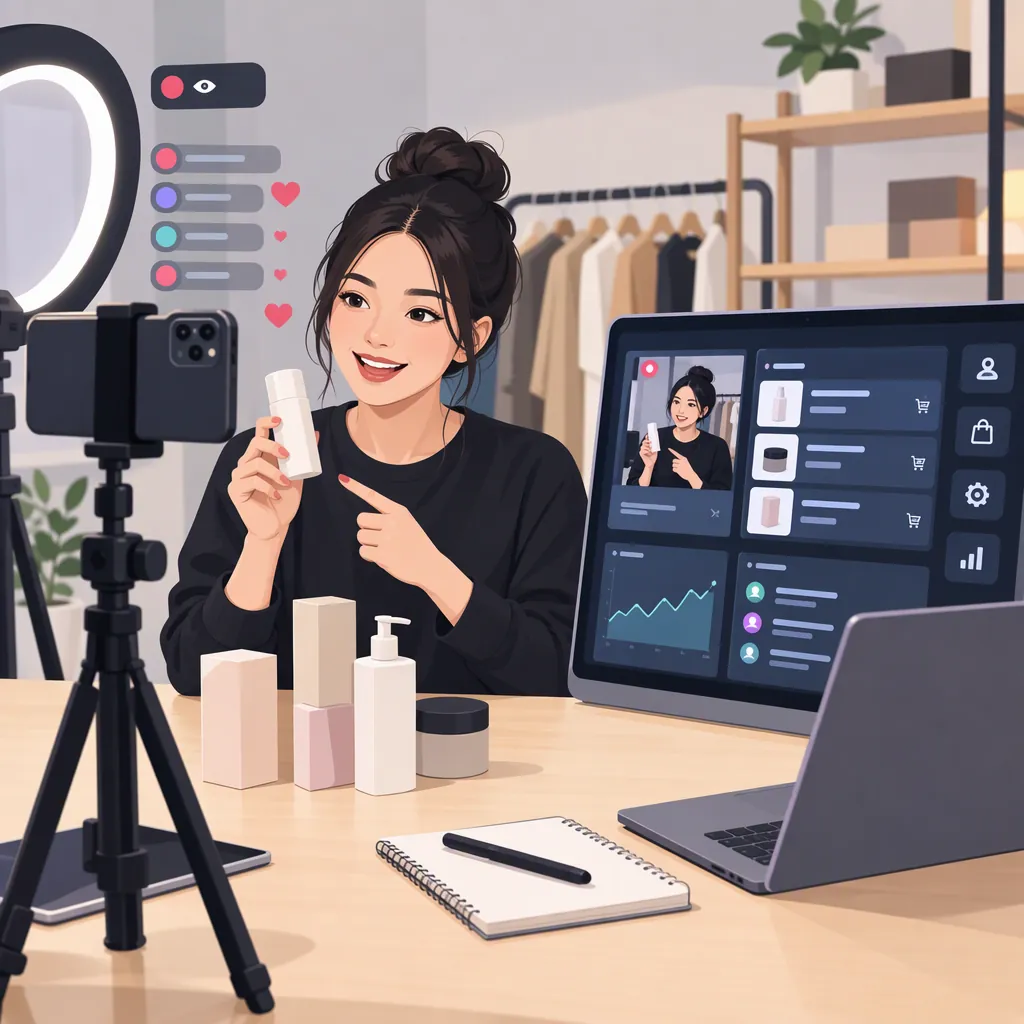
TikTok Shop Streamer: How to Prepare a Live Shopping Broadcast
The TikTok Shop streamer address, shop.tiktok.com/streamer/welcome, is identified as the entrance to LIVE Manager in TikTok Shop’s Singapore and Malaysia guides. The documented workflow is to add products, select video and audio sources, test in Practice Mode, then start and manage a LIVE shopping broadcast. These sources do not establish US availability or account eligibility. [sg-live-manager] [my-live-manager]
Understand the Tool and Regional Limits
TikTok Shop’s regional guides describe LIVE Manager as a desktop tool for planning and managing shopping livestreams. They identify seller official accounts, seller marketing accounts, and affiliate creators as host types. The console combines product controls, a video preview, viewer interaction, and analytics. [sg-live-manager] [my-live-manager]
Scope matters: the supplied Singapore guide is dated July 20, 2026, and the Malaysia guide is dated July 22, 2026. Both explicitly apply to their respective markets. This article uses US English, but its sources are not US eligibility documentation. They do not establish US access requirements, follower thresholds, or approval criteria. Check your account’s regional guidance rather than treating this workflow as proof that your account can broadcast.
Prepare the Shopping Bag and Product Order
In the documented LIVE Console, product controls are on the left, the video feed is in the center, and interaction and analytics are on the right. Use +Add products, select the items for the broadcast, and confirm with Add Products. The guides require at least one product to be added before going LIVE in this workflow. [sg-live-manager] [my-live-manager]
After adding products, you can rearrange them, move an item to the top, or remove items. Once the broadcast is live, the Pin button makes a selected product visible to viewers. [sg-live-manager]
As a preparation practice, match the product order to your demonstration outline. Keep notes on which listing belongs to each demonstration, and avoid presenting details you have not verified.
Product Preparation Checklist
- Confirm that each selected listing matches the item you intend to demonstrate.
- Add at least one product to the LIVE shopping bag for the documented workflow.
- Arrange the products in demonstration order.
- Record any product questions that still need verification.
- Assign responsibility for product pinning if another person will help operate the broadcast.
Test Video and Audio Before Going Live
The regional guides describe Practice Mode as a test stream that viewers cannot see or join. In the center screen, open the down arrow, select Practice, choose the video and audio sources, and start the practice session. A label indicates that Practice Mode is active. [sg-live-manager] [my-live-manager]
OBS Virtual Camera can be selected as the video source. For this specific LIVE Manager workflow, the guides say a stream key is not required. They also state that virtual camera software does not provide the audio source, so select and test audio separately. This is not a general statement about every OBS or TikTok broadcasting method. [sg-live-manager]
For an immediate broadcast, use Go LIVE from the LIVE dashboard and select your computer’s video and audio sources. For a scheduled event, open that event in LIVE Events and use its Go LIVE control. The guides state that a scheduled event cannot start before its scheduled start time. [sg-live-manager] [my-live-manager]
Pre-Broadcast Test Checklist
- Enter Practice Mode and confirm its active label.
- Select the intended camera or OBS Virtual Camera.
- Select the intended audio source separately.
- Check framing, product visibility, and microphone pickup.
- Confirm the shopping bag and demonstration order.
- If using a scheduled event, check its scheduled start time.
- Leave Practice Mode with the power control, or deliberately select Go LIVE when ready for a public broadcast.
Manage Products and Comments During the Broadcast
During the broadcast, the documented console supports product pinning, comment replies, and pinned comments. Replies are visible to all viewers, and a comment pinned on desktop also appears pinned on mobile. The activity feed can show comments, orders, new followers, giveaway updates, and gifts. [sg-live-manager]
A practical division of work is for the host to demonstrate items while an assistant tracks product selection and questions. Treat this as an operating suggestion, not a platform requirement. Keep answers tied to verified product information, and note unresolved questions rather than improvising claims.
For a desktop-started broadcast, the guides describe Manage LIVE in the mobile app as a way to manage products and promotions. Starting a separate phone broadcast instead requires ending the desktop LIVE first. [sg-live-manager] [my-live-manager]
End the Session and Review What Happened
The guides describe ending a broadcast with End Live in the desktop center screen or the power button on mobile. Past sessions are available under Past events in LIVE Events, with access to session analytics and the past console. Past-session settings cannot be edited. [sg-live-manager] [my-live-manager]
The documented LIVE Performance and LIVE History views support aggregate and individual-session review. LIVE Performance can export the current analytics result as an Excel file, reflecting the selected date range and tab. [sg-live-manager]
For a useful review, record technical problems, recurring viewer questions, and whether product pins matched the demonstrations. Separate observations from explanations: the provided guides describe reporting tools, but they do not establish that a particular production change will improve sales.
FAQ
What Is the TikTok Shop Streamer Address?
The supplied Singapore and Malaysia guides identify shop.tiktok.com/streamer/welcome as the entrance to LIVE Manager. That address does not, by itself, confirm your account’s eligibility or regional access. [sg-live-manager] [my-live-manager]
Do I Need a Stream Key for Obs Virtual Camera?
Not for OBS Virtual Camera used as the video input in the documented LIVE Manager desktop workflow. The guides distinguish this from LIVE Studio. Select audio separately and test both sources in Practice Mode. [sg-live-manager]
Can I Test the Broadcast Without Viewers?
Yes, in the documented regional workflow. Practice Mode starts a test stream that viewers cannot see or join. Confirm the Practice Mode label before treating a session as private. [sg-live-manager] [my-live-manager]
Do These Instructions Confirm US Eligibility?
No. The supplied guides explicitly apply to Singapore and Malaysia. They do not establish US account eligibility, follower requirements, or feature availability. [sg-live-manager] [my-live-manager]
Sources
-
[sg-live-manager] LIVE Manager
-
[my-live-manager] LIVE Manager