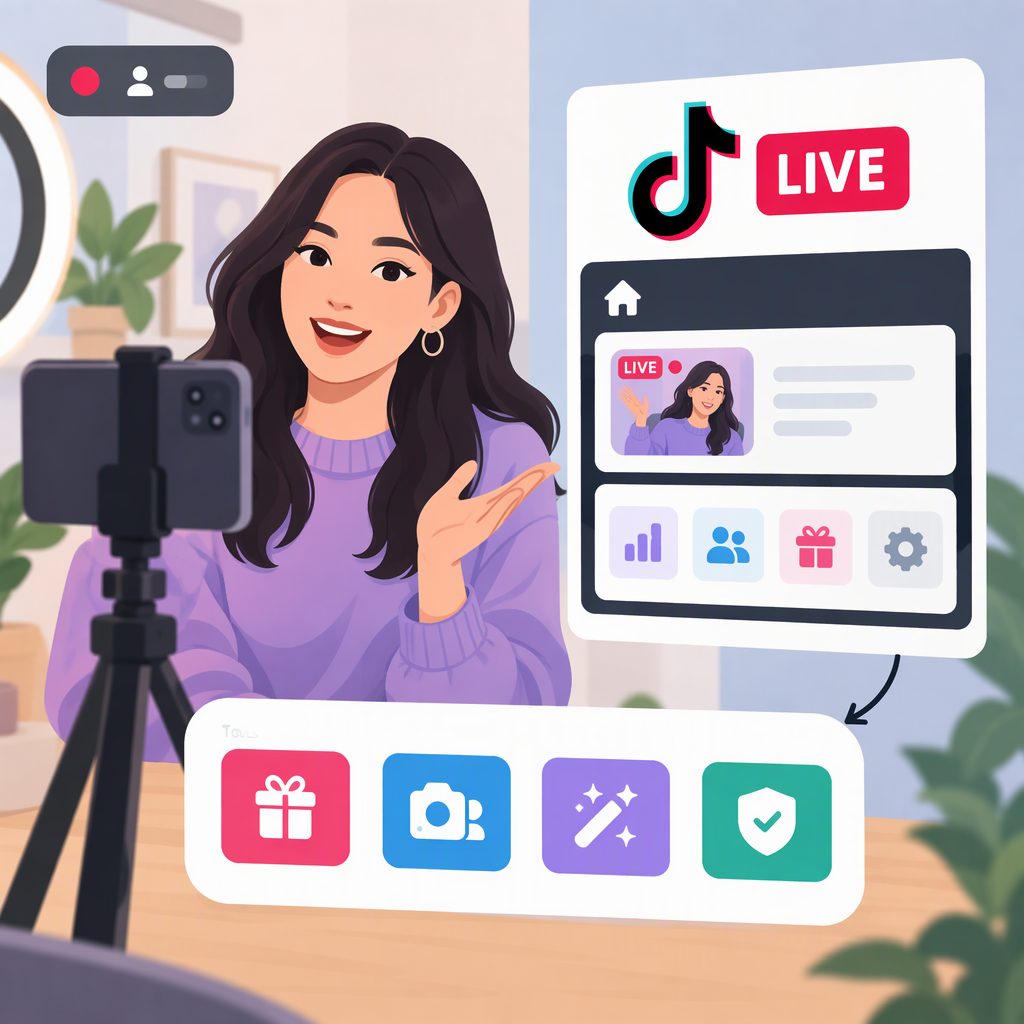
TikTok Live Center: What It Is and Which Live Tool to Use
TikTok uses “LIVE Center” as an in-app destination for some LIVE features, but the name does not mean every LIVE tool is one universal dashboard. TikTok’s Help Center directs creators to LIVE Center to create LIVE Events, and says LIVE replays can also be accessed there. TikTok Studio is a separate creator-tools experience with its own LIVE section. TikTok Shop’s PC LIVE dashboard is a more specialized tool for creators and sellers running shoppable LIVEs. Use the path that matches your task. (support.tiktok.com)
What Does “TikTok Live Center” Mean?
TikTok’s public Help Center describes particular routes through LIVE Center rather than providing a broad definition that establishes it as the home for every LIVE feature. For example, TikTok’s instructions for creating an event say to open the TikTok app, tap Add post (+), select LIVE, then LIVE Center and LIVE Events. The same Help Center says creators can also create a LIVE Event from TikTok Studio. (support.tiktok.com)
TikTok also has a web address at livecenter.tiktok.com/producer that presents a TikTok login page. That confirms an official sign-in entry point exists, but the public page text alone does not establish which features are available there or how its functions compare with the in-app LIVE Center. (livecenter.tiktok.com)
So, when someone says “LIVE dashboard,” clarify what they mean: an in-app LIVE Center route, TikTok Studio’s creator tools, or the TikTok Shop PC LIVE dashboard. The official materials cited here do not establish that these are interchangeable interfaces.
Which Interface Should You Use?
| Your task | Start here | What TikTok documents |
|---|---|---|
| Create a scheduled LIVE Event | TikTok app: + → LIVE → LIVE Center → LIVE Events. Or TikTok Studio: LIVE → LIVE Events. | TikTok documents both routes for creating an event. (support.tiktok.com) |
| Find, download, clip, or delete a LIVE replay | TikTok app: Profile → Menu ☰ → TikTok Studio → LIVE → LIVE recordings. | TikTok documents these replay actions in TikTok Studio and says replays can also be accessed from LIVE Center. (support.tiktok.com) |
| Manage or review general creator content and analytics | TikTok Studio, in the app or on the web. | TikTok lists tools for managing content and viewing analytics, while noting that tool availability can vary between app and web experiences and some features may not be available in every region or to every account. (support.tiktok.com) |
| Review performance for a shoppable LIVE on PC | TikTok Shop’s LIVE dashboard, if you are running a shoppable LIVE. | TikTok Shop’s US Academy describes this dashboard for Shop creators and sellers, with LIVE performance and commerce-related reporting. It is not presented as the general dashboard for every TikTok creator. (seller-us.tiktok.com) |
Example: If you want to announce a future broadcast, follow TikTok’s LIVE Events route; if you want a copy or clip of a past broadcast, use TikTok Studio’s LIVE recordings. If you ran a shoppable LIVE and need its commerce performance information, the TikTok Shop dashboard is the relevant specialized route described in TikTok Shop’s documentation. These paths address different tasks; the name “LIVE dashboard” alone is not enough to choose among them.
How to Find Live Center
For the documented in-app LIVE Events route:
- Open TikTok and tap Add post (+).
- Tap LIVE at the bottom of the screen. TikTok notes you may need to scroll across the options.
- Tap LIVE Center.
- Choose LIVE Events and continue to create an event.
TikTok says the event time you choose is shown in viewers’ local time. For LIVE Events, TikTok also documents an alternative path through TikTok Studio: tap LIVE, then LIVE Events. (support.tiktok.com)
If you meant the web producer sign-in rather than the in-app Center, TikTok’s public entry point is livecenter.tiktok.com/producer. The page shown publicly asks users to log in; it does not, by itself, confirm feature availability or eligibility. (livecenter.tiktok.com)
If You Cannot See the Option
TikTok’s published instructions confirm the LIVE Center route for creating LIVE Events, but the sources cited here do not provide a universal reason why that option might be missing or establish that every LIVE feature is available to every account. Avoid assuming a specific eligibility threshold or cause based only on the missing menu item.
For general creator tools, TikTok says availability can differ between the app and web, and that some features may not yet be available in a region or may require specific criteria. You can try the documented alternative route for your task—for example, TikTok Studio’s LIVE → LIVE Events path for event creation—and consult TikTok’s LIVE Help Center for relevant guidance. (support.tiktok.com)
Bottom line: LIVE Center is a useful starting point for documented in-app LIVE routes such as LIVE Events. For replays and creator tools, TikTok also documents paths through TikTok Studio; for shoppable-LIVE reporting, TikTok Shop documents a distinct PC dashboard. Choose by task, and do not assume that similarly named LIVE interfaces have the same purpose or availability.