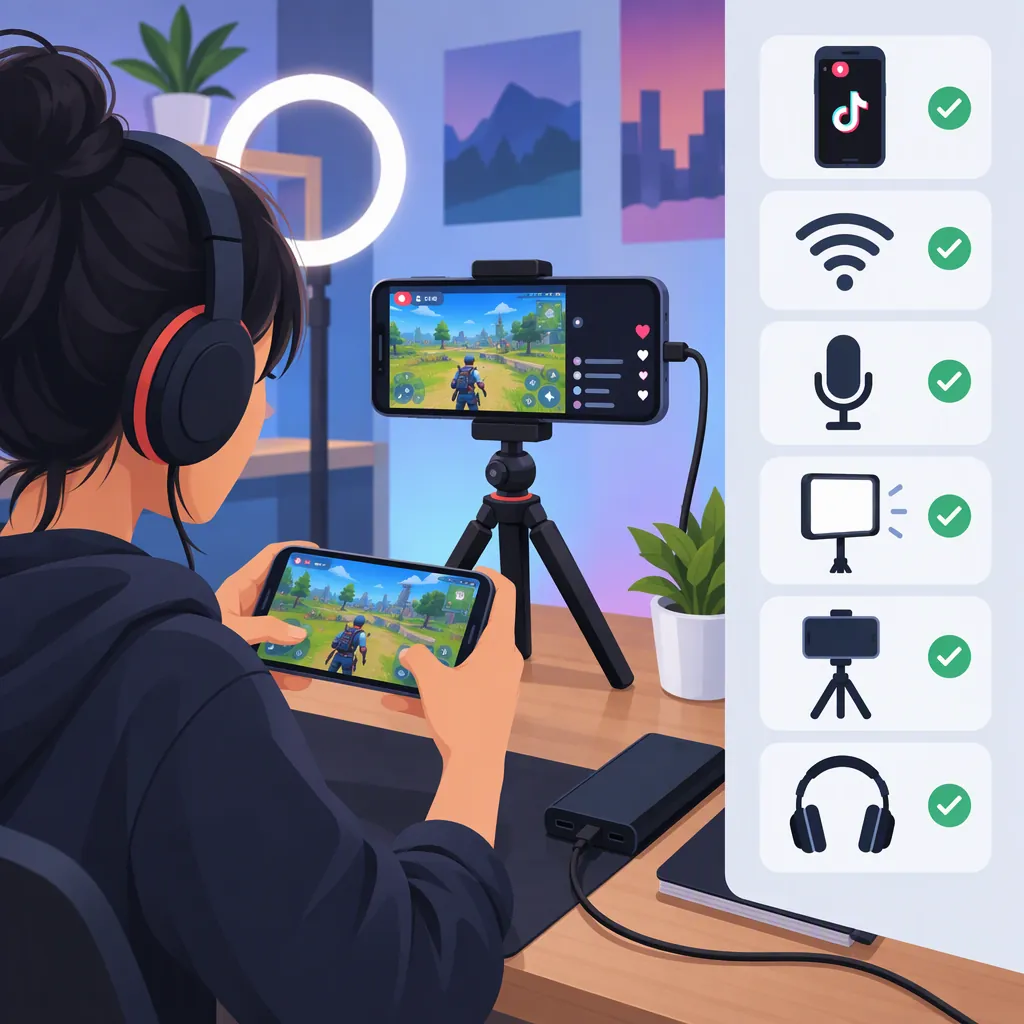
How to Set up a TikTok Mobile Gaming Live Stream
To set up a TikTok mobile gaming live stream, check whether your account offers LIVE and a mobile gaming or screen-sharing format. If available, select the relevant format, identify your game, add a title, and review capture and audio controls before starting. NearStream’s third-party guide describes a LIVE → Mobile Gaming workflow; use it as a reference, not a guarantee that your account has those options. [source_1]
Source limitation: This article’s only reference is a commercial third-party guide, not official TikTok documentation. Its age, follower-count, account-standing, and business-account requirements are not independently verified here and should not be treated as current TikTok rules. Check the eligibility notices and help within TikTok before making account changes. The preparation and testing advice below consists of general production precautions. [source_1]
Check Live Access Before Preparing Your Stream
First distinguish LIVE access from gameplay-sharing access. Finding LIVE is only the first check; also look for a format that explicitly offers mobile gaming or screen sharing. NearStream describes selecting Mobile Gaming from the available LIVE formats. [source_1]
Access Checklist
- Open TikTok’s creation controls and look for LIVE.
- If LIVE appears, inspect its available formats for mobile gaming or screen sharing.
- Read any eligibility or restriction notice shown for your account.
- Record the options actually available before choosing a setup.
- If LIVE or gameplay sharing is missing, pause setup and consult in-app help.
Do not assume that ordinary camera LIVE captures your game, or that a microphone, capture card, or account-type change will unlock a missing option.
Prepare Your Phone, Game, and Audio
Prepare a short test before attempting a full session. These are production precautions, not TikTok eligibility requirements:
- Prepare the game: Finish updates and login prompts before broadcasting.
- Arrange power: Charge the phone and position the charging cable so it does not interfere with play.
- Protect private information: Silence notifications and inspect the game for usernames, chat, or other information you do not want to show. Avoid opening messages, payment apps, or account settings while sharing.
- Review permissions: Read the capture and microphone permissions requested by the app.
- Test both audio sources: Check commentary alone, game sound alone, and then both together. Aim for speech that remains understandable during loud gameplay.
- Plan how to stop: Locate the available broadcast controls and determine how you will return to them from the game.
NearStream recommends clear audio, a stable internet connection, and attention to visual quality. Its equipment recommendations do not establish that extra hardware is necessary for a phone-only workflow. [source_1]
Preflight Checklist
- Game opens without pending updates or login prompts.
- Battery and charging arrangement are ready.
- Notifications are silenced.
- Personal information is removed from the intended broadcast view.
- Capture and microphone permissions have been reviewed.
- Commentary and game audio have each been tested.
- Game audio does not overpower speech.
- The connection is ready for a short test.
- The route back to broadcast controls and the stop control is understood.
Follow the Available Mobile Gaming Workflow
Use this sequence only if your account offers the relevant broadcast format. Button names and confirmation order should come from the interface you actually see.
- Open LIVE and choose the gameplay format. NearStream describes opening TikTok’s creation controls, selecting LIVE, and choosing Mobile Gaming. [source_1]
- Identify the game if prompted. Select the game or category shown in your app. The guide describes an Other Game option for an unlisted title; use it only if your interface offers it. [source_1]
- Add a descriptive stream title. For example: “Puzzle Game: Level Attempts and Commentary.” Adding a title before starting is part of the guide’s mobile workflow. [source_1]
- Review capture and audio settings. Read permissions and any preview or confirmation screen. If the interface lets you choose between sharing one app and sharing the whole screen, confirm the intended scope. If it does not make the scope clear, do not proceed until you understand what may be visible.
- Confirm how to return and stop. Before starting, look for instructions or controls for returning from the game to the broadcast interface. If stopping screen sharing and ending LIVE are presented as separate actions, identify both. Do not assume a particular overlay, button name, or gesture exists.
- Start sharing according to the displayed prompts. Enter the game when the interface directs you to do so. Treat a start confirmation as potentially public; do not assume that every setup screen is a private preview.
- Verify the viewer’s picture and sound. During a short initial session, use any available monitoring view or ask a trusted viewer to confirm that the intended game—not an unrelated screen—is visible. Test commentary and game sound separately, then together.
- End the test and confirm it has stopped. Return using the route you identified and use the displayed controls to end the broadcast and any separate sharing session. If capture is incorrect or private information appears, stop rather than navigating through sensitive screens while live.
These checks bridge the gap between selecting a format and playing the game without assuming a universal TikTok interface.
Short Test Plan
Goal: Verify gameplay capture, understandable audio, and a reliable way to stop.
- Choose a low-pressure game scene without private information.
- State what viewers should see, then verify the received picture if possible.
- Speak with game sound lowered to check commentary.
- Pause commentary briefly to check game audio.
- Test both together and adjust the balance if needed.
- End the broadcast, confirm sharing has stopped, and record one change for the next session.
Troubleshoot Access, Picture, and Sound Separately
An access problem is different from a capture or audio problem. Changing video settings is not a substitute for checking whether the required broadcast format exists.
| Problem | Suggested check |
|---|---|
| LIVE is missing | Read account notices and consult in-app help. Do not treat third-party eligibility claims as definitive. |
| LIVE exists, but gameplay sharing is absent | Inspect the formats offered to your account. Do not assume ordinary camera LIVE provides game capture. |
| Gameplay is missing or the wrong screen appears | Stop sharing, then review the selected capture mode and permissions before testing again. Avoid opening unrelated screens while live. |
| Game sound is present, but voice is missing | Check microphone permission and any microphone control offered by the broadcast interface. Test commentary separately. |
| Voice is present, but game audio is missing | Confirm that the game itself has sound. Check whether the current sharing mode offers a game-audio control, then test game sound separately from commentary. Do not assume every device or sharing mode provides the same audio options. |
| Game sound overwhelms speech | Reduce game volume and repeat the combined audio test. |
| Picture stutters | Test the connection, close unnecessary apps, and reduce quality if the interface offers that control. |
| You cannot find the stop control | Follow the return route identified before starting. After ending the session, clarify the controls before another test. |
Troubleshooting Log
Use one change per test so the result is easier to interpret.
Symptom:
Available LIVE format:
Selected capture mode or sharing scope:
Permissions checked:
Commentary test result:
Game-audio test result:
Connection tested:
One setting changed:
Result of the next short test:
Broadcast and sharing confirmed stopped:
Is a Desktop Setup an Alternative?
NearStream also describes a separate desktop workflow using streaming software, a TikTok server URL, and a stream key. That is not a guaranteed workaround for missing mobile access. If your account offers such a workflow, keep the stream key confidential; the guide also advises protecting it. [source_1]
FAQ
Do I Need a Business Account to Stream Mobile Games?
NearStream’s guide says a business account is required, but that claim is not verified by official TikTok documentation in this article’s reference set. Check the requirements shown for your account, and do not switch account types solely on that third-party claim. [source_1]
Do I Need a Stream Key for Phone-Only Streaming?
NearStream associates stream keys with third-party desktop software and describes mobile gaming separately through TikTok’s app. For the phone-only workflow it describes, follow the available in-app controls rather than assuming you need a stream key. [source_1]
What If My Game Is Not Listed?
NearStream describes an Other Game option for entering a game name manually. Use it if your interface offers it; the guide does not establish that it is available to every account. [source_1]
How Do I Check That Viewers Can See the Game?
Run a short session in a scene without private information. Use any monitoring view available to you, or ask a trusted viewer to confirm the picture and both audio sources. The third-party guide describes starting a mobile gaming broadcast, but it does not verify a universal monitoring interface, so use only the controls your app provides. [source_1]
Should I Buy Streaming Equipment Before Checking Access?
No purchase is justified by the reference alone. NearStream describes an in-app mobile workflow separately from its desktop and equipment advice. Confirm access and test your phone first; consider additional equipment only for a specific problem identified during testing. [source_1]