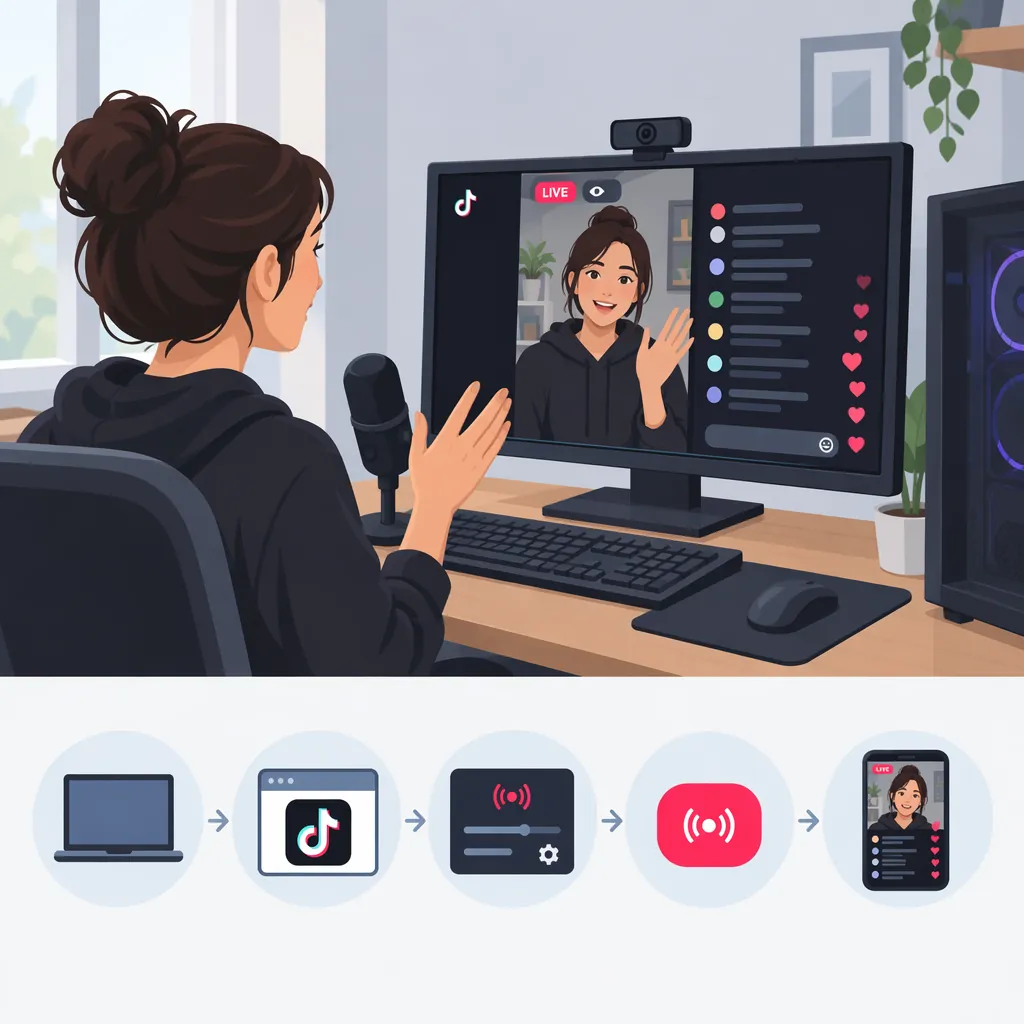
How to Start a TikTok Live Stream from Your PC
To live stream on TikTok from a PC, first confirm that your account has access to the desktop streaming method you want to use. If TikTok LIVE Studio is available to you, install it, sign in, configure your microphone, camera, and capture sources, then test before going LIVE. Alternatively, use OBS with a TikTok-provided server URL and stream key if your account exposes those credentials. Installing streaming software alone does not establish account eligibility. [c1]
Check Account Access Before Setting Up
Start with access, not video settings. The supplied desktop guide describes LIVE eligibility as dependent on age requirements, local follower thresholds, and account standing. It also notes that TikTok's server URL and stream key may not appear for every account. Do not assume that seeing LIVE on your phone means you have credentials for an external encoder. [c1]
Check which route your account actually offers:
- TikTok LIVE Studio: Sign in and check whether you can complete setup and access broadcasting controls.
- OBS or another external encoder: Look in TikTok's LIVE setup for a PC/console or streaming setup option that supplies a server URL and stream key.
- Neither route available: Check account restrictions and the eligibility information shown by TikTok before continuing.
Evidence limitation: The supplied references are third-party guides, not current TikTok policy documentation. The longer guide contains inconsistent age and follower guidance, while the XSplit article dates to April 2022. This article therefore does not present a fixed age, follower count, or desktop-access rule as verified current policy. Interface labels may also differ from those described here. [c1] [c2]
Set up TikTok Live Studio
If LIVE Studio is available for your account and computer, use this setup sequence. The supplied guide describes installation, sign-in, device selection, scene setup, and a preview or practice check before broadcasting. Treat the button names as examples rather than guaranteed current labels. [c1]
- Obtain LIVE Studio through TikTok's own site and install it.
- Sign in to the account you intend to broadcast from.
- Open the guided setup if offered.
- Select your intended microphone and camera. Check that the preview uses the correct devices.
- Create a scene containing the sources you need: camera, screen, window, or a combination.
- Arrange the sources so important content is readable and your camera does not cover it.
- Test the scene and audio before using the public Go LIVE control.
The guide describes a Practice option near the broadcasting controls, but says availability and wording can vary. If it is absent, do not assume that pressing Go LIVE will start a private test. [c1]
Use Obs Only with Available TikTok Credentials
The OBS route requires a server URL and stream key supplied by TikTok for your account. An OBS installation is not a substitute for those credentials. [c1]
- In TikTok's LIVE setup, locate the PC/console or equivalent streaming option, if available.
- Copy the server URL and stream key. Keep the key private and out of screenshots or screen-share sources.
- In OBS, open Settings → Stream and select the custom server option.
- Paste the server URL and stream key into their respective fields.
- Add your camera and capture sources, then arrange them on the canvas.
- Check audio levels, framing, and the selected destination before starting streaming.
Match the canvas to your intended presentation instead of assuming one orientation is mandatory. The supplied guide describes a vertical OBS canvas, while the older XSplit guide describes landscape streaming. Those examples do not establish a single current requirement for every TikTok workflow. [c1] [c2]
Choose and Check Your Capture Source
For a tutorial or presentation, choose the narrowest capture source that meets your needs. The supplied guide distinguishes entire-screen capture from single-window capture in LIVE Studio and OBS, and recommends window capture when you do not want other tabs or notifications visible. [c1]
- One application: Use Window Capture and confirm that the intended window is selected.
- A whole monitor: Use Screen Capture or Display Capture, then inspect everything visible on that monitor.
- A game: Add a game or window capture source and verify it in the preview before broadcasting. [c1]
As a privacy precaution, close unrelated tabs, hide private documents, and disable desktop notification previews. Check the actual captured image rather than relying only on what you see outside the streaming software.
Pre-Broadcast Checklist
- [ ] The correct TikTok account and streaming destination are selected.
- [ ] The microphone meter responds to speech without sustained clipping.
- [ ] The camera and capture sources show the intended content.
- [ ] Text is readable in the chosen layout.
- [ ] Private windows, notifications, and stream credentials are not visible.
- [ ] Unnecessary applications are closed.
- [ ] A laptop is connected to power.
- [ ] Any available practice test has been stopped before the public broadcast begins.
Troubleshoot Access, Audio, and Lag Separately
Use the symptom to decide what to check first. The supplied guide separates access problems from connection, audio, and performance issues. [c1]
| Symptom | First Checks |
|---|---|
| LIVE controls or credentials are missing | Check account eligibility, restrictions, and available desktop options; update the app or streaming software. |
| Microphone is silent | Confirm microphone permission and the selected input device; test the microphone separately. |
| Video buffers or stutters | Check connection stability, close unnecessary applications, and lower output resolution or bitrate. |
| A laptop slows down during the stream | Connect it to power and check heat and background workload. |
| The wrong screen appears | Re-select the intended capture source and inspect the preview before broadcasting. |
Avoid treating a hardware purchase as the first fix for an access problem. Likewise, changing the stream key will not address an incorrectly selected microphone. Use a short test after each change so you can identify what helped.
FAQ
Can I Live Stream on TikTok from a Laptop?
Yes, the supplied guide describes the same LIVE Studio or OBS workflows for laptops and desktop PCs, subject to account access and software compatibility. For a laptop, it recommends connecting to power, closing unnecessary applications, and managing heat. [c1]
Do I Need a Stream Key for Obs?
Yes, for the custom-server OBS workflow described here, you need TikTok's server URL and stream key. The supplied guide notes that this option may not appear on every account. Do not share the key. [c1]
How Many Followers Do I Need to Go Live?
These references do not establish a reliable current universal threshold. The supplied desktop guide says follower requirements can vary by location and account, but also contains conflicting eligibility wording. Check the requirements shown by TikTok for your account rather than treating a number from this article as authoritative. [c1]
What Resolution and Bitrate Should I Use?
The references offer example settings, not verified universal requirements. Choose settings your computer and connection can sustain, then test. If the stream buffers or stutters, the supplied guide recommends lowering resolution or bitrate and closing unnecessary applications. [c1]