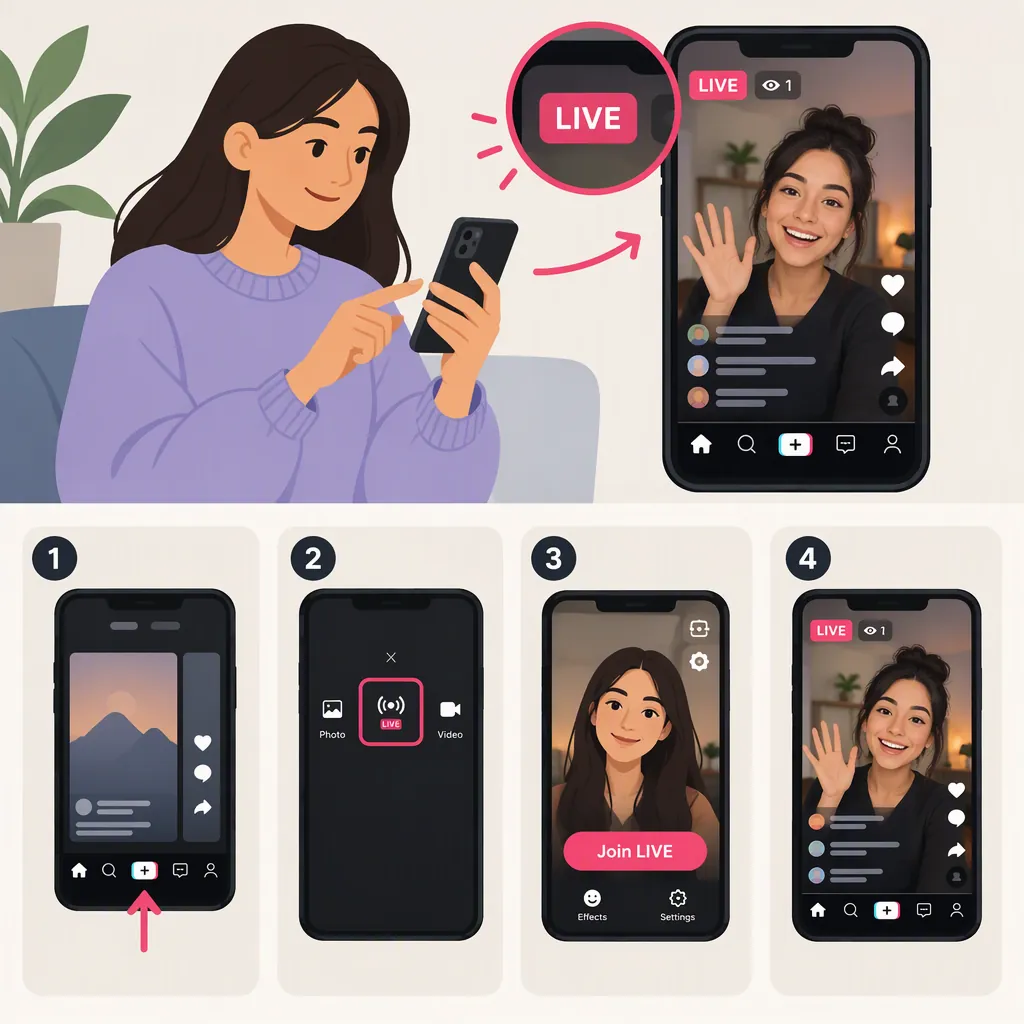
How to Join Someone Else’s TikTok Live
To join someone else’s TikTok LIVE as a guest, open TikTok, find a LIVE broadcast, and look for the multi-guest request option. Submit a request and wait for the host to approve it. If accepted, review your camera and audio settings before confirming that you want to go live. Watching a broadcast is different from joining it as an on-screen or audio guest. Button names and availability may vary. [ref1] [ref2]
Watching Versus Joining as a Guest
“Join a TikTok LIVE” can mean either opening a broadcast to watch it or becoming part of the broadcast as a guest.
To find a broadcast, open TikTok and look for LIVE, which QuickFrame describes as often appearing near the top of the app when live sessions are active. Select a broadcast to watch. To participate as a guest, you need to take the additional step of requesting access or accepting the host’s invitation. [ref1] [ref2]
Opening a broadcast does not itself complete the guest-joining process: the documented request flow requires host approval and a separate confirmation before you start broadcasting. [ref2]
Request to Join a TikTok Live
- Open a LIVE broadcast you want to participate in.
- Look for the multi-guest control. ScreenRant’s guide describes a Multi-Guest button with interlocking circles. QuickFrame’s newer guide notes that the request wording can vary. [ref1] [ref2]
- Submit your request. In the interface documented by ScreenRant, tap Apply. [ref2]
- Wait for the host’s approval. Sending a request does not guarantee acceptance. [ref2]
- Review the preview and settings if approved. The documented flow includes camera and audio controls, plus optional effects. [ref2]
- Confirm when ready. ScreenRant describes tapping Go Live, followed by a five-second countdown before joining. Treat that timing and those labels as a documented interface example, not a guarantee for every current app version. [ref2]
Before requesting, consider whether a guest would fit the session. A host may prefer to continue alone. Arranging participation beforehand can avoid interrupting a broadcast. [ref2]
Accept a Host’s Invitation
A host can also invite you rather than waiting for your request. ScreenRant describes an invitation notification appearing while you are watching the LIVE. In that documented flow, you can choose video participation or an audio-only option. [ref2]
If choosing video, review the preview and settings before tapping Go Live. The guide describes a countdown before you enter the broadcast. The invitation details come from a guide updated in March 2023, so follow the prompts actually shown in your app rather than expecting an identical layout. [ref2]
Before-Broadcasting Checklist
- Confirm that you intend to participate, not just watch.
- Review whether your camera and microphone are enabled.
- If using video, check the preview for anything private in the background.
- Confirm only when you are ready to be heard or seen.
If You Cannot Find the Join Option
The supplied guides do not establish one universal reason for a missing multi-guest control. QuickFrame notes that request wording can vary, while ScreenRant explains that hosts may decline guest requests. Neither establishes that every broadcast must offer guest access. [ref1] [ref2]
Distinguish a missing guest request control from a missing LIVE hosting option. QuickFrame discusses account eligibility and regional variation for starting your own broadcast; that information should not be treated as a complete rule set for joining another host. [ref1]
These references are third-party guides, not official TikTok documentation. They support the general joining workflow but do not verify every current account, region, or interface. Do not assume that an invitation guarantees access or bypasses eligibility checks.
FAQ
Does the Host Have to Approve My Request?
Yes. The documented request process requires the host to accept before you can proceed through the guest setup and broadcasting confirmation. A request may be declined. [ref2]
Can I Join a TikTok Live Without Showing My Face?
ScreenRant describes an audio-only option when accepting a host’s invitation. That guide was updated in March 2023, so check whether your current invitation offers that option rather than assuming it is always available. [ref2]
Do I Need 1,000 Followers to Join Someone Else’s Live?
The supplied references do not establish a universal follower requirement for guests. QuickFrame discusses a 1,000-follower threshold, with regional variation, for hosting your own LIVE and separately describes joining by request. Those hosting requirements should not be presented as a definitive guest-access rule. [ref1]