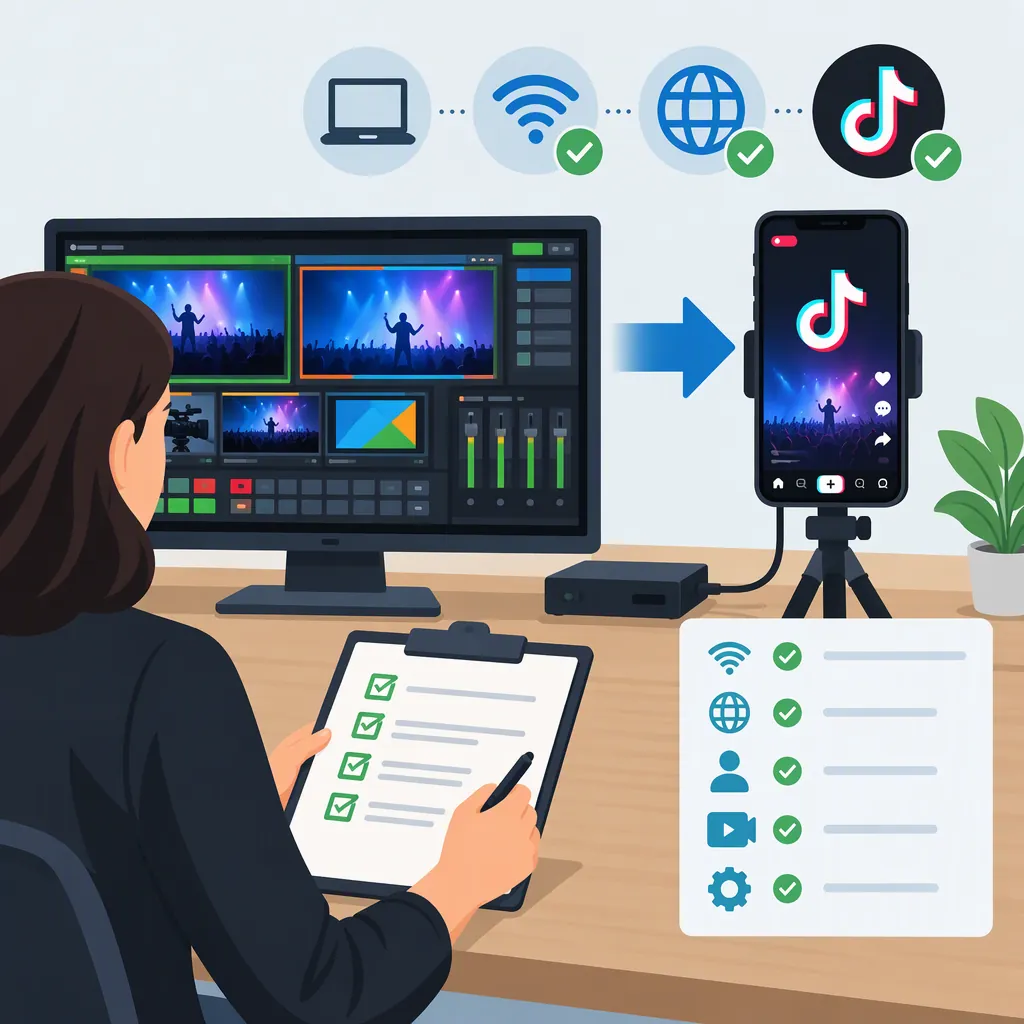
Streaming from Vmix to TikTok: Connection Checks and Test Workflow
To prepare a vMix-to-TikTok stream, first confirm that your TikTok account provides an external-encoder route. Obtain the connection details and output requirements from that account’s current live tools, then verify that your installed vMix version can use them. Only proceed to a destination test once both sides are confirmed.
This page is a preflight and testing guide, not a verified menu-by-menu setup tutorial. It does not establish TikTok account eligibility, a supported connection protocol, or TikTok-specific encoder settings. An unverified route is not the same as an unsupported route.
1. Confirm Your TikTok Account’s Connection Route
Start with the live-broadcast options available to the account you intend to use. Look for instructions that explicitly permit an external encoder and describe how to connect it. Do not substitute credentials or requirements from another account.
Record the following information before changing your vMix configuration:
| Information to confirm | Where to verify it | Pass condition | If not confirmed |
|---|---|---|---|
| External-encoder access | Your account’s current TikTok live tools and associated instructions | The account is explicitly offered an external-encoder route | Stop connection setup; leave access unverified |
| Connection method | Instructions for that route | The method and required connection fields are identified | Do not assume a protocol or destination preset |
| Destination details | Your account’s connection instructions | All required fields are available, including server details or credentials if applicable | Do not borrow details from a tutorial or another account |
| Video requirements | Instructions for the permitted route | Required values or permitted ranges are recorded | Leave unresolved settings unverified |
| Audio requirements | Instructions for the permitted route | Required audio settings are recorded | Do not infer them from video requirements |
| Orientation and layout requirements | Current destination instructions | Any stated requirements are recorded | Do not assume portrait output is mandatory |
Treat connection credentials as private. Exclude them from screenshots, shared troubleshooting notes, and visible production sources.
2. Match the Requirements to Your Vmix Version
Next, check the documentation for the version of vMix you have installed. Locate its streaming configuration instructions and compare them with the verified TikTok connection method.
Use this worksheet to keep the comparison explicit:
| Setting or requirement | TikTok account requirement | Corresponding vMix setting | Status |
|---|---|---|---|
| Connection method | Record the documented method | Record the matching documented option, if available | Confirmed / unresolved |
| Required connection fields | Record field names; keep secret values elsewhere | Record where each field belongs | Confirmed / unresolved |
| Video encoding | Record any specified codec, resolution, frame rate, bitrate, and keyframe requirements | Record the corresponding controls or documented limitations | Confirmed / unresolved |
| Audio encoding | Record the stated requirements | Record the corresponding controls or documented limitations | Confirmed / unresolved |
| Output orientation | Record any stated requirement | Record how the intended output will meet it | Confirmed / unresolved |
Proceed only when every required item has a documented match. If a field, option, or requirement remains unclear, stop at that point rather than guessing.
The available reference does not verify a TikTok connection method or establish encoder values. Accordingly, this guide supplies no universal TikTok preset, menu sequence, server address, or stream-key procedure.
3. Configure Only the Verified Route
If both the account route and the vMix configuration are documented, use this conditional sequence:
- Open the streaming configuration described for your installed vMix version.
- Select the connection option that matches the verified destination method. Do not select an option merely because its name appears relevant.
- Enter the account’s required destination details in the documented fields. Keep credentials out of the production picture.
- Set video and audio output to the verified requirements. Check each required value against your worksheet.
- Prepare the intended program output. Review cameras, titles, screen captures, transitions, and audio sources before attempting delivery.
If you cannot identify a documented match at any step, return to verification. This sequence is a decision framework, not proof that a particular TikTok account can connect through vMix.
4. Rehearse Locally, Then Verify Reception
Inspect the production locally before any permitted destination test. If the intended output is portrait-oriented, review framing and graphics in that shape rather than relying on a differently shaped preview.
Use observable checks instead of marking the rehearsal complete merely because the preview looks plausible:
| Check | Passing observation | If it fails |
|---|---|---|
| Framing and cropping | Essential subjects and graphics remain visible in the intended output shape | Adjust the layout and repeat the check |
| Text readability | Required text is complete and readable on a phone-sized preview | Resize or reposition it |
| Source transitions | Each planned source appears as intended, with no private desktop content exposed | Correct the source or transition |
| Program audio | Each intended microphone and audio source is audible | Review source selection and routing |
| Duplicate audio or feedback | No unintended repeated sound or monitoring feedback is heard | Isolate the affected audio path before testing delivery |
| Credential privacy | No secret values appear in any visible source | Remove or conceal them before proceeding |
If the account provides a permitted destination test, inspect the received stream as well as the local output. Confirm that video arrives, essential content remains visible, expected audio is present, and sound aligns with the picture. Note any viewing-interface overlap.
A correct local preview is not a delivery check. If reception fails, record the symptom separately as a connection, picture, audio, or layout issue, along with the non-secret settings used.
Keep TikTok Comments Separate from Video Delivery
Reference scope: The vMix Social documentation describes integrating social content into a production. It lists Facebook, Twitch, YouTube Live, Bluesky, IRC, and Zoom, and describes browser-based content review and approval. TikTok is not listed. This source therefore does not establish TikTok comment integration or vMix-to-TikTok streaming compatibility. [ref_1]
Verify any TikTok comment workflow independently of the video connection. Until it is verified, plan moderation without depending on comments appearing inside vMix.
FAQ
Can I Stream from Vmix to TikTok?
This guide does not verify that connection. First confirm an external-encoder route in your TikTok account, obtain its requirements, and check for a documented match in your installed vMix version. If any required part remains unresolved, do not treat the workflow as ready. The vMix Social documentation is not evidence of streaming compatibility. [ref_1]
Where Should I Get the Server Details or Stream Key?
If your account’s permitted connection route requires these details, obtain them from that account’s current live tools and associated instructions. This page does not establish that such credentials are available to your account. Do not use another account’s values or publish your own in troubleshooting material.
What Encoder Settings Should I Use?
Use the requirements documented for your account’s permitted route and verify that vMix can meet them. No TikTok-specific resolution, frame rate, bitrate, codec, or keyframe value is established here; the available reference concerns vMix Social rather than encoder configuration. [ref_1]
Does Vmix Social Support TikTok Comments?
TikTok is not listed in the cited vMix Social documentation. That omission does not prove that every possible comment workflow is unsupported, but it does not support claiming native TikTok comment integration. [ref_1]
What Should I Do If Local Output Looks Correct but TikTok Receives Nothing?
Separate production checks from connection checks. Recheck the verified destination method, required fields, and output requirements without sharing credentials. If access or configuration cannot be confirmed, leave delivery unverified rather than changing settings at random.