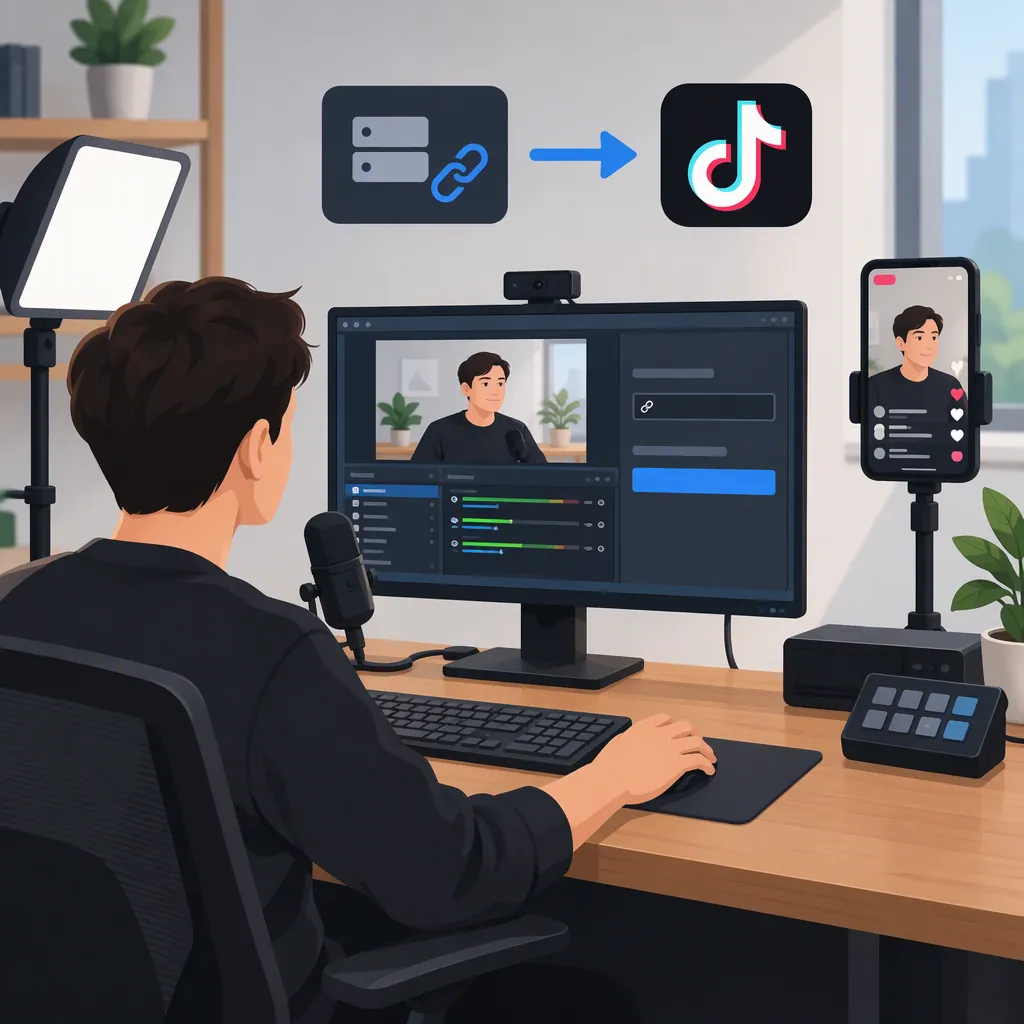
Rtmp for TikTok: Access, Stream Keys, and Desktop Setup
To stream to TikTok through a direct RTMP connection, you need TikTok-provided streaming credentials: a server URL and a stream key. Enter those values in your broadcasting tool’s corresponding destination fields, send your broadcast, and check the TikTok preview before starting the live session. Access is not guaranteed simply because you can go live in the mobile app. The supplied sources are third-party guides, not current official TikTok documentation, so confirm available controls and requirements in your account. [c1] [c2]
Check Your Connection Access First
Start with access, not encoder settings. Check whether your TikTok account exposes a server URL and stream key for external broadcasting.
Watchity’s guide describes a mobile-app route through + → LIVE → Cast to PC, where TikTok displays the streaming credentials. That guide carries a 2023 update date, so treat the menu labels as a historical walkthrough rather than a guaranteed current interface. [c1]
Do not assume that mobile LIVE access also grants access to every desktop connection method. Restream’s documentation explicitly distinguishes mobile LIVE, TikTok LIVE Studio, and access through its third-party connection. It also states that custom RTMP does not bypass TikTok’s eligibility requirements. [c2]
If the credentials are missing, pause the RTMP setup and check the access options shown in your account. Changing encoder settings is not a substitute for obtaining the required access.
Enter the Server Url and Stream Key
The supplied RTMP walkthrough uses two credentials obtained from TikTok: the destination URL and the stream key. [c1] Keep their roles separate when configuring your broadcasting tool:
- Open the tool’s streaming destination settings.
- Choose the custom RTMP destination option, if that is the workflow your tool provides.
- Copy TikTok’s server URL into the server or URL field.
- Copy TikTok’s stream key into the stream-key field.
- Recheck both entries before sending the broadcast.
Match the field labels rather than guessing from the order of the credentials. Watchity’s source wording is inconsistent about the URL and key labels, so use the labels displayed by TikTok and your broadcasting tool as the practical guide. [c1]
As a security precaution, keep the key out of screenshots, public notes, and on-screen captures. Use placeholders rather than actual credentials in any shared setup document.
Private Destination Setup Checklist
- [ ] TikTok exposes streaming credentials for this account.
- [ ] Server URL is entered in the destination URL field.
- [ ] Stream key is entered in the stream-key field.
- [ ] Neither credential is visible in the broadcast scene.
- [ ] TikTok preview is checked before the public broadcast begins.
Check the Preview Before Going Live
Watchity’s walkthrough separates connecting the incoming signal from pressing Go live in TikTok: it describes receiving a preview first, then starting the live session. Do not assume that an encoder’s connected status alone confirms a public TikTok broadcast. [c1]
Use the available preview to inspect your composition. Recommended checks include whether the intended scene is showing, text remains readable, and private desktop windows are excluded. Check audio using whatever monitoring controls your workflow provides.
Once live, keep the TikTok monitoring interface available where your connection supports it. Restream’s documentation identifies the TikTok live monitor as a place to follow chat, views, and new follows. [c2]
Troubleshoot Without Assuming Universal Requirements
Use the failure point to organize your checks:
- No URL or key: Verify that your account has access to the intended connection method. The supplied sources do not establish a universal way to obtain a key. [c1] [c2]
- Credentials available, but no preview: Recheck the destination fields and confirm that your broadcasting tool is sending the intended output.
- Preview available, but broadcast not public: Check whether TikTok requires a separate live-start action in your current workflow. [c1]
- Unclear encoder requirements: Follow any settings displayed by TikTok for your connection rather than importing a preset from another platform.
These references do not establish a current universal TikTok bitrate, codec, frame-rate, keyframe interval, or resolution requirement. They also do not provide sufficient official evidence for a definitive follower or age eligibility rule. This article therefore does not prescribe those values.
FAQ
Do I Need a Stream Key for TikTok Rtmp?
For a direct custom RTMP destination, the supplied guides describe using a TikTok server URL and stream key. An account-authorized connection is a different workflow; do not assume it provides credentials you can reuse in a direct RTMP setup. [c1] [c2]
Why Can’t I Find Cast to PC?
The Cast to PC route appears in Watchity’s guide, which carries a 2023 update date. The supplied evidence cannot determine whether your missing option reflects account access or a changed interface. Check the controls and access information currently shown by TikTok rather than treating that older menu path as universal. [c1]
Does a Follower Threshold Guarantee Rtmp Access?
No guarantee is established by these sources. Watchity’s guide says accounts meeting its stated follower threshold are not automatically approved, and Restream says access depends on the chosen connection method. Neither should be treated as a current official TikTok eligibility policy. [c1] [c2]