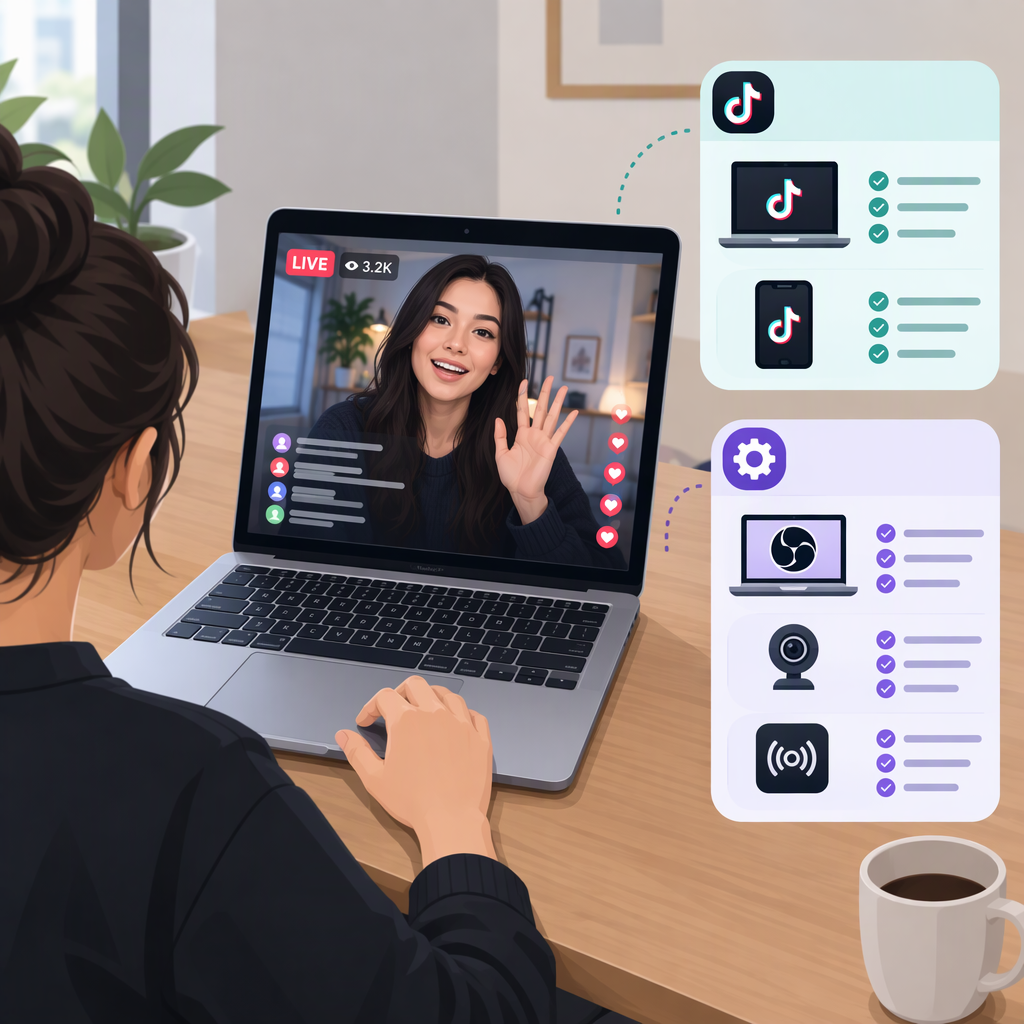
TikTok Live from a Mac: Official Options and Alternatives
Can You Go Live on TikTok from a Mac?
Yes. TikTok’s LIVE Studio is available for macOS as well as Windows, so an eligible creator can start a TikTok LIVE directly from a Mac using TikTok’s own desktop software. The catch is that having a compatible Mac does not automatically give your account LIVE access: TikTok says creators need to meet its LIVE eligibility requirements, and LIVE Studio may require separate access. (tiktok.com)
TikTok’s current LIVE Studio help page lists macOS hardware requirements, including a minimum Apple-silicon configuration of M1 with 8 GB of memory, and a recommended Apple-silicon configuration of M2 Pro or higher with 16 GB. For Intel Macs, it lists an iMac or Mac mini with an i7 or i9 processor, from 2019 or later, and 16 GB of memory as the minimum. Check TikTok’s requirements for your Mac model before installing; the page does not specify a minimum macOS version in the available guidance. (tiktok.com)
Start a Live with TikTok Live Studio on Mac
- Check that your TikTok account can go LIVE. TikTok’s guidance says creators must be at least 18—or meet the age of majority in their region—have the required follower count, which can vary by region, and follow TikTok’s Community Guidelines and Terms of Service. (tiktok.com)
- Download LIVE Studio from TikTok’s official download page and install the macOS version. (tiktok.com)
- Open the app and log in to TikTok. If you are not already a LIVE creator on the mobile app, TikTok says you may not have LIVE Studio access; it directs creators to apply for access. Follow the access prompt shown for your account. (tiktok.com)
- Set up the stream. Choose the LIVE content type, connect or select your camera and microphone, and adjust video quality to suit your internet connection and Mac’s hardware. (tiktok.com)
- Add the LIVE details, review the preview, and start the stream if the app gives your account access to do so. TikTok’s desktop guide describes setting up sources and LIVE settings, then checking the preview before starting. (tiktok.com)
What to expect: if LIVE Studio installs but does not let you start a broadcast, the likely issue to investigate is account eligibility or LIVE Studio access—not just Mac compatibility. TikTok says only eligible creators can go LIVE and directs eligible creators who still have trouble to report the issue through TikTok. (support.tiktok.com)
Alternatives If Live Studio Isn’t Available to You
- Use the TikTok mobile app. TikTok’s guide says to tap Create (+), select LIVE, set up the available LIVE options, and tap Go LIVE. This is a documented route if your account is eligible, but it starts the broadcast from a mobile device rather than your Mac. (tiktok.com)
- Use OBS only if TikTok provides your account with a Server URL and Stream Key. TikTok’s desktop guide describes configuring OBS with those TikTok-provided details, adding audio and video sources, checking the preview, and starting the stream in OBS. The guide does not establish that every account has access to a stream key, so don’t assume this route is available just because OBS is installed. (tiktok.com)
- Check TikTok’s browser LIVE option if it appears for your account. TikTok’s desktop guide also lists going LIVE through TikTok on the web, but the available instructions establish only that the route begins by opening TikTok in a desktop browser and logging in. They do not provide enough detail here to confirm availability for every account or give a complete browser walkthrough. (tiktok.com)
Choosing a Route
| Route | Best fit | What can block it |
|---|---|---|
| LIVE Studio on Mac | You want a TikTok desktop setup and your Mac meets the listed requirements. | Your account may not have LIVE or LIVE Studio access; hardware requirements also matter. (tiktok.com) |
| TikTok mobile app | You want the documented in-app route without setting up a desktop stream. | Your account still has to meet TikTok’s LIVE eligibility requirements. (tiktok.com) |
| OBS | You prefer using OBS and TikTok has provided the Server URL and Stream Key for your account. | TikTok-provided stream details are a prerequisite; their availability is not established for every account. (tiktok.com) |
| TikTok in a desktop browser | The web LIVE option is available to your account. | TikTok’s available guide does not establish universal access or provide complete steps. (tiktok.com) |
Bottom line: You can go LIVE from a Mac through TikTok LIVE Studio when your Mac and TikTok account have the required compatibility and access. If they don’t, the documented fallback is to use the eligible TikTok mobile route, or use OBS or a browser only if TikTok makes those options available to your account. Requirements and access can vary, so use the prompts and guidance shown in your TikTok account rather than assuming a particular follower threshold or stream setup applies to everyone.