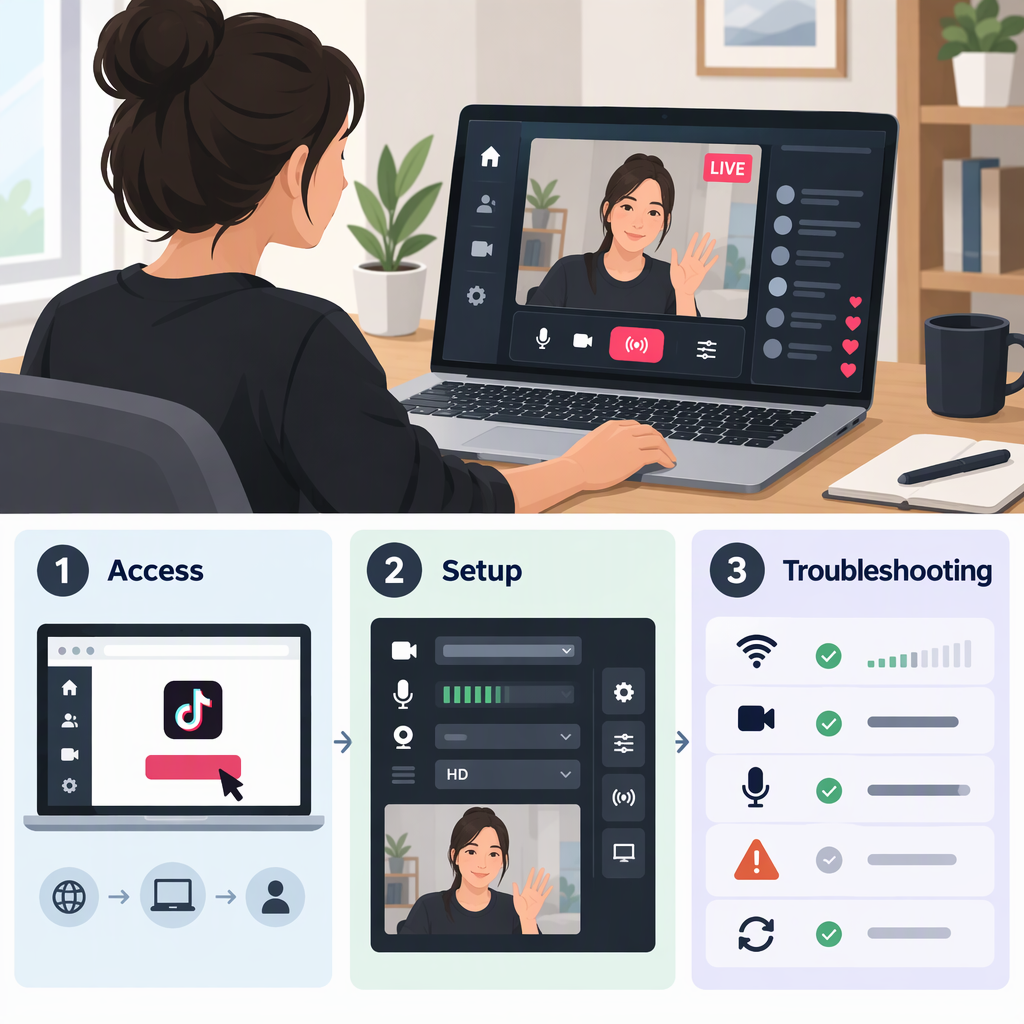
How to Go Live on TikTok from a PC: Access, Setup, and Troubleshooting
Can You Go Live on TikTok from a PC?
Yes. TikTok offers LIVE Studio, its desktop tool for eligible creators. To start, download it from TikTok’s official site, sign in to the account you want to stream with, and check your access inside the app. PC access is separate from simply installing the software: TikTok says eligibility varies by country or region and account, and LIVE features may not be available everywhere. (tiktok.com)
TikTok’s general LIVE requirements include being at least 18 and meeting the local minimum-follower threshold. LIVE Studio may have additional access requirements, such as account age, recent LIVE activity, follower count, and account standing; those conditions vary by region. Rather than rely on a follower number posted for another country or an older guide, use LIVE Studio’s Get access to go LIVE check. TikTok says it will show which requirements are still unmet. (support.tiktok.com)
Check Your Access and Computer Compatibility
- Download LIVE Studio using TikTok’s official download page, then sign in to the TikTok account you plan to use.
- In LIVE Studio, select Get access to go LIVE to see whether that account is eligible and whether any requirements are missing. You can also check through the TikTok app: tap +, choose LIVE, then tap Get access to go LIVE. (tiktok.com)
- If you already stream on another platform but are not an active TikTok LIVE creator, TikTok says you may have the option to apply using information about your external channel. Availability of this option is not guaranteed. (tiktok.com)
Check the operating-system requirement before installing. TikTok’s Creator Academy guide, updated October 20, 2026, says LIVE Studio is supported on 64-bit Windows. However, TikTok’s LIVE Studio setup guide and FAQ also say macOS is supported. Because TikTok’s own public guidance conflicts on macOS support, check the official download page for an installer for your computer rather than assuming a Mac version is available. (tiktok.com)
Set up and Start a TikTok Live on a PC
TikTok’s documented desktop route is LIVE Studio. The exact available options can vary with the account and software version, but the basic setup is:
- Install and sign in. Download LIVE Studio from TikTok, install it, and log in with the account whose LIVE access you checked. TikTok notes that installing the software does not necessarily mean you have permission to broadcast. (tiktok.com)
- Choose “Set up now.” Select the type of LIVE you plan to make. LIVE Studio uses this choice to suggest a setup. If you already use another streaming tool, TikTok’s setup guide says you may be able to import some settings. (tiktok.com)
- Select your camera and microphone. Connect the devices you intend to use and choose them in the setup. A camera is not necessary for every format—for example, you may instead share a screen or gameplay—but make sure the selected audio and video sources match what you want viewers to see and hear. TikTok documents screen-sharing and scene tools in LIVE Studio. (tiktok.com)
- Set video quality and screen orientation. TikTok says to adjust quality to suit your internet speed and computer performance, and offers portrait or landscape modes. Its Creator Academy guide recommends 1080p for best quality, but that is a recommendation, not a requirement; choose a setting your connection and hardware can handle. (tiktok.com)
- Add the content source you need and review the preview. For example, LIVE Studio’s screen-capture guide describes adding a game, display, or application window as a source. Check that the intended image and audio are present before broadcasting. (tiktok.com)
- Add a title and configure the available LIVE settings, then start from LIVE Studio. TikTok’s public guides describe getting the scene and settings ready, but the button labels and detailed desktop launch sequence can differ by version. Follow the on-screen start prompt in your installed version; do not assume mobile-app instructions apply to the desktop interface. (tiktok.com)
When you finish, end the broadcast using LIVE Studio’s on-screen end control and confirm if prompted. TikTok’s public desktop setup guidance reviewed here does not specify a current button label or detailed end sequence, so follow the control shown in your version rather than relying on instructions for the mobile app.
If Live Is Missing or Will Not Start
- The software opens, but you cannot start a broadcast: Check Get access to go LIVE first. Desktop LIVE requires LIVE access, and TikTok says local requirements may include account age, recent LIVE activity, follower count, and account standing. If a requirement is missing, resolve that condition or use the in-app Report a problem route if you believe access is incorrectly unavailable. (tiktok.com)
- You cannot find an installer for your computer: Check the official download page. TikTok’s published information conflicts about macOS support, while its Creator Academy guide specifically identifies 64-bit Windows support. (tiktok.com)
- The camera or microphone is not working: Confirm the intended device is connected and selected in LIVE Studio. TikTok’s setup process specifically asks creators to choose their camera and microphone. (tiktok.com)
- LIVE Studio crashes, will not open, or is unstable: TikTok recommends restarting the computer and LIVE Studio. Its troubleshooting guide also suggests reinstalling in the original installation location, updating the operating system and hardware drivers, and checking whether firewall or antivirus software is interfering. Changing security settings can affect your computer, so only do so when you understand the implications. (tiktok.com)
- You meet the stated requirements but still cannot go LIVE: TikTok’s Help Center says eligible creators who continue to have trouble should report the problem to TikTok. (support.tiktok.com)
Quick Pre-Live Check
Before starting, confirm that you are signed in to the right account, LIVE Studio shows access, your microphone and any camera or screen source are correct, and the quality setting suits your connection and computer. A separate camera, microphone, or capture device is only needed for the content setup you choose; TikTok’s basic setup guide does not require a particular external model or universal equipment package. (tiktok.com)