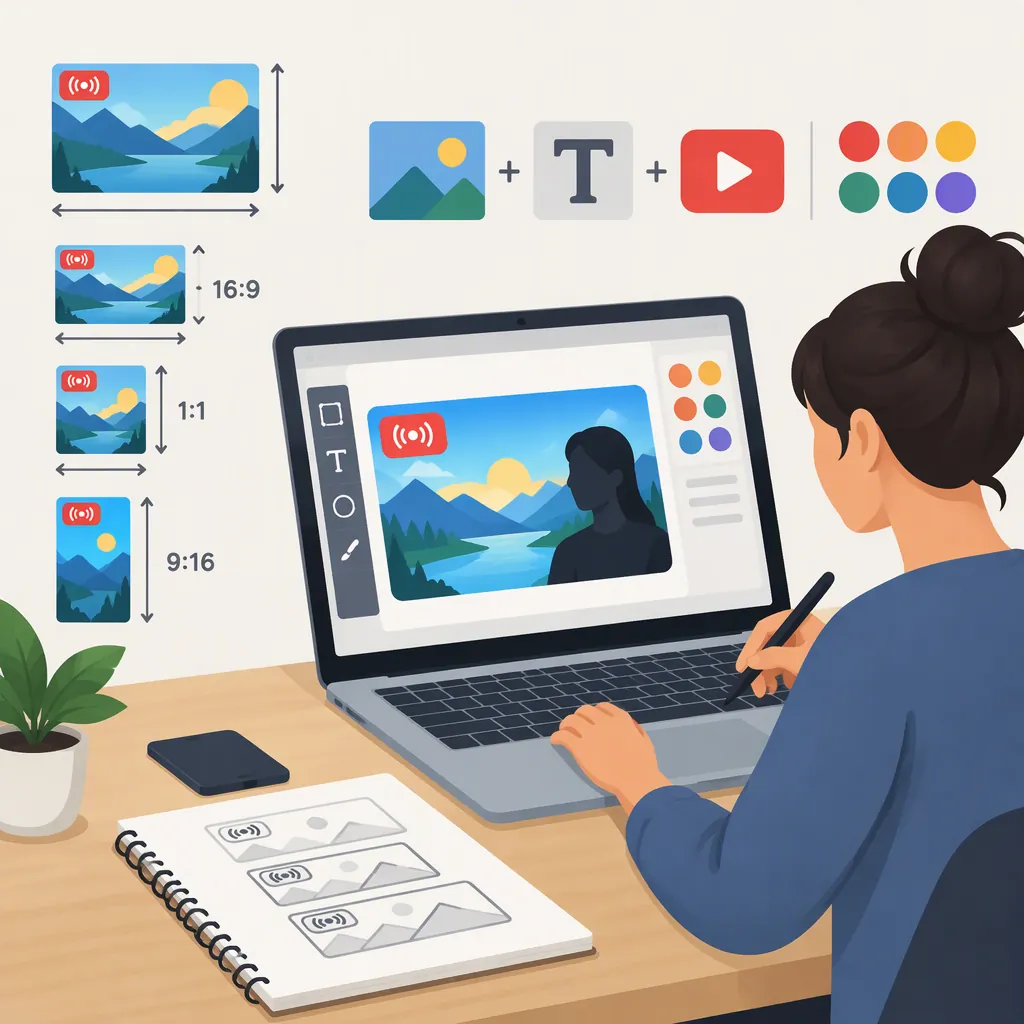
Live Stream Thumbnail Maker: YouTube Cover Size and Workflow
For a YouTube live stream thumbnail, use 1280 × 720 pixels—a 16:9 canvas—as a design starting point. Adobe’s YouTube thumbnail guide specifies those dimensions, but the supplied sources do not independently confirm current YouTube live-stream upload requirements. [source_adobe] Choose an editor that lets you control dimensions, position images and text, and export a readable cover. Before uploading, check the accepted file types and file-size limit in your current YouTube interface.
Choose the Canvas Size
Start your design at 1280 × 720 pixels. Adobe’s thumbnail guide gives this size for YouTube thumbnails; those dimensions produce a 16:9 aspect ratio. [source_adobe]
Treat this as a sourced design baseline, not a complete specification for live-stream uploads. Neither supplied reference is official YouTube documentation, and neither establishes current live-specific file formats, upload size limits, or account eligibility requirements.
As a practical design choice, build the cover on a landscape canvas rather than adapting a tall poster at the last minute. If your source photo has a different shape, crop it deliberately so the subject remains visible.
Canvas Setup Checklist
- Set the canvas to 1280 × 720 pixels.
- Confirm the aspect ratio is 16:9.
- Crop the main image without cutting off important details.
- Keep an editable copy for later changes.
- Check current upload requirements separately before publishing.
Evaluate a Live Stream Thumbnail Maker
Evaluate an editor by the controls you need, not by promises of more views. A useful selection checklist includes custom canvas dimensions, image cropping, movable text, sufficient contrast controls, and an export you can inspect before uploading.
The supplied Android app listing describes dimension selection, text and overlays, and saving finished graphics. It also labels the app as containing ads and in-app purchases. These are listing disclosures, not independent verification of output quality or the availability of every feature without payment. [source_app]
When comparing editors, check whether the specific template, font, image, and export option you intend to use has a cost or restriction. Do not assume that a tool described as free has unrestricted assets or exports.
Editor Evaluation Worksheet
- Canvas: Can I enter the intended pixel dimensions?
- Images: Can I crop and reposition the subject?
- Text: Can I adjust size, spacing, and contrast?
- Export: Does the saved image retain the intended dimensions and clarity?
- Restrictions: Are my chosen assets or export settings paid or watermarked?
- Reuse: Can I retain an editable layout for another stream?
Build a Clear Live Stream Cover
Use this suggested workflow to make the cover communicate the actual broadcast rather than decorate it:
- Define the topic. Write a short description of what viewers will see, then select the most useful words for the cover.
- Choose one main visual. Use a relevant subject photo, demonstration image, or illustration you have permission to use.
- Add a short headline. Adobe recommends bold, readable typography, high contrast, and roughly three to five words. Treat that word count as a design guideline, not a platform rule. [source_adobe]
- Use live wording accurately. Add “Live” only when it correctly describes the content. If you include a schedule, make the date and time zone unambiguous.
- Reduce competing details. Keep secondary labels smaller and remove elements that do not explain the stream.
- Preview at a small size. Check whether the topic and main subject remain understandable without zooming in.
Avoid relying on a fixed badge location: the supplied material does not establish a dependable overlay layout for YouTube live-stream thumbnails.
Reusable Cover Brief
Stream topic: [Describe the broadcast]
Main visual: [Identify the subject image]
Cover headline: [Write a short, accurate headline]
Live label: [Include only if appropriate]
Schedule: [Include date, time, and time zone only if needed]
Secondary detail: [Keep only what helps explain the stream]
Small-preview check: [Confirm the headline and subject remain clear]
Review the Export Before Uploading
Inspect the exported file, not just the editor preview. As a practical quality check, confirm the dimensions, look for blurred text or unintended cropping, and verify that the cover still matches the planned broadcast.
Check the current YouTube interface for accepted file types, maximum file size, and whether custom thumbnail uploading is available for your account. These requirements are not established by the supplied references, so this guide does not give an unsupported upload limit or a fixed sequence of interface buttons.
If the schedule or topic changes, review the cover again. A reusable layout can simplify revisions, but an old date or inaccurate topic label should not carry over into a new broadcast.
Pre-Upload Review
- Inspect the saved image for sharp text and correct cropping.
- Confirm the exported pixel dimensions.
- Read the headline at a reduced preview size.
- Verify topic, date, time, and time zone where included.
- Check the current YouTube upload requirements.
- Confirm the final cover matches the intended broadcast.
FAQ
What Size Should a YouTube Live Stream Thumbnail Be?
Use 1280 × 720 pixels, or 16:9, as the design baseline supported by Adobe’s YouTube thumbnail guide. The provided sources do not confirm current live-specific upload requirements, so verify those separately in YouTube before uploading. [source_adobe]
How Much Text Should I Put on the Thumbnail?
Aim for a short headline that explains the stream at a glance. Adobe suggests approximately three to five words, bold typography, and high contrast. This is design advice rather than a YouTube requirement; use additional words only when they add necessary clarity. [source_adobe]
Does a Free Thumbnail Maker Include Everything I Need?
Do not assume so. The supplied Android listing describes thumbnail-editing functions while also disclosing ads and in-app purchases. Check the cost and restrictions of your chosen assets and export settings before relying on an editor for the finished cover. [source_app]
Sources
-
[source_adobe] Free Online YouTube Thumbnail Maker | Adobe Express
-
[source_app] Thumbnail Maker - Channel art - Apps on Google Play