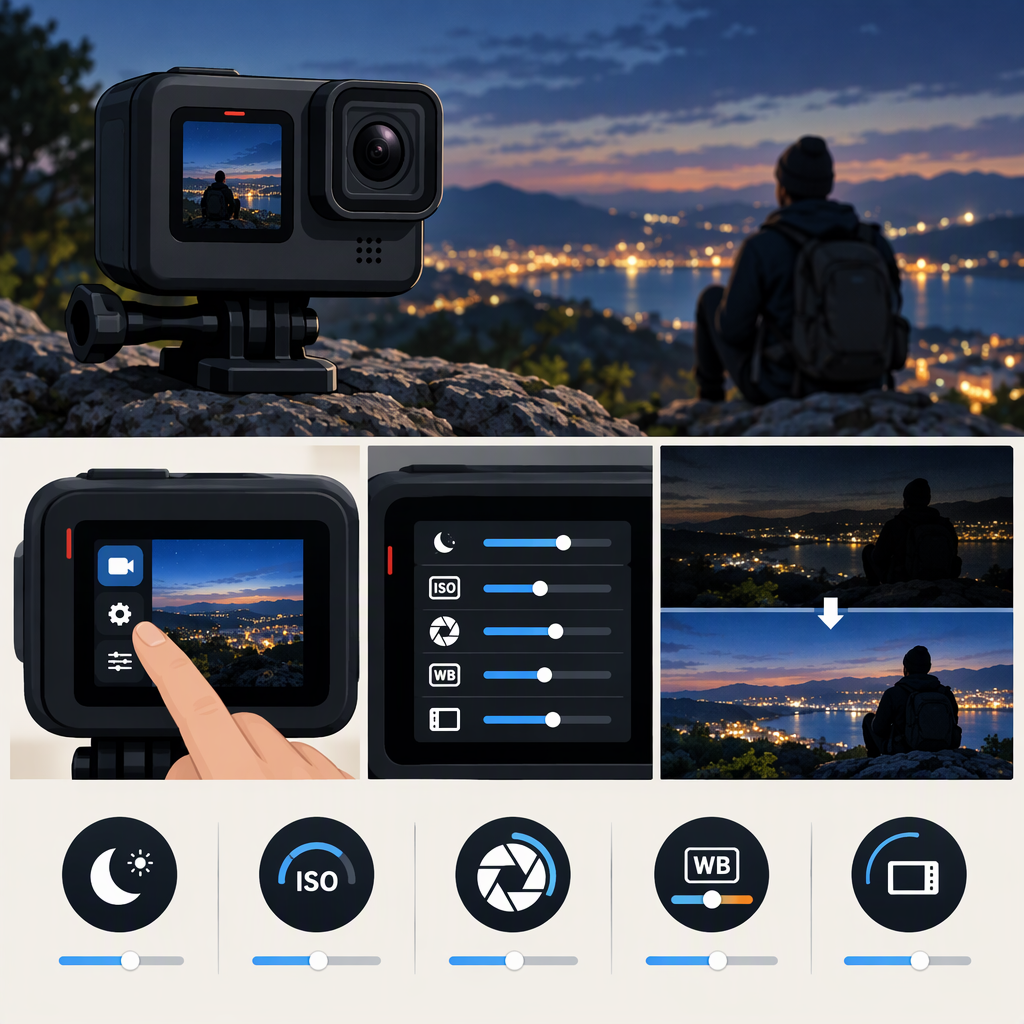
GoPro Low-Light Video: Practical Settings and Adjustments
GoPro Low-Light Video Settings: A Practical Starting Point
There is no single verified low-light preset that applies to every GoPro. Start with normal-speed video, not slow motion; Auto shutter unless you can keep the camera still; and the lowest ISO maximum that still gives you a usable picture. If you have a HERO11 Black, GoPro’s Easy Controls specifically lists 5.3K/30 fps as its “1x Speed / Low Light” option. That is a model-specific starting point, not a universal recommendation for other cameras. (community.gopro.com)
For a different model, begin with its normal-video preset and make a short test clip. If you use Pro controls, menu names and available settings vary by camera; GoPro’s product manuals are organized by model. (community.gopro.com)
| Control | Where to start | What to change—and the trade-off |
|---|---|---|
| Frame rate | Choose normal-speed playback, rather than a slow-motion setting. | If the clip is too dark, try a lower available frame rate before raising ISO. How exposure responds depends on the camera and shutter behavior, so compare test clips rather than assuming the change will brighten every model. |
| Shutter | Leave it on Auto if you are moving or unsure which manual value to use. | For a static scene, a slower shutter can admit more light, but movement during the exposure can look blurred. GoPro gives 1/60 as an example of a slower shutter to use in low light and suggests a tripod may help; treat it as a test point, not a guaranteed setting for every frame rate or subject. (community.gopro.com) |
| ISO limit | Start with the camera’s automatic ISO range, or set the maximum conservatively if your model allows it. | Raising the ISO maximum can brighten dark footage but may add visible noise. GoPro advises using the lowest maximum ISO that still produces a bright enough image. Its HERO13 guidance describes ISO 1600 as moderate brightness with moderate noise, and ISO 6400 as brighter with increased noise; available values and behavior vary by model. (community.gopro.com) |
| Exposure compensation (EV Comp) | Leave it unchanged for the first test. | If the picture is still too dark, try a small positive adjustment if your camera offers it. On HERO13, EV Comp adjusts brightness within the existing ISO limit; GoPro says increasing it has no effect once the camera has reached that limit. (community.gopro.com) |
| Stabilization | Choose a level that suits how much the camera is moving; options depend on model and recording mode. | Stabilization can crop the image, and on HERO12/11 GoPro describes Auto ISO behavior that can raise the maximum in low light with strong vibration to help prevent stabilized-motion-blur artifacts. Don’t assume the same controls or behavior apply to every GoPro. (community.gopro.com) |
For a simple first test: choose normal-speed video and Auto shutter; avoid slow motion; keep ISO behavior automatic or start with a moderate maximum the camera supports; leave EV Comp unchanged; then record a short clip. If the scene is static, compare that clip with one made using a slower shutter and the camera supported on a steady surface. If the subject or camera is moving, keep Auto shutter for the first comparison and avoid a long manual exposure that makes motion blur unacceptable.
Adjust for the Scene
Static Scene: Prioritize a Clean, Steady Image
For a room, night landscape, or other mostly still scene, first reduce camera movement: brace the camera or use a tripod. If your model provides manual shutter control, compare Auto with a slower setting; 1/60 is an example GoPro gives for low-light use, not a promise of a sharp result. A slower shutter can brighten the image, but movement in the scene can smear. If the clip is too dark, raise the ISO ceiling only as far as needed and inspect the added noise. (community.gopro.com)
Moving Subject or Handheld Action: Protect Motion Clarity
For people, pets, or action that moves through the frame, start with Auto shutter and normal-speed recording. If you raise the ISO maximum, the image may brighten but can look noisier; if you instead use a slower shutter, moving subjects may blur. On HERO12/11, GoPro says Auto ISO Max can expand to ISO 3200 in demanding HyperSmooth situations with limited light and substantial vibration, to help prevent artifacts associated with stabilized motion blur. That behavior is specific to the models named in GoPro’s guidance, not a general setting description for every GoPro. (community.gopro.com)
Very Dim Conditions: Know When Settings Are Not Enough
Try a supported lower frame rate if you do not need slow motion, keep the camera steady when the scene allows it, and compare ISO limits rather than immediately choosing the highest one. If you reach the model’s ISO limit, raising EV Comp may not help; GoPro explicitly notes that EV Comp cannot increase brightness after the ISO limit has been reached in low light on HERO13. At that point, the practical choices are to accept a darker or noisier image, reduce movement if possible, or add light to the scene. (community.gopro.com)
A Repeatable Test-And-Correction Workflow
- Check your camera model and shooting mode. Confirm the available frame rates and Protune controls in that model’s manual or settings. Controls vary by model, and GoPro’s HERO13 video-settings page says a firmware update may be needed for all listed modes and settings to be available. (community.gopro.com)
- Record a short baseline clip using normal-speed video, Auto shutter, and the current ISO behavior. Keep the camera position and scene as consistent as you can.
- Review the clip at normal playback and pause on a few frames. Identify the main problem: overall darkness, blur on moving details, or visible grain/noise.
- Change one thing at a time. For darkness, test a lower frame rate if available, a slower shutter only if movement is limited, or a higher ISO maximum if the model supports it. For blur, steady the camera or return to Auto shutter. For noise, lower the ISO maximum and see whether a darker but cleaner result is preferable. These are adjustment paths, not guaranteed fixes.
- Record the comparison again from the same position and choose the clip with the best balance of brightness, motion clarity, and noise for your use.
If your camera offers EV Comp and highlights are not already blown out, a small positive change can be worth testing. But if the camera has already reached its ISO limit, GoPro says EV Comp will not make HERO13 low-light footage brighter. (community.gopro.com)
Model and Firmware Limits
GoPro’s support documentation confirms that Protune controls vary by model. The specific ISO advice cited here covers HERO9, HERO10, HERO11, and HERO12; the shutter and EV Comp examples are from HERO13 guidance. Do not assume that the same numeric options, menu paths, or stabilization behavior are present on older, smaller, or different GoPro models. Find the manual for your camera and use the test workflow above to verify the result. (community.gopro.com)