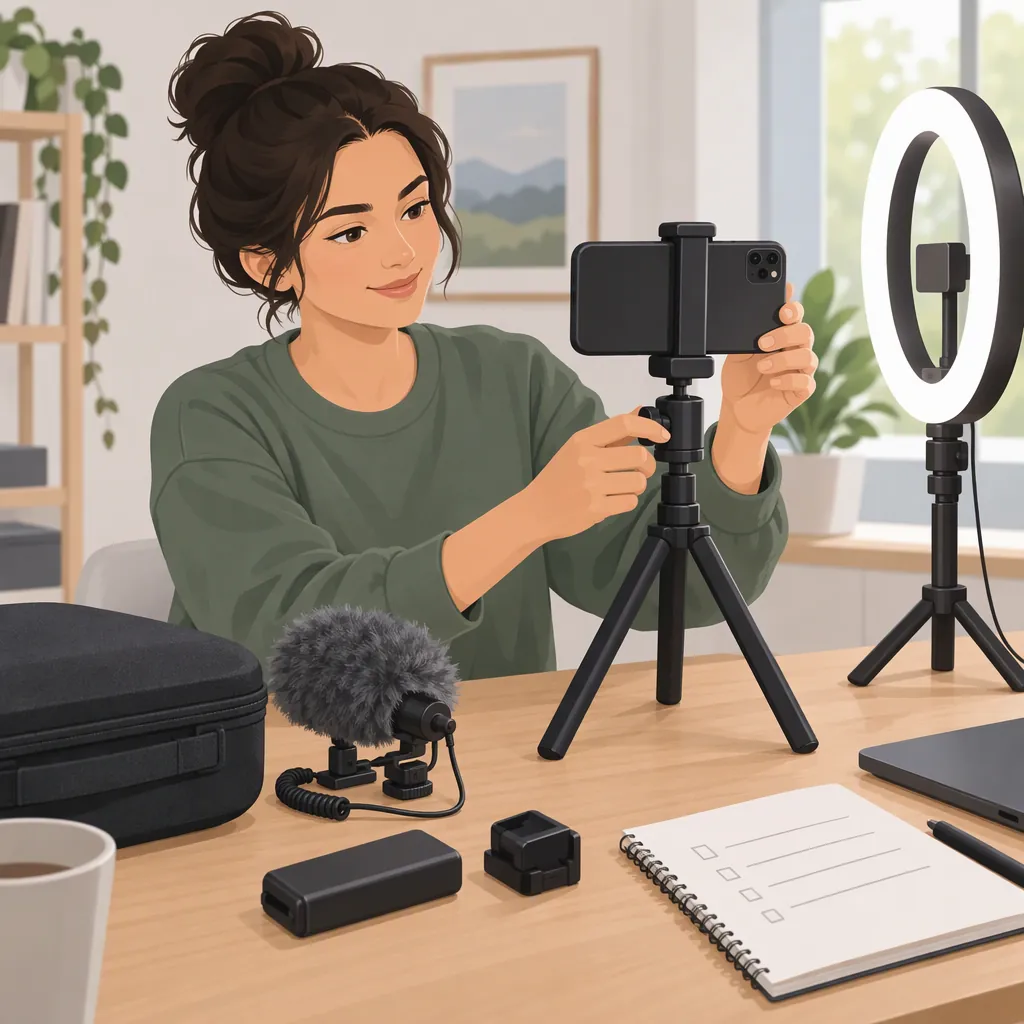
Digipower Vlogging Kit: Preparing for a Shoot
The Walmart Business listing identifies the Digipower Super Star Essential Vlogging Kit as a bundle with an LED light, microphone, tripod, and mount. This guide covers that named kit, not every Digipower bundle. Use the listed components to plan your setup—not as confirmation that they fit or connect to your recording device. [kit-listing]
Prepare in three stages: identify your exact kit, document its fit and connections, and record a short rehearsal to check the setup for your intended shoot.
Identify the Digipower Kit
Compare the full product name on the packaging with the cited listing, then record any model identifier and inspect the contents. The listing also describes an angle bracket for mounting accessories; that is a retailer description, not an independently verified specification or performance result. [kit-listing]
Do not assume another product labeled “Digipower vlogging kit” contains the same parts. Note which cables, adapters, and instructions are actually present before planning an assembly.
Kit Identification Record
- Full name on packaging:
- Model identifier, if present:
- Components actually present:
- Included cables or adapters:
- Missing or unidentified parts:
- Instructions available for this exact unit:
Check Fit and Connections Before Assembly
The cited Walmart Business listing does not provide a complete assembly procedure, connector specification, or device-by-device compatibility list. Use the documentation for your exact unit to resolve those details rather than inferring them from the component names. [kit-listing]
Separate each check into three statuses:
- Documented: You found the relevant requirement or instruction. Record its location and what it says.
- Tested: You tried the documented arrangement and recorded the observed result.
- Unresolved: Information is missing, or the test did not establish a usable result.
A successful test applies to the arrangement you tested; it does not establish compatibility with other devices, cases, adapters, or apps.
What to Check
| Part | Information to record | Practical check |
|---|---|---|
| Mount | Recording-device model, case, and documented fit requirements | Following the instructions, check whether the device fits and is held as intended without forcing it into place. |
| Tripod and bracket | Permitted attachment arrangement and the relevant instruction section | Confirm that the assembly matches the instructions before placing the recording device on it. |
| Microphone | Connector name, device input requirements, and any required adapter | Check the app's input options, then record and play back a sample. Do not assume attachment alone confirms which microphone is recording. |
| Light | Documented power requirements, power source, and controls | Follow the power instructions, then check the light's effect in the recorded image. |
Leave undocumented attachment or power arrangements out of the setup until you can verify them.
Setup Decision Sheet
Record concrete findings rather than only marking a check complete.
- Recording device model and case:
- Recording app and version:
- Mount requirement and documentation section:
- Mount fit observed:
- Tripod/bracket arrangement and documentation section:
- Microphone connector name:
- Required adapter, if any, and basis for using it:
- Device/app input support and where confirmed:
- Selected audio input, if the app identifies it:
- Light power requirement and documentation section:
- Power source used:
- Recording-test result:
- Status for each check—documented, tested, or unresolved:
- Remaining question and next verification step:
If an app does not identify its active audio input, record that limitation. Audible speech in a sample does not, by itself, prove that the external microphone supplied the audio.
Rehearse Your Intended Shot
Once the assembly and connections are verified, make a brief recording using your intended app, framing, speaking position, and lighting. For a demonstration, include the objects and movements you expect to show.
Play back the saved recording instead of relying only on the live preview. The following checks are general filming-preparation methods, not promises about the Digipower kit's results.
Short Rehearsal Checklist
- Framing: Does the subject remain in frame during the planned movement? Are required objects and gestures visible?
- Audio: Is speech understandable at playback? Listen for obvious distortion, interruptions, or background sound that masks words.
- Lighting: Can you see the details needed for the shot? Look for bright areas that lose visible detail on a face or demonstration object, and shadows that obscure important features.
- Movement: During an intended static shot, is there visible shaking or a change in framing?
- Input: If the app identifies the audio source, does it match the intended input? If not, leave input selection marked unresolved.
- Review result: Note what needs adjustment before recording the full piece.
A rehearsal is ready for the planned shoot when the subject and necessary objects remain visible, speech is understandable, important details are not obscured, and unwanted movement is not interfering with the shot. These are review criteria for your recording, not a product rating.
Change One Variable, Then Retest
Use the observed problem to choose one adjustment. Keep the rest of the setup unchanged so you can compare the recordings.
| Observation | One adjustment to try | What to compare in the next sample |
|---|---|---|
| The subject moves out of frame | Adjust the framing within the permitted setup | Whether the same planned movement stays in frame |
| Speech is difficult to understand | Change the speaking position while keeping the equipment fixed | Whether words are clearer and background sound still masks them |
| Speech sounds distorted | If the app provides an input-level control, change that setting | Whether distortion remains at the same speaking volume |
| A bright area hides facial or object detail | Change one available lighting control or the light's position within the documented arrangement | Whether detail becomes visible without obscuring another important area |
| The image moves during a static shot | Repeat the sample without touching the support or recording device | Whether movement persists; if it does, recheck the assembly against its instructions |
If a control or adjustment is not documented or available, skip it rather than improvising a connection or attachment.
Rehearsal Result Log
- Shot being tested:
- Sample name or timestamp:
- Problem observed:
- Single variable changed:
- Result after repeating the same shot:
- Decision—keep, adjust again, or unresolved:
Repeat the test after a meaningful setup change. Keep the final notes with the shoot plan so you know which device, app, connections, and arrangement produced the reviewed sample.
FAQ
Which Digipower Vlogging Kit Does This Guide Cover?
It covers the Digipower Super Star Essential Vlogging Kit named in the cited Walmart Business listing. It is not a description of every Digipower kit; compare your packaging and model identifier before using this guide to organize preparation. [kit-listing]
Will This Kit Work with My Phone?
The cited listing alone does not establish compatibility with a particular phone. Verify the exact unit's mount requirements and microphone connection, including any adapter requirements, then check your recording app's input support. Record documentation findings separately from your test results. [kit-listing]
Does the Listing Provide Full Assembly Instructions?
No. It names the components and describes an accessory bracket, but it does not provide a complete assembly procedure. Follow the instructions for your exact unit rather than inferring attachment steps from the listing. [kit-listing]
How Can I Check Whether the External Microphone Is Recording?
Check whether your device or app identifies the selected input, then record and play back a short sample. If the input source is not shown, note that it remains unconfirmed: hearing speech does not prove which microphone captured it. The cited listing does not provide device-specific instructions for selecting an audio input. [kit-listing]
Does the Kit Guarantee Better Video or Audio?
No such outcome is established by the cited retailer listing. Review a rehearsal made with your own setup for understandable speech, useful lighting, framing, and unwanted movement before relying on it for the full shoot. [kit-listing]