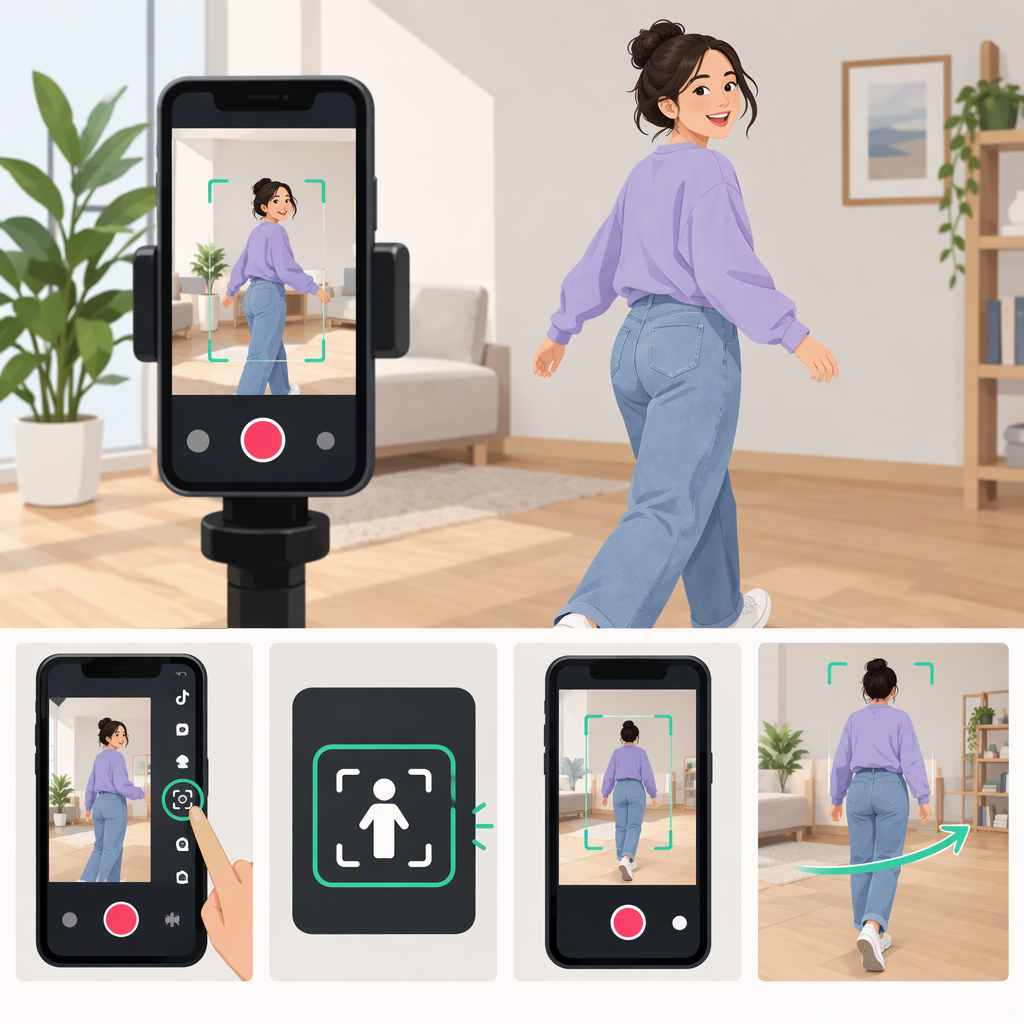
How to Make the Camera Follow You on TikTok
If you mean that the phone physically turns to keep you in frame, TikTok’s published camera-tool instructions don’t document a built-in follow mode. They cover controls such as flip, speed, timer, flash, and zoom; TikTok effects add visual changes rather than moving your phone. To get physical tracking, use a compatible tracking gimbal or stand. Some setups can track while TikTok is open; others require recording in their companion app and uploading the clip afterward. (support.tiktok.com)
Can TikTok’s Camera Follow You by Itself?
TikTok’s Help Center describes camera controls and effects, but those documented features are not the same as motorized subject tracking. A tracking effect might change how you look on screen; a tracking gimbal physically rotates the phone to follow your movement.
One documented example of tracking inside TikTok is Insta360 Flow Pro: its instructions say it can track in third-party iOS apps such as TikTok using Apple DockKit. That is an external gimbal feature, not a TikTok camera control, and it depends on your phone and app being compatible. (support.tiktok.com)
Set up a Supported Tracking Gimbal and Test It
The following steps describe the Flow Pro example—not every gimbal. Its maker specifies an iPhone 12 or later running iOS 17 or later for DockKit tracking, and directs users to check the tested-app compatibility list for third-party apps. App support and available controls can differ by setup. (onlinemanual.insta360.com)
- Mount the phone securely. Set up the gimbal according to its instructions, then place it on a stable surface or tripod if you’ll be filming hands-free.
- Pair the phone and gimbal. For the Flow Pro example, turn on the gimbal, enable Bluetooth and NFC, unlock the iPhone, align its NFC area with the gimbal, and tap Connect when prompted. The maker says a nod from the gimbal indicates successful pairing. (onlinemanual.insta360.com)
- Open TikTok and confirm compatibility. Before filming, confirm that TikTok is listed as supported for your specific phone-and-gimbal combination. For Flow Pro, the maker names TikTok as a supported third-party app; it also says DockKit tracking requires a compatible iPhone. (onlinemanual.insta360.com)
- Start tracking using the gimbal’s instructions. Point the camera toward yourself and use the documented tracking control. The Flow Pro instructions describe using the trigger button to start or stop tracking; its indicator light signals tracking status. Controls may differ in a third-party app, so follow the instructions for your particular setup. (onlinemanual.insta360.com)
- Make a short test before recording the full video. Record a few seconds while doing the movement you plan to use—for example, stepping left and right and turning your body. Review the clip: are your face and upper body still in the intended part of the frame, or does the phone lag, lose you, or follow someone else? Change your starting position or movement and repeat the test if needed.
- Record in TikTok if tracking works there. If your setup doesn’t support tracking in TikTok, record in the manufacturer’s tracking app instead, then upload the saved clip in TikTok. TikTok documents both recording in the app and uploading videos, but exact recording and export steps depend on the tracking setup. (support.tiktok.com)
If the Camera Doesn’t Keep You in Frame
Use a short repeat test to isolate the problem:
- Tracking doesn’t start: Check the gimbal’s status indicator and confirm that tracking is enabled. For the Flow Pro example, the maker says third-party-app tracking works only when the app is on its DockKit compatibility list. (onlinemanual.insta360.com)
- Tracking works in one app but not TikTok: Check third-party-app compatibility for your exact setup. The Flow Pro instructions distinguish tracking in native and third-party apps from tracking through the Insta360 app’s Live Mode; those are different workflows. (onlinemanual.insta360.com)
- The gimbal pairs but won’t track: For the Flow Pro, its troubleshooting guide recommends checking the phone model and iOS version, Bluetooth pairing, and tracking status. It also notes that the iPhone’s native camera may need to be in Video mode; don’t assume that specific camera-mode fix applies to TikTok or another setup. (onlinemanual.insta360.com)
- It loses you during movement: Try the same movement again at a slower pace and watch whether the subject stays acquired. If your setup still loses the subject, check its documented tracking limits or use the manufacturer’s app if it offers a separate tracking mode. The Flow Pro maker specifically recommends its app for more complex environments or fast, wide-ranging movement. (onlinemanual.insta360.com)
- It follows another person: Keep other people out of the camera’s view during the test if possible. Flow Pro’s DockKit instructions say that after losing the tracked subject, it may track a different person who appears in frame. (onlinemanual.insta360.com)
Bottom line: TikTok’s documented camera tools are not a physical camera-follow feature. For physical tracking, use a compatible external setup; check whether it supports tracking in TikTok, and verify the framing with a short test clip before filming your full video.