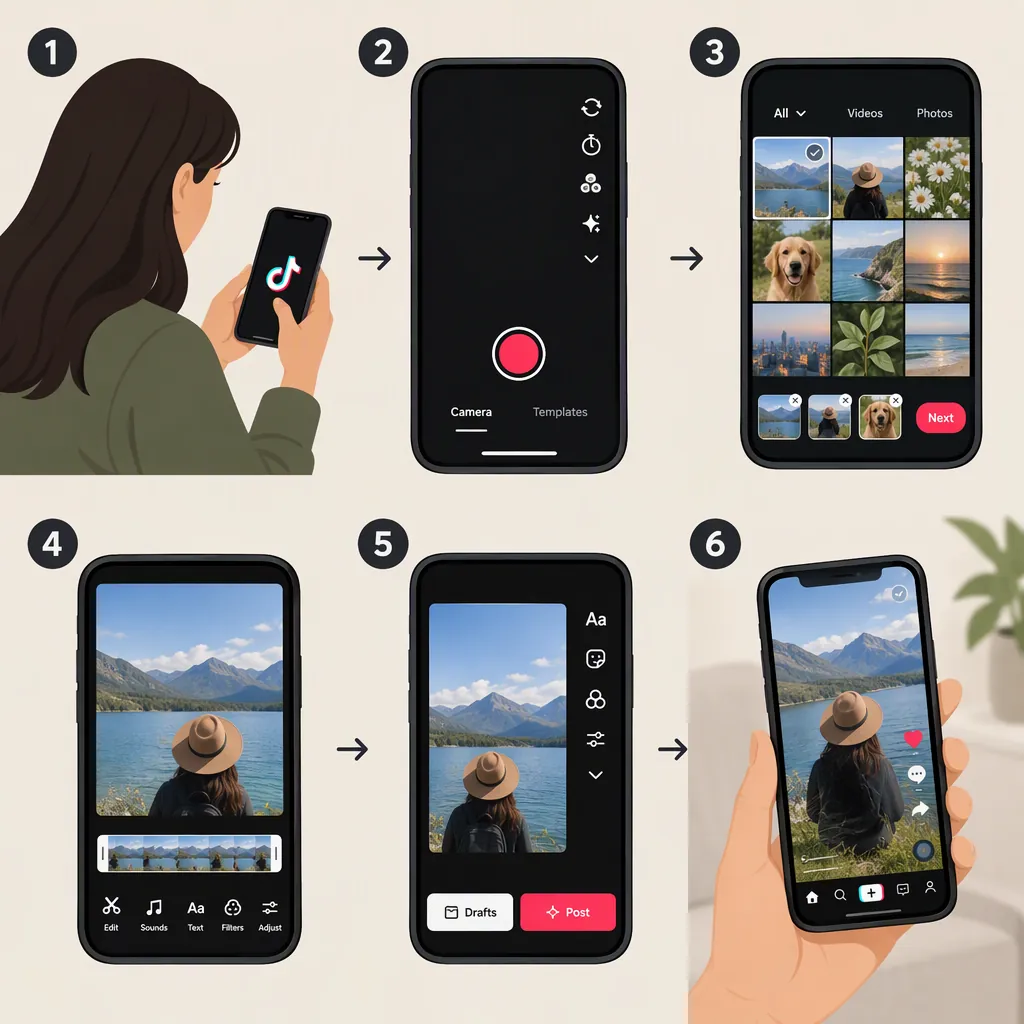
How to Make a TikTok Video from Your Camera Roll
Open TikTok, tap the plus (+) creation button, choose Upload, and select videos or photos from your camera roll. Edit the selected media, then review the description and posting settings before publishing. These steps come from a November 2022 guide; the current app’s labels and layout may differ.
Choose Your Saved Clips or Photos
Start by deciding which saved videos or photos belong in your TikTok. You do not need to record new footage inside the app: the referenced upload guide describes importing videos, photos, or multiple items from your camera roll. [citation-1]
For a simple first edit, choose one clip. For a sequence, decide what viewers should see first, what comes next, and how the video should end before selecting your media.
If you are preparing footage in a separate editor, the guide recommends a vertical canvas of 1080 × 1920 pixels, with a 9:16 aspect ratio. Treat this as a composition recommendation, not a verified current upload requirement. The guide also notes that horizontal videos can be uploaded. [citation-1]
Upload Your Media to TikTok
Follow the upload sequence documented in the guide: [citation-1]
- Open TikTok and tap the plus (+) icon at the bottom of the screen.
- Tap Upload, shown in the bottom-right corner in the guide.
- Select the video or photos you want to use from your camera roll.
- If you want more than one item, use the multiple-selection option described in the guide.
- Continue to the editing stage.
Interface limitation: The source was published on November 24, 2022. Use these steps as a starting point rather than a guarantee that every button has the same name or position in your current app. [citation-1]
Edit and Review Before Posting
The guide places editing after media selection and before publishing. It also describes reviewing the description and settings before posting. [citation-1]
Use that stage to check your video deliberately:
- Opening: Does the first moment make the subject clear?
- Sequence: If you selected several items, does the story make sense?
- Framing: Is the important subject visible in the preview?
- Audio: Listen through once to check whether the sound supports the video.
- Description and settings: Read what you have written and check the available posting choices before publishing.
These are review suggestions, not claims that every TikTok version offers the same editing controls. When the result is ready, continue through the app’s posting flow.
Keep Your Original Footage
If you also intend to use the footage elsewhere, consider keeping your original camera-roll files or a separate exported edit. The guide suggests capturing clips outside a social app or editing them in a separate program, then uploading to each platform individually. [citation-1]
That is optional: the camera-roll upload workflow itself only requires selecting your saved media, editing it, and reviewing the post before publication.
FAQ
Can I Make a TikTok from a Video Already on My Phone?
Yes. The referenced guide describes choosing Upload from TikTok’s creation screen and selecting a saved video from your camera roll. Its instructions date to November 2022, so the current interface may look different.
Can I Select Multiple Videos or Photos?
The guide says you can select videos and/or photos and use a multiple-selection option. Check the selection controls shown in your app rather than relying on the guide’s older button placement.
Does My Camera-Roll Video Have to Be Vertical?
The guide says horizontal videos can be uploaded, but recommends vertical video at 1080 × 1920 pixels with a 9:16 aspect ratio. That recommendation is not a verified current technical requirement.