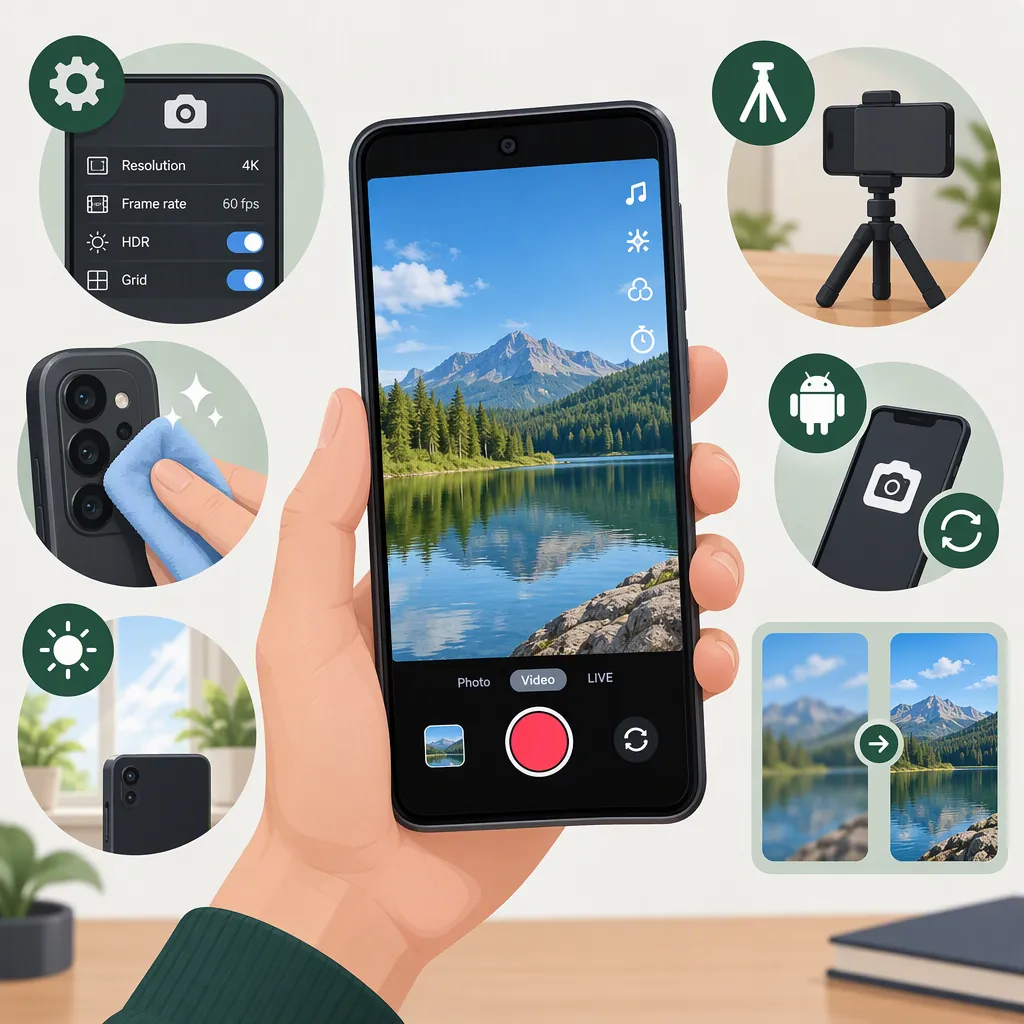
How to Make Your Android Camera Better on TikTok
Start with a clean lens, a steady phone, and even light on your subject. Check focus and brightness before recording, then compare footage from your Android camera app with footage recorded inside TikTok. If the original looks good but the TikTok version does not, check editing, export, and playback separately before changing more camera settings.
For a starting export test, try vertical 9:16 video at 1080p. Mixcord’s April 2023 guide recommends this workflow, along with phone support, lighting, and optional 4K recording. Its recommendations are starting points—not guaranteed fixes or verified current TikTok requirements. Android controls vary by device, and older TikTok menu instructions may no longer apply. [citation-1]
Start with the Recording Setup
Before changing resolution or codecs, record a short scene you can repeat. Mixcord recommends a sturdy phone setup, a tripod or gimbal when needed, and suitable lighting; it identifies unwanted camera movement as a possible source of blurry or distracting footage. [citation-1]
Use this basic check before each test:
- Check the lens: Look for fingerprints or smudges and gently clean the lens before recording.
- Light the subject: Position the subject so light falls evenly across their face or the object you are filming. Compare this with your existing setup.
- Check focus: If your app supports tap-to-focus, select the subject. Record a short clip and check whether the intended subject—not the background—looks sharp.
- Check exposure: Look for bright areas that have lost visible detail. If your app offers exposure adjustment, try lowering it slightly and compare.
- Support the phone: Use a secure support or tripod for a stationary scene, then compare it with handheld footage.
These are observation-based tests, not a promise that any one adjustment will fix the video. Keep the subject, framing, and lighting consistent, and change only one thing at a time.
Recording Comparison Checklist
- Choose one short scene with consistent lighting.
- Check the lens, subject focus, and brightness.
- Record with your usual setup.
- Repeat with one change, such as supporting the phone.
- Compare the saved clips for subject detail and unwanted movement.
- Keep the better setup for the next test.
Test Your Android Camera Settings
Do not treat manual mode, 4K, or a codec change as automatic upgrades. Mixcord recommends all three for Android recording, but acknowledges that available settings differ between devices. [citation-1]
Start with Automatic Mode
If you are unfamiliar with manual video controls, use automatic mode as your baseline. First check whether the subject is in focus and whether bright areas retain detail.
If your camera app offers manual controls, test a specific adjustment rather than simply switching modes:
- Focus: Try adjusting focus on a stationary subject, then compare subject detail with the automatic recording.
- Exposure: If the subject looks too bright, adjust one available exposure control and record another short clip.
- Other controls: Leave them unchanged during the comparison so you can identify which adjustment helped.
Manual mode is an option to test, not a required step for better TikTok footage. The source recommends it but does not establish that it improves every Android recording. [citation-1]
Compare 4K with Your Current Resolution
If your phone supports 4K video, record the same scene at 4K and at your usual resolution. Compare the original files, then compare exports made with the same settings.
Mixcord recommends capturing at 4K and reducing the resolution during editing. Treat that as a workflow to evaluate—not proof that every Android phone needs 4K for TikTok. [citation-1]
Change Hevc Only for a Clear Reason
If your editor has trouble opening or handling a recording, check whether your camera app offers a High Efficiency Video Coding (HEVC) setting. Mixcord recommends disabling it for editor compatibility, not as a direct sharpness improvement. [citation-1]
There is no universal Android menu path established by the source. Look for equivalent controls in your camera app rather than following iPhone-specific instructions.
Find Where the Quality Changes
Make two comparable recordings: one in your Android camera app and one inside TikTok. Keep the camera, framing, lighting, and phone support the same where possible. This is a troubleshooting comparison—not a claim that either app always produces better footage.
Then check the workflow in four distinct stages:
| Stage | What to inspect | What to test next if it looks poor |
|---|---|---|
| Original recording | Subject detail, focus, brightness, and movement in the saved file | Recording setup or camera controls |
| Edited export | Whether detail or framing changed compared with the original | Editing and export settings |
| Upload preview | How the selected video appears before posting | Note the difference, but do not treat it as proof of the published result |
| Published playback | How the posted video looks under consistent viewing conditions | Upload controls or playback settings, if earlier files looked good |
When comparing published playback, use the same viewing device and similar viewing conditions. An upload preview alone cannot establish how the published video will look.
Choose your next test based on the first stage where you notice a difference. Mixcord discusses recording, editing, and uploading as separate parts of the quality workflow, but does not establish a device-by-device winner between Android camera apps and TikTok. [citation-1]
Check Export and Upload Settings
Try a vertical 9:16, 1080p export as your comparison baseline. If you recorded at 4K, test resizing during editing before uploading; this is the workflow recommended by Mixcord’s 2023 guide. [citation-1]
Keep the original recording and inspect the exported file before posting. If the export already looks worse, investigate that step rather than assuming TikTok caused the change.
If your current TikTok version offers a high-quality upload control, include it in a separate test. The older guide describes Upload HD under More options on the posting screen, but that label, location, and availability should not be treated as universal today. [citation-1]
The guide’s stated resolution ceiling and file-size limits are also not verified current platform requirements. A 1080p export is a test baseline here, not evidence that TikTok currently rejects or cannot support higher-resolution uploads.
Treat Data Saver as a Playback Check
If you can find TikTok’s Data Saver setting, compare playback with it on and off while leaving the video unchanged. Keep this separate from camera and export tests.
Mixcord describes Data Saver as reducing cellular data use while watching videos and recommends disabling it when troubleshooting quality. It also suggests possible recording or upload effects, but that does not establish that Data Saver caused a particular blurry Android video. [citation-1]
A playback difference alone is not proof that the original recording or uploaded file changed. Avoid switching every setting at once: the goal is to identify the stage that needs attention.
FAQ
Should I Record Android TikTok Videos in 4K?
Try it if your phone supports it, and compare both the original recordings and their exports. Mixcord recommends 4K capture followed by a 1080p export, but the evidence does not establish that this workflow improves every Android phone’s TikTok videos. [citation-1]
Is Manual Mode Better than Automatic Mode for TikTok?
Not necessarily. Start with automatic mode if you do not understand the manual controls. If you test manual mode, adjust focus or exposure individually and compare the results. Mixcord recommends manual mode for Android, but does not demonstrate a universal advantage. [citation-1]
Does Turning Off Hevc Make the Camera Sharper?
Do not treat it as a sharpness fix. The cited recommendation is about video-editor compatibility. Consider changing HEVC if your editor has trouble handling the recording, rather than assuming the change will improve detail. [citation-1]
What If I Cannot Find Upload Hd in TikTok?
The April 2023 guide places Upload HD under More options, but that does not establish its availability in your current app. Continue checking the original recording, exported file, and published playback rather than assuming a missing control is the cause of poor quality. [citation-1]
Should I Record in the Android Camera App or Inside TikTok?
Compare both using the same scene and setup. Choose based on the resulting footage and your editing needs, not a blanket rule. The cited guide does not establish that one recording app is better on every Android device. [citation-1]