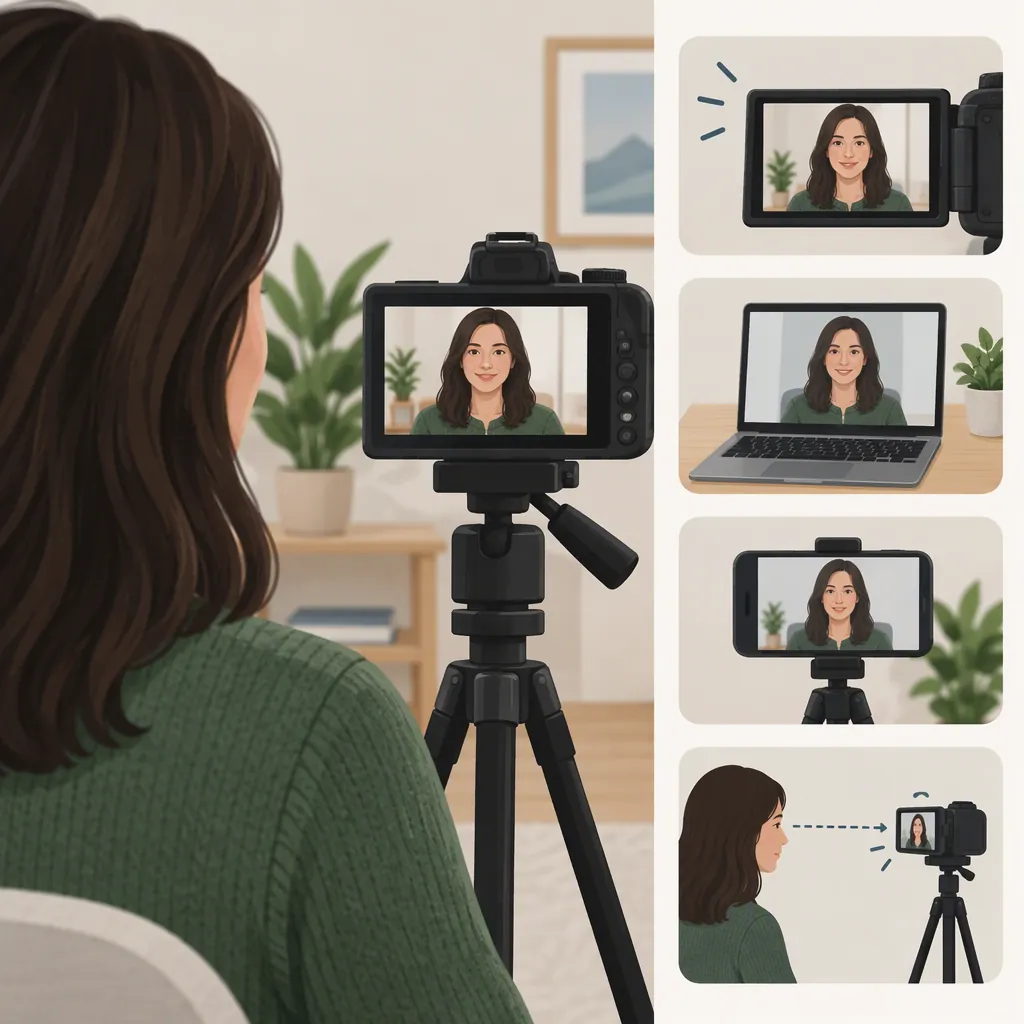
How to See Yourself While Filming on Camera
To see yourself while filming alone, use a camera screen that faces you, a compatible external monitor, or a computer live preview. If you’re filming with a phone’s rear camera, you can try a mirror that reflects the phone’s screen toward you or supported screen mirroring to another display. [citation-1] [citation-2]
Compatibility varies by device and recording mode. Before relying on any connected display, check your device documentation and make a short recording to confirm that the preview remains available during the take.
Choose a Monitoring Method for Your Device
Start with the device you’re recording on and whether you can already see its screen from your filming position.
| Recording Device | Option to Check First | What to Verify |
|---|---|---|
| Camera with a self-facing flip screen | Turn the screen toward you | Is the preview readable from your filming position? |
| Camera without a self-facing screen | Compatible external monitor or computer preview | Does the camera support that connection, including during recording? |
| Phone using its front camera | Use the phone’s own screen | Can you inspect the framing from where you’ll record? |
| Phone using its rear camera | Mirror reflecting the screen, or supported screen mirroring | Can you see the preview clearly while recording? |
Flip screens, external monitors, and computer previews are options described in the videographer’s guide. The rear-camera phone methods—using a mirror or screen mirroring—are described in the Instagram tutorial. [citation-1] [citation-2]
Use a Flip Screen or Compatible Camera Monitor
If Your Camera Has a Self-Facing Screen
Try the built-in screen before adding another display:
- Set up the camera and point it toward your filming position.
- Turn the screen so it faces you.
- Stand or sit where you’ll record.
- Check whether you can read the preview well enough to assess the shot.
- Start a short test recording and confirm that the screen remains usable.
A flip screen is one of the self-monitoring options identified in the videographer’s guide. [citation-1]
If You Need an External Monitor or Computer Preview
An external monitor or computer can provide a preview when the camera’s own screen cannot face you. A computer connection may require compatible software or additional hardware. [citation-1]
Use this conditional setup process rather than assuming a particular connection will work:
- Confirm a supported live-preview method. Check the camera’s documentation for compatible displays, connections, and any recording-mode restrictions.
- Prepare the required connection or software. Follow the instructions for your camera and receiving device; model-specific settings belong in those instructions.
- Open the live preview. Check that the display shows the camera’s current view, not just menus or previously recorded footage.
- Position the display where you can see it. Test visibility from your actual standing or seated position.
- Start recording. Confirm that the preview stays available in the recording mode you intend to use.
- Play back the test clip. Check the saved result before recording the full take.
If the preview disappears when recording begins, revisit the device’s supported modes and settings. Do not assume that a connection that shows a preview before recording will also show one during recording.
See Yourself with a Phone’s Rear Camera
A mirror or a supported screen-mirroring connection can help you check framing while using a phone’s rear camera. The Instagram tutorial mentions an Apple computer and a smart TV as possible receiving displays, but those suggestions are not a universal compatibility guarantee. [citation-2]
Use a Mirror to Reflect the Phone’s Screen
The goal is to see the camera preview on the phone’s screen, not simply your own reflection.
- Point the phone’s rear camera toward your filming position. The phone’s screen will face away from you.
- Place a mirror on the screen-facing side of the phone—behind the phone from your viewpoint.
- Try moving the mirror to one side and angling it so the screen’s reflection is visible to you without the phone blocking your view.
- From your actual filming position, check that you can recognize the preview and inspect your framing.
- Check the camera preview to make sure the mirror has not entered the shot.
- Record a short test and review it.
Using a mirror to check rear-camera framing is the approach described in the Instagram tutorial. [citation-2] The placement above is a practical arrangement to test, not a layout that will work in every space. If there is no clear reflection path, or the reflected screen is too small to read, use another monitoring method.
Mirror the Screen to Another Display
If your phone and receiving display support screen mirroring:
- Follow their documentation to establish the connection.
- Open the camera app and select the rear camera.
- Confirm that the receiving display shows the live camera preview.
- Place that display where you can see it from your filming position.
- Make a short recording to check whether the preview remains usable during the take.
- Play back the saved clip on the recording device.
Screen mirroring to a computer or TV is suggested in the Instagram tutorial. [citation-2] That source does not establish device-specific setup steps or measured preview performance, so test the actual combination you plan to use.
Check the Shot Without Watching Yourself Constantly
Use the preview to check composition, focus, and lighting before the take. These are the monitoring checks identified in the videographer’s guide, which also warns that repeatedly looking toward a monitor during filming can create distracting changes in gaze. [citation-1]
For a direct-to-camera presentation, set up the shot using the display, then return your attention to the lens. If you need another framing check, consider pausing between lines rather than shifting your gaze during a sentence.
Solo Filming Preflight Checklist
- Put the camera and monitoring display in their intended positions.
- Stand or sit where you’ll record.
- Check composition, focus, and lighting in the preview. [citation-1]
- Rehearse any planned movement and inspect the framing again.
- Start a short recording and confirm that the preview remains available.
- Play back the saved clip and check the result.
- For a direct-to-camera take, return your gaze to the lens. [citation-1]
FAQ
How Can I See Myself If My Camera Has No Flip Screen?
Check whether your camera supports a compatible external monitor or computer live preview. A computer connection may require software or additional hardware. [citation-1] Follow your camera’s setup instructions, position the display where you can see it, and test whether the preview remains available during recording.
Can I Use a Mirror While Filming with My Phone’s Rear Camera?
Yes—a mirror is one method described for checking rear-camera framing. [citation-2] Place it on the phone’s screen-facing side and adjust its angle and position until you can see the screen’s reflection from your filming position. Check that the mirror stays out of the shot. If the reflection is blocked or unreadable, use another method.
Can I Use a Computer or Tv to See My Phone’s Camera Preview?
Screen mirroring to an Apple computer or smart TV is suggested in the Instagram tutorial. [citation-2] Whether it works depends on your phone, receiving display, and recording workflow. Confirm support in the device documentation and test the preview while recording.
Should I Look at the Screen or the Lens?
For a direct-to-camera presentation, use the screen to check your setup, then look toward the lens during the take. The videographer’s guide warns that repeatedly changing your gaze toward a monitor can be distracting. [citation-1]
Sources
-
[citation-1] Seeing yourself while Filming yourself - Videographer Tips
-
[citation-2] Instagram