Vsco Photo & Video Editor: Features and How to Use It
What Can You Edit with Vsco?
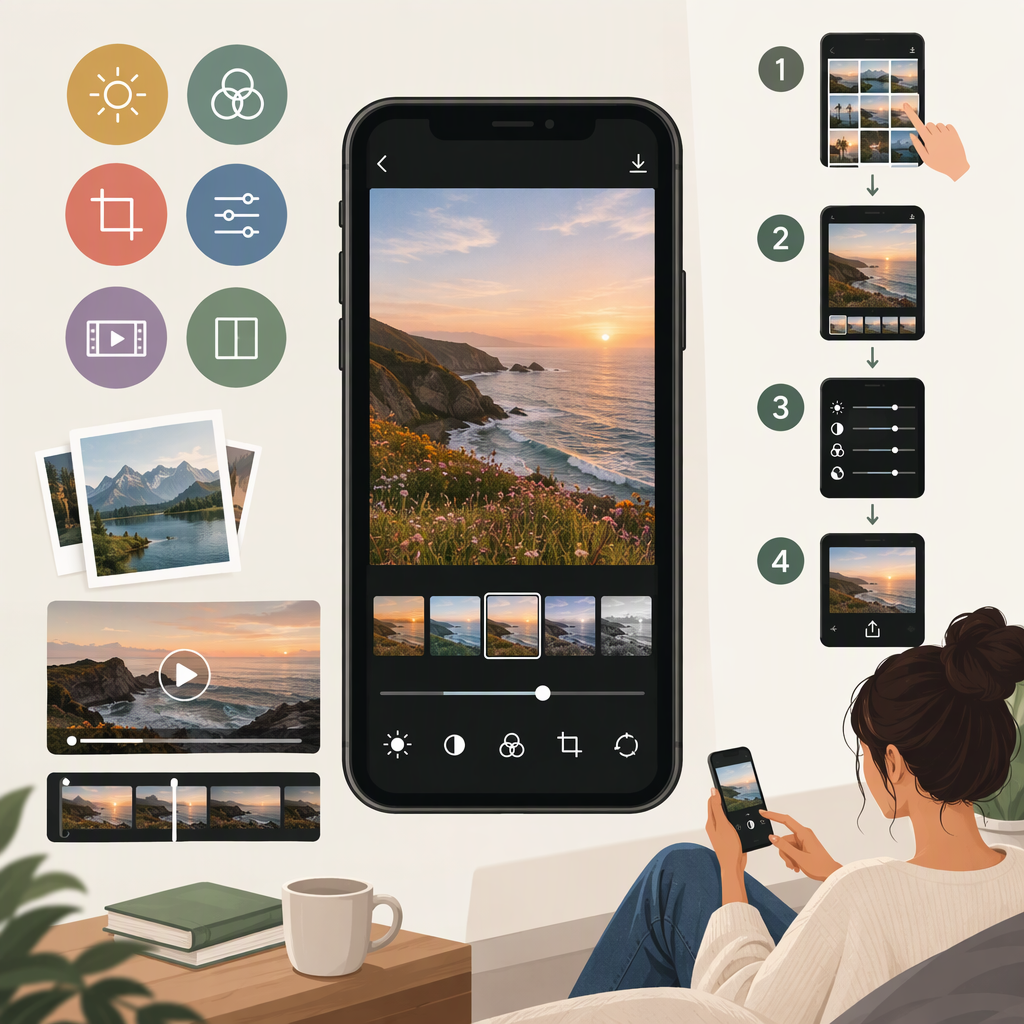
VSCO is a photo editor for mobile and web, with video editing available in its iOS and Android apps. In the mobile app, creators can apply presets and fine-tune images with tools such as exposure, contrast, crop, white balance, tone, saturation, and HSL. The exact presets and tools available depend on membership. VSCO Studio on the web is for photo editing; it does not support video editing and offers a more limited toolset than the app. (support.vsco.co)
That makes VSCO a possible fit for a creator who wants to develop a consistent look, adjust color and light, or make straightforward edits to a video on a phone. If your workflow depends on editing video in a desktop browser, the web version is not the right part of VSCO to use for that task. (support.vsco.co)
How to Edit and Save a Photo in the Vsco App
The following workflow is from VSCO’s public guide to the app. Interface labels can differ in other VSCO products, so these steps describe the mobile app rather than Web Studio or Studio Pro. (support.vsco.co)
- Open VSCO and tap Studio. Import an image from your Camera Roll or Gallery if it is not already there.
- Select the photo and tap the Edit icon.
- Tap a preset to preview a look. Tap the same preset again to adjust its strength and any related options. Film X presets, where available, also have Character and Warmth controls.
- For manual adjustments, open the Toolkit and swipe through its toolbar to find available tools. For example, adjust exposure to brighten or darken the overall image, or use Tone to work on highlights and shadows.
- Confirm the edit, tap Next, then choose a saving option such as Save to Camera Roll. Available options can vary with feature access. (support.vsco.co)
Example: For a photo that looks too dark overall, try a small exposure adjustment first. If the main subject is still hidden in the shadows but the brighter areas look right, use the Tone tool’s shadow adjustment rather than raising exposure across the whole image. These are general editing suggestions based on what the controls do; the best setting depends on the photo. (support.vsco.co)
Save from Studio for the Best Image Export
VSCO says saving from Studio provides the highest-quality version. Select one or more images, choose More, then Save to Camera Roll. The export is a new copy with edits applied; the original file is not changed. VSCO’s help article says image dimensions remain the same on iOS and Android, although file size may be reduced. (support.vsco.co)
If the image is already posted on your VSCO Profile and you no longer have it in Studio, downloading it from your Profile on the web is VSCO’s suggested next-best option. Saving from the app’s Profile may produce a compressed version. Also note that VSCO says Profile posts are public, while media in Studio is private. (support.vsco.co)
What Video Editing Can You Do in Vsco?
VSCO’s support guide describes video editing in the mobile app on iOS and Android as a membership feature. The listed video-specific tools include trimming, volume adjustment, effects, reversing, changing speed, and mirroring. The editor also offers many photo-style controls for video, including exposure, contrast, crop, white balance, saturation, and HSL. (support.vsco.co)
To try the documented mobile workflow:
- Import a video into Studio using the Import icon.
- Select it and tap Edit Video.
- Apply available presets or Toolkit edits. Use video-specific controls such as Trim or Volume if needed.
- When finished, choose Save as a Draft, Save to your Camera Roll, or Publish to VSCO. (support.vsco.co)
There are format limits to consider. VSCO’s support article says its iOS app supports video settings captured by the native iOS camera, from 720p at 30 fps up to 4K at 60 fps, including specified slow-motion modes. For Android, it lists native 720p and 1080p video at 30 or 60 fps. It says video from DSLR, mirrorless, or other non-mobile sources can be imported up to 4K, but some formats and codecs may not be supported. (support.vsco.co)
Access and Platform Limits to Check
- Video: VSCO’s support guide identifies video editing as available with a VSCO Membership on iOS and Android. Its Web Studio guide says video editing is not available on the web. (support.vsco.co)
- Presets and tools: The available presets and editing controls vary by membership tier. VSCO says Plus includes more than 200 presets and advanced photo and video editing tools, while Pro includes additional Pro presets and advanced tools. Locked controls may therefore reflect plan access rather than a missing import or edit step. (support.vsco.co)
- Web editing: VSCO Studio on the web supports core photo adjustments and full-resolution exports, but not every app tool. VSCO lists Chrome and Edge support for JPEG, PNG, and BMP imports, and Safari support for JPEG and HEIC. It says tablet support is not currently available. (support.vsco.co)
- Keep originals: VSCO describes Studio as a place to edit and manage images, not long-term storage. Save an export to your device or keep another copy of important originals. (support.vsco.co)
Practical Takeaway
For mobile photo edits, start in VSCO Studio, apply a preset or use the Toolkit, then save from Studio to Camera Roll when export quality matters. For mobile video edits, VSCO documents a membership-based workflow with trim, audio, speed, effects, and other adjustments; its web editor does not edit video. Before planning a project around a specific preset, control, device, or file format, confirm that it is available in the version and membership you use. (support.vsco.co)