Vsco Video Editor: A Practical Editing Overview
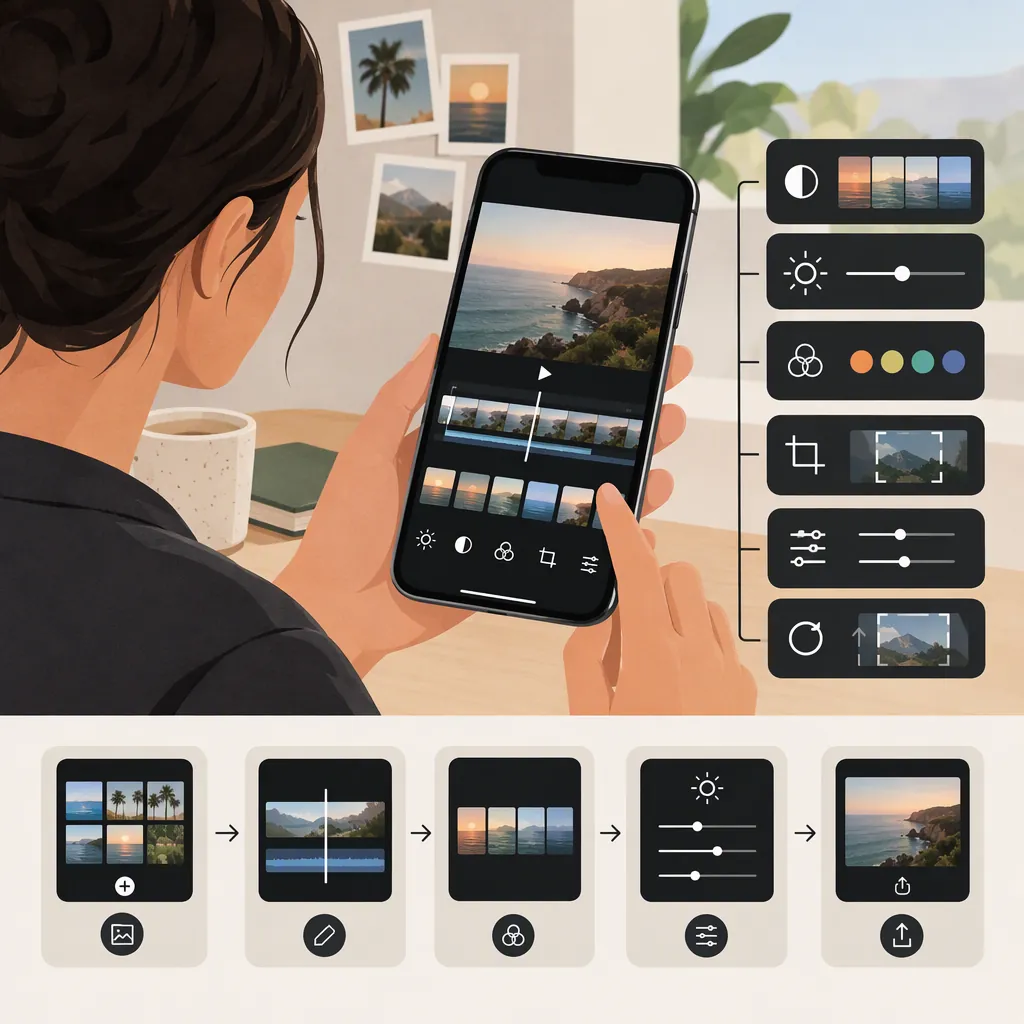
VSCO’s video editor provides trimming, cropping, presets, color adjustments, playback-speed controls, reverse playback, and volume adjustments. Montage is the named feature for combining videos and photos. To start, VSCO’s feature page describes opening Studio, tapping the add icon, and selecting a video. Exact video-tool access by membership tier is not established by the supplied references. [c1]
What You Can Edit in Vsco
VSCO’s video feature page describes several groups of controls: [c1]
- Length and motion: trim the beginning or end, change playback speed, or reverse playback.
- Composition: crop to a preset ratio or a manual frame, rotate, and adjust perspective with skew.
- Appearance: apply video presets, color adjustments, and film-style effects.
- Sound: lower, change, or remove the clip’s audio with the Volume tool.
- Multiple clips: use Montage to combine videos and photos.
These are documented capabilities, not an assessment of performance or output quality. The App Store description also lists trim, crop, speed control, slow motion, color grading, and Montage. [c3]
Import, Trim, and Frame a Clip
The documented starting point is Studio → add icon → select a video. VSCO describes this sequence in its video-upload FAQ. [c1]
For a straightforward single-clip edit, use this suggested order:
- Review the source. Identify the action you want to keep and decide where the clip should begin and end.
- Trim the ends. VSCO describes its trimmer as a way to adjust the video’s start and end points. Do not assume this description establishes a full timeline workflow for removing arbitrary middle sections. [c1]
- Choose the frame. The cropper supports manual cropping and preset aspect ratios, including 3:4, 4:5, and 16:9. Choose the ratio required by your intended destination rather than treating one ratio as universally correct. [c1]
- Check the entire clip. As an editing practice, preview moving subjects after cropping; a frame that works at the beginning may cut off important action later.
This is a suggested editing sequence, not a verified map of every button in the current interface.
Adjust Color, Motion, and Audio
VSCO describes applying presets to videos and using color-grading controls. Its feature page also lists effects such as VHS-style treatment, light leaks, glitches, and film frames. [c1]
As a practical editing approach, start with the look you want, then preview it across bright, dark, and skin-tone areas. Judge the moving clip rather than a single paused frame. For a restrained result, prioritize the subject’s visibility over the strength of an effect.
VSCO also documents slowing down, speeding up, and reversing video, along with changing or removing audio through Volume. [c1] Use motion changes only where they serve the clip’s purpose, and listen again after adjusting them.
The supplied references do not establish detailed audio-mixing controls, music-library access, or a universal guarantee that speed changes preserve source quality. Review the exported result rather than assuming those capabilities or outcomes.
Use Montage for Multiple Clips
For an edit involving multiple videos or a mix of videos and photos, VSCO identifies Montage as its combining feature. The video-editor page describes adjusting timing, volume, and opacity, as well as layering shapes or overlays. [c1]
A useful planning approach is to decide the scene order before adding decorative elements. Give each scene a clear role: establish the setting, show the action, or close the sequence. Then review whether timing and overlays support that role.
Montage belongs to the VSCO workflow described here. VSCO Capture, by contrast, is described as a capture app with live video filters; its recording specifications should not be treated as export specifications for the VSCO video editor. [c1]
Export and Check Feature Access
VSCO’s video FAQ says the share icon in the top-right corner offers options to post to VSCO, save or export to the device, or share to social media. Select the device-save option if your intention is to keep the result local rather than publish it. [c1]
The references do not establish a complete video-export specification: supported export resolutions, codecs, frame rates, duration limits, and watermark behavior are not confirmed here. Export a short sample and inspect it before relying on VSCO for a delivery with strict technical requirements.
Do not assume that a free app download includes every video tool. Both store listings identify in-app purchases and describe membership subscriptions, but they do not provide a complete video-feature entitlement table. Check the displayed access terms for the particular tool you need. [c2] [c3]
Vsco Video Export Review Checklist
- Confirm the intended beginning and ending.
- Watch the full clip for subjects cut off by the crop.
- Review color and effects across changing light.
- Check speed changes and reverse playback where used.
- Listen for unwanted audio or unintended silence.
- Choose device saving rather than posting if the result should stay local.
- Open the saved file and verify its appearance, sound, and required technical properties.
FAQ
Does Vsco Offer Video Editing on iPhone and Android?
VSCO’s video-editor FAQ describes video editing for iPhone and Android. That statement does not establish identical tools or membership access on both platforms. [c1]
Can I Apply Vsco Filters to Videos?
Yes. VSCO’s feature page describes applying presets to videos, and the App Store description also lists using VSCO presets for video editing. Access to a particular preset should be checked in the app. [c1] [c3]
Can I Mute a Video in Vsco?
VSCO documents a Volume tool for changing, lowering, or removing video audio. The supplied page does not provide a complete button-by-button path to that control. [c1]
How Do I Combine Videos in Vsco?
Use Montage, the feature VSCO identifies for merging and editing multiple videos and photos. The reference describes timing, volume, opacity, and layering controls, but does not supply a complete interface walkthrough. [c1]
Is the Vsco Video Editor Free?
The store listings describe free downloads with in-app purchases and membership subscriptions. They do not establish that all video tools are free or specify the access tier for every video feature. Check the tool’s displayed membership requirements before starting an edit. [c2] [c3]