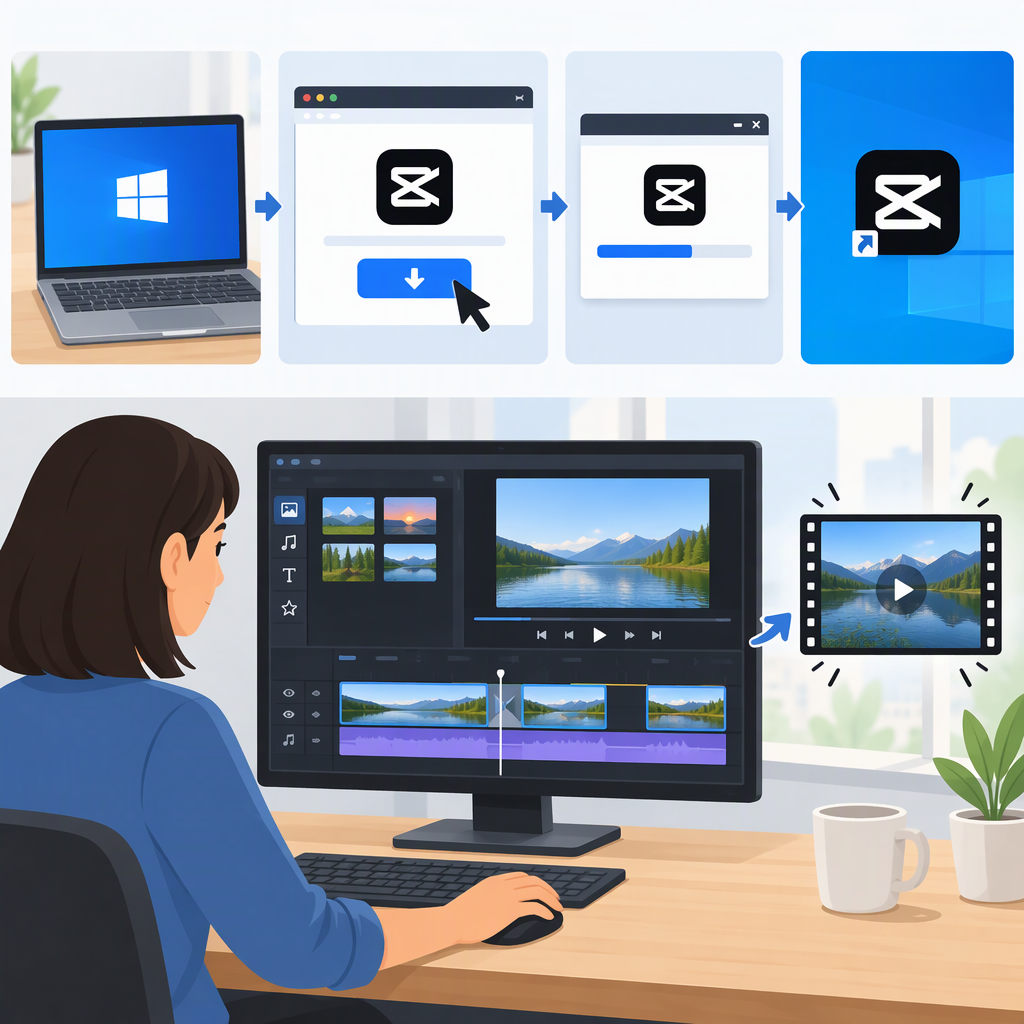
VN Video Editor for PC: How to Install and Make a Basic Edit on Windows
The Short Answer
If by “VN” you mean VN Video Editor, you can use it on a Windows PC: VN is listed in the Microsoft Store as a Windows app. Get it through that listing rather than downloading an installer from an unfamiliar site. You do not need to use an Android emulator for the listed Windows app. (apps.microsoft.com)
Get Started on Windows
- Open the VN: Video Editor listing in the Microsoft Store.
- Choose Get or Install in the Store and let Windows finish installing it. The Store listing is the distribution route; avoid third-party download pages claiming to provide a separate “official” installer.
- Launch VN from the Start menu.
- Gather the video clips, photos, and any audio you want to use in a folder you can find. VN’s Windows listing says it can import local videos, music, sound effects, fonts, and stickers from your PC. (apps.microsoft.com)
The listing does not provide Windows system requirements, so this guide cannot confirm a minimum Windows version or hardware specification. If the Store does not offer the app for your PC, check the listing’s compatibility information in the Store rather than relying on an unofficial installer.
Make and Export a Basic Video
VN’s Windows listing describes a multi-track timeline, clip trimming and merging, local media import, and video export. Use this general workflow; the exact controls or labels may vary with the installed version. (apps.microsoft.com)
- Start a project in VN and add the clips you want from your PC.
- Arrange the clips on the timeline in the order you want them to appear. Play the preview to check the sequence.
- Trim or split clips to remove unwanted beginnings, endings, or sections. Check each edit in the preview, then adjust if a cut feels abrupt.
- Add only what you need. For a simple first edit, you can leave the video as a sequence of clips; the Windows listing also describes text, music, and overlay tools if you want to add them.
- Export the finished video using the export control in the app. The listing advertises export up to 4K at 60 fps, but that is a maximum capability—not a requirement or a guarantee that every project, device, or source clip can use those settings. For a straightforward first export, choose settings that do not exceed the resolution and frame rate of your footage, if those options are available.
- Check the saved video by opening it from the location you selected and watching it through. This confirms that the export completed and that the picture and sound are present.
Official Windows App or Emulator?
For a Windows PC, the Microsoft Store listing is the clear route established here. An emulator is a separate way of running a mobile app inside another program; it is not the same thing as installing VN’s Windows listing. Prefer the Store route when it is available for your PC. (apps.microsoft.com)
One detail remains unclear from the available listing: the specific Windows requirements and any device or regional restrictions. Check the Microsoft Store’s compatibility details for your own PC before installing.