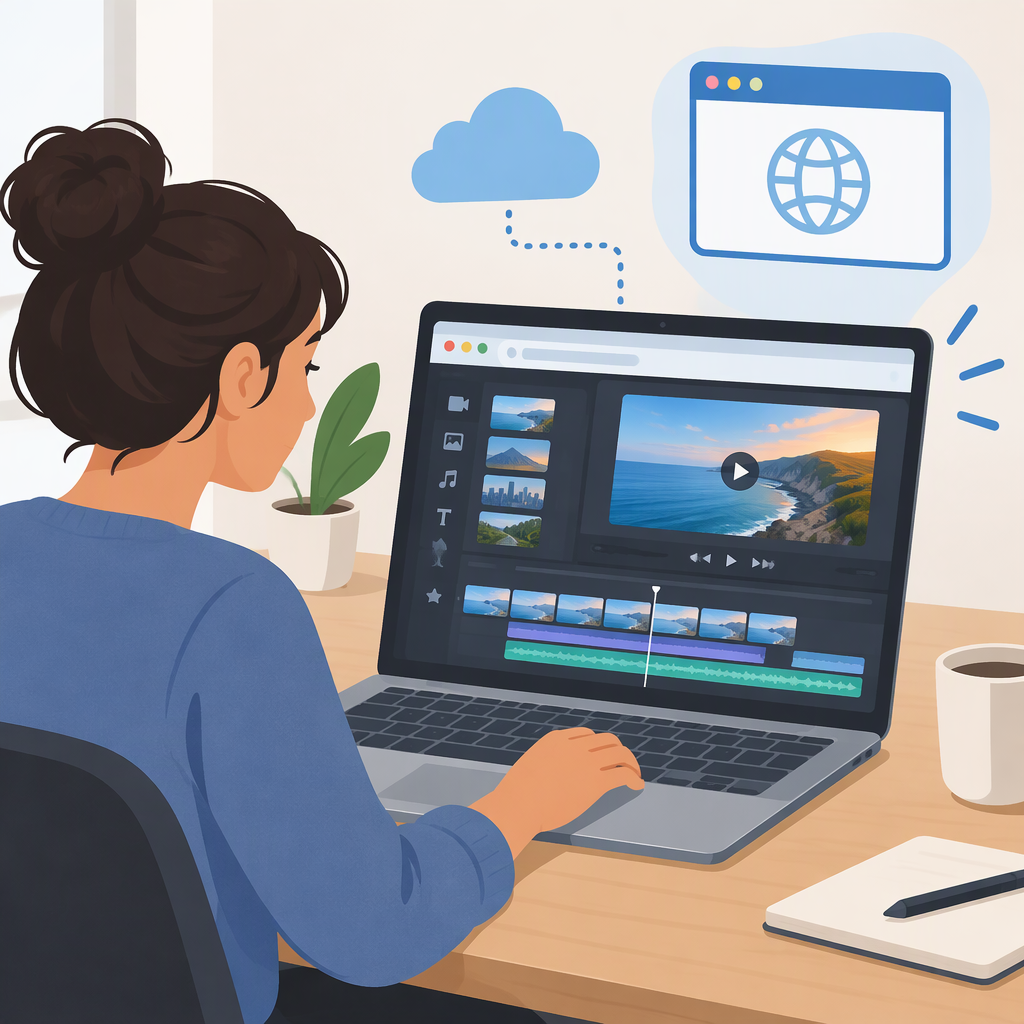
VN Video Editor Online: Can You Edit in a Browser?
Can You Use VN Video Editor Online in a Browser?
VN’s official materials list downloadable apps for iOS, Android, Mac, and Windows—not a full video editor that runs in a web browser. If by “VN video editor online” you mean editing without installing an app, the official information reviewed here does not establish that option. VN’s site also uses “online or offline” language, but its download page points to apps; that wording alone does not confirm browser-based editing. (vlognow.me)
To use VN, get it through the official VN download page or the relevant app store. VN’s official PC page says its Windows app requires Windows 10 or later. If browser-only editing is a requirement, choose an editor that explicitly offers a browser-based timeline editor rather than assuming VN’s downloadable app is a web editor. (vlognow.me)
Start a Project and Add Footage
The steps below use VN’s official beginner guide for the editing controls. Interface details can differ between mobile and desktop, so follow the controls shown in your installed version.
- Install and open VN from an official download route. Choose the app for your device; the official download page lists iOS, Android, Mac, and Windows. (vlognow.me)
- Start a standard video project from the app’s Home screen and select the footage you want to edit. In VN’s editing guide, the [+] control adds video clips to the timeline. (vlognow.me)
- Choose a frame shape that suits the destination. VN’s guide gives 9:16 as an example for TikTok or YouTube Shorts, 16:9 for long-form YouTube, and 4:5 for an Instagram post or reel. It says the aspect-ratio control is at the top of the editor. If your source footage has a different shape, check the crop and position so important content stays in frame. (vlognow.me)
Make a Simple Edit and Export It
- Put clips in the intended order. VN’s beginner guide says to long-press a clip to swap its position. Zoom out to review the whole timeline, or zoom in for more precise editing. (vlognow.me)
- Trim the beginning or end of a clip by selecting its video track and dragging a trim handle. To remove a section in the middle, move the playhead to the cut point and use [Split], then trim or remove the unwanted section. The guide also describes [Trim] for setting clip duration. (vlognow.me)
- Preview the full timeline and check the framing, clip order, and audio before exporting. For example, if a three-clip travel video feels too long, trim pauses at the start or end of each clip, then preview the sequence to make sure the cuts still make sense.
- Export the finished video using VN’s export flow, then save the rendered video to your device. VN’s official Help Center identifies export settings for resolution, frame rate (FPS), HDR, bitrate, and audio. It also says exporting does not require a VN Pro subscription or an extra fee. Choose settings that suit your footage and intended destination; there is no single best resolution or frame rate for every project. (vlognow.me)
Keep the editable project as well as the exported video if you may revise it later. VN’s help guide says projects are saved on the current device, but signing in does not back them up or sync them to the cloud. To transfer a project, VN documents a [Share Project] workflow for iOS, Android, macOS, and Windows. (vlognow.me)
Bottom Line
For browser-only editing, VN is not established as a suitable choice by the official materials reviewed: they describe downloadable apps for supported devices, not a full browser editor. For editing in VN, install its app through an official route, add clips to a project, trim and arrange them on the timeline, then export a video file.