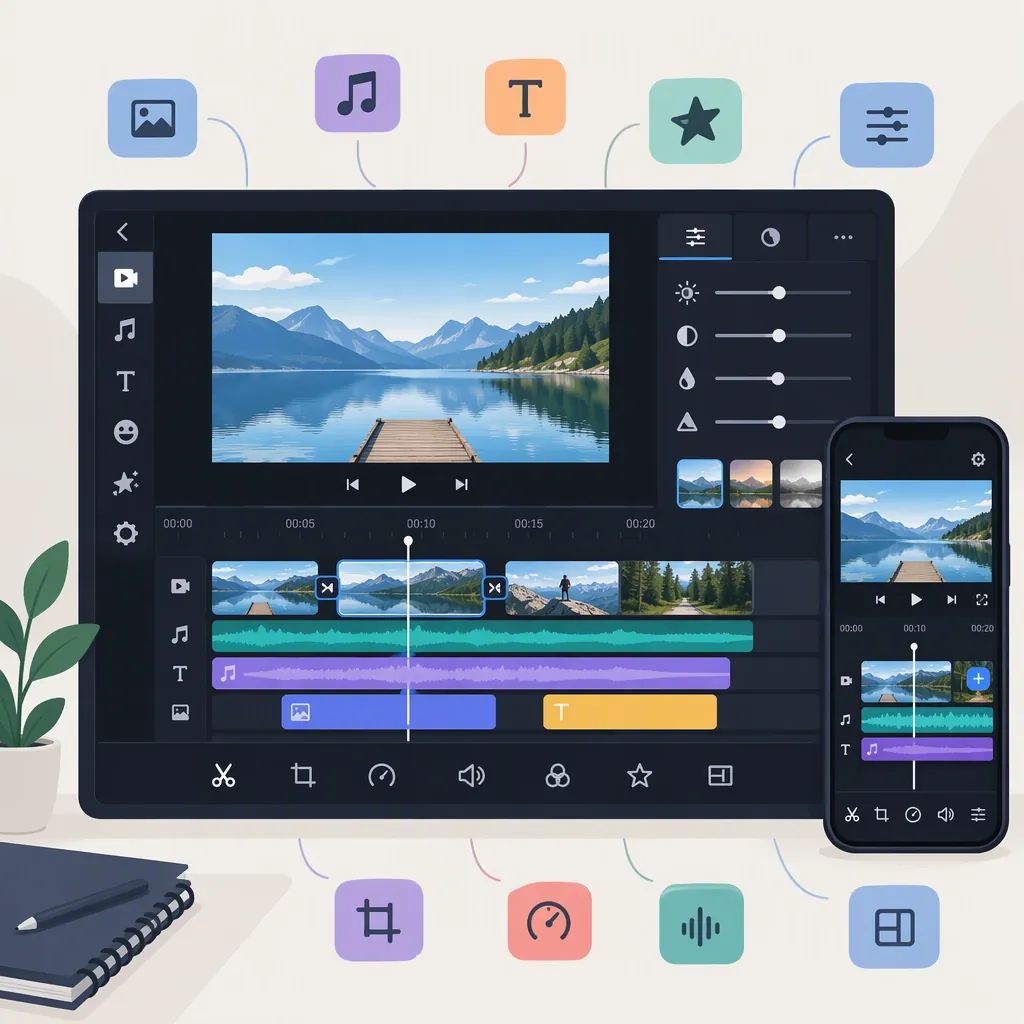
VN Video Editor: Interface, Editing Concepts, and a Beginner Practice Plan
To begin learning VN Video Editor, focus on finding your way around the interface, arranging clips, adjusting timing, balancing audio, and checking an exported file. A beginner mobile-interface lesson offers a starting point for interface study, while an unofficial VN overview identifies timeline layers, keyframes, speed changes, audio, and export as learning topics. [reference-1] [reference-2]
Source and platform limits: The mobile lesson’s available text establishes its title and topic, but contains no transcript or control-by-control instructions. The other overview explicitly identifies itself as unofficial. Neither establishes a version-specific workflow. The explanations and practice plan below are therefore general editing guidance—not verified VN menu paths or confirmation of features in your installation. [reference-1] [reference-2]
Start with the VN Mobile Interface
“VN Video Editor Mobile Interface Explained for Beginners” identifies itself as Lesson 01 and focuses on the mobile interface. Use it for orientation rather than assuming it also describes desktop controls. [reference-1]
During an interface demonstration, try to answer these questions. They form a general observation checklist, not a confirmed map of VN’s screen:
| Area to identify | What to observe | Learning checkpoint |
|---|---|---|
| Preview and playback | Where the current image appears and how playback is started or stopped | You can inspect a particular moment in the edit |
| Timeline or sequence | How clips appear in order and how the current position is indicated | You can distinguish clip order from playback position |
| Clip selection and controls | What changes when a clip or other element is selected | You can tell which element an adjustment will affect |
| Audio controls | How sound is represented and where adjustments are demonstrated | You can distinguish source sound from added audio |
| Output controls | Where the lesson separates editing from creating a finished file | You can recognize the output stage without assuming its available settings |
Record the labels actually demonstrated and compare them with your installed version. If a control is absent or named differently, treat that as a point needing confirmation rather than guessing a sequence of taps.
Understand the Main Editing Topics
The unofficial overview describes timeline layers involving video, images, text, and audio. It also discusses transitions, filters, speed curves, keyframe animation, music and sound effects, and export settings. These remain that page’s descriptions of VN, not independently verified capabilities of every version. [reference-2]
The following distinctions explain those topics in general video-editing terms.
Timeline Organization: Order Versus Layers
Sequence order determines what appears first, next, and last. Layers allow elements to overlap in time—for example, text appearing while a video clip plays.
When studying a demonstration, ask:
- Which elements play one after another?
- Which elements appear or sound at the same time?
- Does changing one element’s duration affect the intended overlap?
Start by making the sequence understandable before adding extra elements.
Timing: Trimming, Speed Changes, and Keyframes
These concepts solve different problems:
- Trimming changes where a clip begins or ends.
- Speed adjustment changes playback pace and can change a clip’s duration.
- Keyframes specify values for an adjustable property at particular times, such as different positions or scales.
A keyframe-based zoom changes framing over time; a speed change alters how quickly the recorded action plays. When watching a tutorial, identify which kind of change is being demonstrated instead of treating all motion adjustments as interchangeable.
Transitions and Filters
A transition concerns the change between shots. A filter changes an image’s appearance.
First check whether the cut between two shots communicates the intended sequence. Then consider whether a transition helps. For appearance adjustments, compare neighboring shots: does the treatment make them more consistent, or introduce an unintended difference?
Audio Placement and Balance
Audio editing involves both when a sound plays and how prominent it is. Background music should not prevent important speech or other necessary sounds from being heard.
Listen through the edit rather than checking only a single moment. Pay attention to abrupt entrances, uneven levels, and endings that stop unexpectedly. Access to an audio file or library does not by itself establish permission to use it.
Export: Editing Decisions Versus Output Settings
Timeline editing determines the content and sequence. Export creates an output file using the available settings.
In general, resolution concerns image dimensions, frame rate concerns frames per second, and bitrate concerns the amount of encoded data per second. These concepts help you interpret settings; they do not establish which choices VN offers on your device. Inspect the resulting file as well as the editing preview.
A Small Practice Project
This is a general editing exercise to use alongside a VN tutorial, not a verified VN procedure. Use footage and audio you are permitted to use, and attempt only operations demonstrated in a relevant tutorial or confirmed in your version.
Goal: Produce a short, understandable sequence from three clips, with an optional text element and optional background audio.
- Plan the sequence. Choose an opening, a main action, and an ending. Write down their intended order.
- Arrange and shorten the clips. Where the demonstrated controls allow it, remove unwanted lead-in and trailing material. Check that each clip starts and ends at an intentional moment.
- Review the cuts. Play the sequence without effects. Confirm that the order is clear before experimenting with transitions.
- Test one additional element. If demonstrated and available, add a brief text element or try one motion adjustment. Check its timing and whether it obscures important content.
- Check audio. If using speech and background sound, listen for intelligibility throughout. Leave out optional audio if its permissions are unclear.
- Create and inspect an output file. Use settings you can confirm in your version. Play the file outside the editor and compare it with the intended sequence.
Completion checklist:
- The clips appear in the intended order.
- Starts, endings, and overlaps are deliberate.
- Optional text is readable and correctly timed.
- Important audio remains audible.
- The output file plays and includes the intended ending.
This exercise gives you observable learning results without assuming particular VN buttons, menus, or export options.
Platform, Pricing, and Export Claims to Check Separately
The unofficial overview makes claims about platform availability, free use, watermark-free output, and 4K export. Its disclaimer means those claims should remain attributed to that page, not treated as established current product facts. [reference-2]
Before relying on any of them, confirm the relevant conditions for your platform and version. The available sources also do not establish download authenticity, music licensing, or version-specific export limits. This guide therefore makes no APK download recommendation or promise about price, watermarks, or resolution.
FAQ
Which Resource Is Relevant to Learning VN’s Mobile Interface?
The YouTube resource titled “VN Video Editor Mobile Interface Explained for Beginners - Lesson 01 VN Video Editor Tutorial” explicitly addresses that subject. Its available text does not include the instructional steps, so it cannot substantiate a tap-by-tap walkthrough here. [reference-1]
Should I Learn Keyframes Before Basic Clip Editing?
For the general practice plan above, begin with clip order and timing. Then study a demonstrated keyframe example once you can recognize the element and property being adjusted. Keyframes are among the topics discussed by the unofficial VN overview, but their controls and availability need confirmation in your version. [reference-2]
Does This Guide Apply to VN on Desktop?
The interface resource is explicitly about mobile. Although the unofficial overview makes broader platform claims, these sources do not establish desktop controls or a desktop workflow. Do not transfer mobile instructions to desktop without checking an applicable tutorial. [reference-1] [reference-2]
Is VN Confirmed to Be Free and Watermark-Free?
Not by these sources. The unofficial overview makes both claims, but the available material does not independently establish current pricing or watermark conditions. [reference-2]