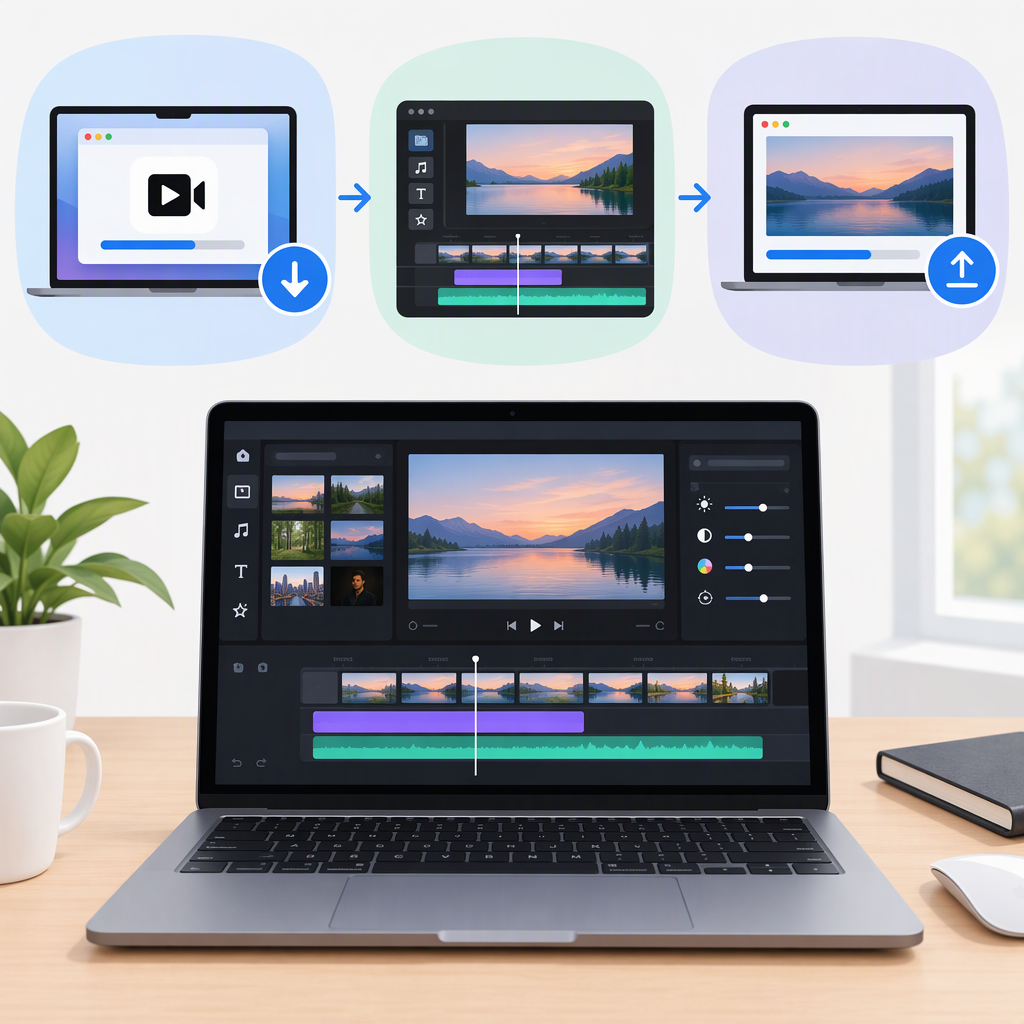
How to Use VN Video Editor on Mac: Download, Edit, and Export
Yes. VN Video Editor is available as a Mac app through the U.S. Mac App Store. The listing identifies the developer as Ubiquiti Labs, LLC and describes Mac-specific features, including importing files from your Mac, editing on a multitrack timeline, and exporting video. Use the Mac App Store listing rather than a third-party download site to find the official app. (apps.apple.com)
Getting Started on a Mac
- Open the VN: Video Editor listing in the U.S. Mac App Store.
- Confirm the listing is for Mac and names Ubiquiti Labs, LLC as the developer. Select the option to get or open the app in the App Store.
- Check the listing’s Compatibility details against your Mac and macOS version before installing. VN’s official Mac tutorial has previously stated a minimum of macOS 10.15.6, but that tutorial is several years old; use the current App Store compatibility information for your device rather than treating the older requirement as current. (youtube.com)
- Prepare the video and any audio or image files you want to use, and note where they are stored. VN’s Mac listing says it supports local imports from the Mac. (apps.apple.com)
Make a Basic Edit
VN’s layout and labels can change between versions, so treat the steps below as a basic workflow—not a claim that every button has the same name or position in every release. The current Mac listing describes local importing, a multitrack timeline, clip trimming and merging, text and audio tools, and draft saving. (apps.apple.com)
- Create a project in VN and choose the option to add or import media. Select your video clips from the Mac.
- Arrange the clips on the timeline in the order you want them to play. VN describes its Mac editor as supporting a multitrack timeline.
- Trim or join clips. Select a clip and use the editing controls available in your version to remove unwanted sections or combine clips. The Mac App Store listing describes trim-and-merge editing, including frame-accurate precision; it also lists a Quick Mode and a Pro Mode for the main track. (apps.apple.com)
- Add only what you need. You can add text or stickers, and place music, sound effects, or a voice-over in the edit. These tools are listed for the Mac version. (apps.apple.com)
- Preview the timeline and adjust any cuts, text, or audio that do not look or sound right.
- Keep the draft if you want to return to it. VN lists non-destructive draft saving and undo/redo support. (apps.apple.com)
Example: For a short three-clip video, import the clips, arrange them in sequence, trim the start or end of each, add a title if needed, preview the full timeline, and then export. This is an example workflow, not a hands-on test.
Export the Finished Video
When the edit is ready, choose VN’s Export action in the editor. VN’s Help Center describes an Export control and bitrate settings, while the Mac App Store listing says the Mac app supports export up to 4K at 60 fps. Which choices appear can depend on the VN version and project, so use the options actually shown in your Mac app. (vlognow.me)
- For a straightforward export: use settings that match your intended delivery and, where practical, your source footage. Higher resolution or frame rate is not automatically better if your clips or destination do not call for it.
- For a smaller file: if the Mac version presents a bitrate control, lowering it can reduce file size but may also reduce image quality. VN’s Help Center identifies average bitrate as an export setting; the exact controls available on Mac may vary. (vlognow.me)
- Choose a destination if prompted. The sources describe export controls and capabilities but do not establish one fixed Mac save location. After export, confirm that the file appears in the destination VN or macOS shows.
- Check the finished file: play it back and confirm the picture, sound, and ending before sharing it.
If You Cannot Install or Export
- If VN does not appear as available for your Mac, check the Mac App Store listing’s device and macOS compatibility details. Do not assume that an unofficial installer or compatibility workaround is an officially supported Mac route.
- If export fails, save or retain the project draft, check the options and any messages shown in the app, and try again using a destination you can access. VN’s public materials reviewed here do not establish a Mac-specific troubleshooting sequence or a universal export destination, so avoid relying on platform-specific instructions for another device.
- For Mac keyboard controls, VN publishes a separate VN for Mac Keyboard Shortcuts help page. (vlognow.me)
In short: Get VN from its Mac App Store listing, check compatibility for your Mac, build the edit on the timeline, preserve the draft, and export using the settings available in your installed version.