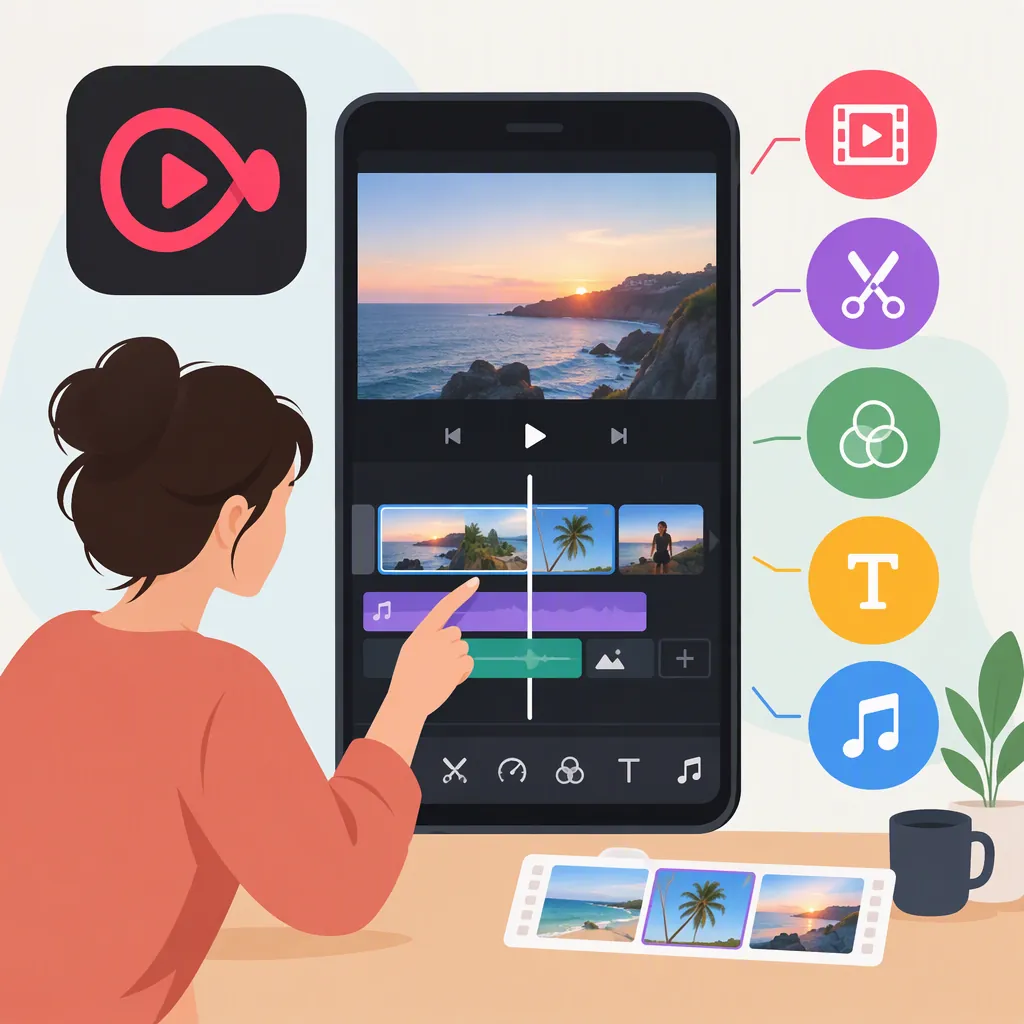
Vllo Video Editor: Features, Workflow, and Limitations
VLLO is a video-editing app listed under developer vimosoft. Its public listings describe trimming and joining clips, adding text and audio, applying transitions, and working with overlays. The Apple listing also describes auto captions, tracking, keyframes, and AI auto editing. Feature access and interface details may differ by platform and version; these listings do not establish editing quality or performance. [c1] [c3]
What Vllo’s Editing Tools Cover
VLLO’s listed tools cover several stages of an edit: assembling footage, adding explanatory elements, adjusting sound, and controlling visual movement. The Android description explains that users can select one or several videos, join or trim them, and access audio, stickers, text, picture-in-picture (PiP), and filters from the editing screen. [c3]
The Apple listing describes additional controls, including multi-track layering of videos, images, and GIFs; chroma key; blur and mosaic; speed and reverse; and keyframe animation. It also lists auto captions, object tracking, and background removal. These are descriptions of available capabilities, not independent assessments of their accuracy or ease of use. [c1]
For a straightforward edit, start with the tools that serve the message: cuts for pacing, text for context, and audio for narration or atmosphere. Add motion and effects only when they have a clear purpose.
A Basic Editing Workflow in Vllo
The following workflow uses actions described in VLLO’s public listings. It is an editing sequence rather than a button-by-button tutorial; the references do not document every current screen or control label. [c1] [c3]
- Select the footage. Choose the clip or clips needed for the sequence. The Android description supports selecting multiple videos and joining them. [c3]
- Build the rough cut. Arrange the story, then trim unnecessary beginnings, endings, and pauses. Review the sequence before adding decoration.
- Add context. Use text for titles or explanations. If using the Apple-listed auto-caption feature, review names, punctuation, timing, and any words obscured by background noise. The listing describes caption generation but does not establish its accuracy. [c1]
- Shape the audio. The Android description identifies music, sound effects, narration, and audio fades. Keep speech understandable and review the balance between voice and music. [c3]
- Add visual layers selectively. Use PiP for supporting footage or an image where it helps explain the main clip. Confirm access before relying on it: the Android description identifies PiP among extra paid features. [c3]
- Review and export. Watch the complete edit for accidental cuts, unreadable text, and audio problems. The Apple listing advertises export up to 4K, but the provided material does not establish every export setting or device-specific limitation. [c1]
Vllo Pre-Export Review Checklist
- [ ] The clips appear in the intended order.
- [ ] Trim points preserve necessary speech and action.
- [ ] Titles and captions are readable and accurate.
- [ ] Music does not obscure narration.
- [ ] Overlays do not cover important content.
- [ ] Any paid-feature requirements have been checked.
- [ ] The exported file has been watched from beginning to end.
Free Access, Paid Features, and Music Rights
The Apple listing labels VLLO as free with in-app purchases and states that videos can be created without a watermark or payment. That does not mean every feature is free: the Android description identifies PiP, green screen, and mosaic as extra paid features. Avoid assuming that access is identical across platforms or versions. [c1] [c3]
The listings describe music and sound libraries using terms such as “copyright-free” and “royalty-free.” The supplied material does not include the asset license terms needed to confirm permission for a particular publication or commercial use. Check the applicable terms for the selected track, and separately verify rights to imported music. [c1] [c3]
Mobile and Computer Options
The supplied Apple listing covers iPhone and iPad and lists compatibility with certain Apple Silicon Macs. Uptodown provides an Android listing. Check the requirements for your device rather than assuming that all installations offer the same tools or behavior. [c1] [c3]
BlueStacks separately describes running the Android version of VLLO on a computer through its emulator. BlueStacks is not VLLO, and this route should not be confused with a native Windows edition. Its supplied page contains conflicting minimum hardware requirements, so those figures are not a dependable basis for planning an installation. The references also do not establish emulator editing performance. [c2]
FAQ
Does Vllo Add a Watermark?
The Apple listing states that VLLO allows watermark-free video creation without payment. It also lists in-app purchases, so watermark-free output should not be interpreted as free access to every tool. Check the export behavior in your installed version. [c1]
Does Vllo Support Automatic Captions?
The Apple listing describes automatic caption generation in multiple languages. It does not establish transcription accuracy, supported-language coverage, or access conditions for every version. Review generated captions before publishing. [c1]
Can Vllo Be Used on a Computer?
The Apple listing includes compatibility with certain Apple Silicon Macs. BlueStacks describes a separate route that runs the Android app through an emulator on a computer. Neither reference establishes a native Windows edition or guarantees equivalent editing performance. [c1] [c2]