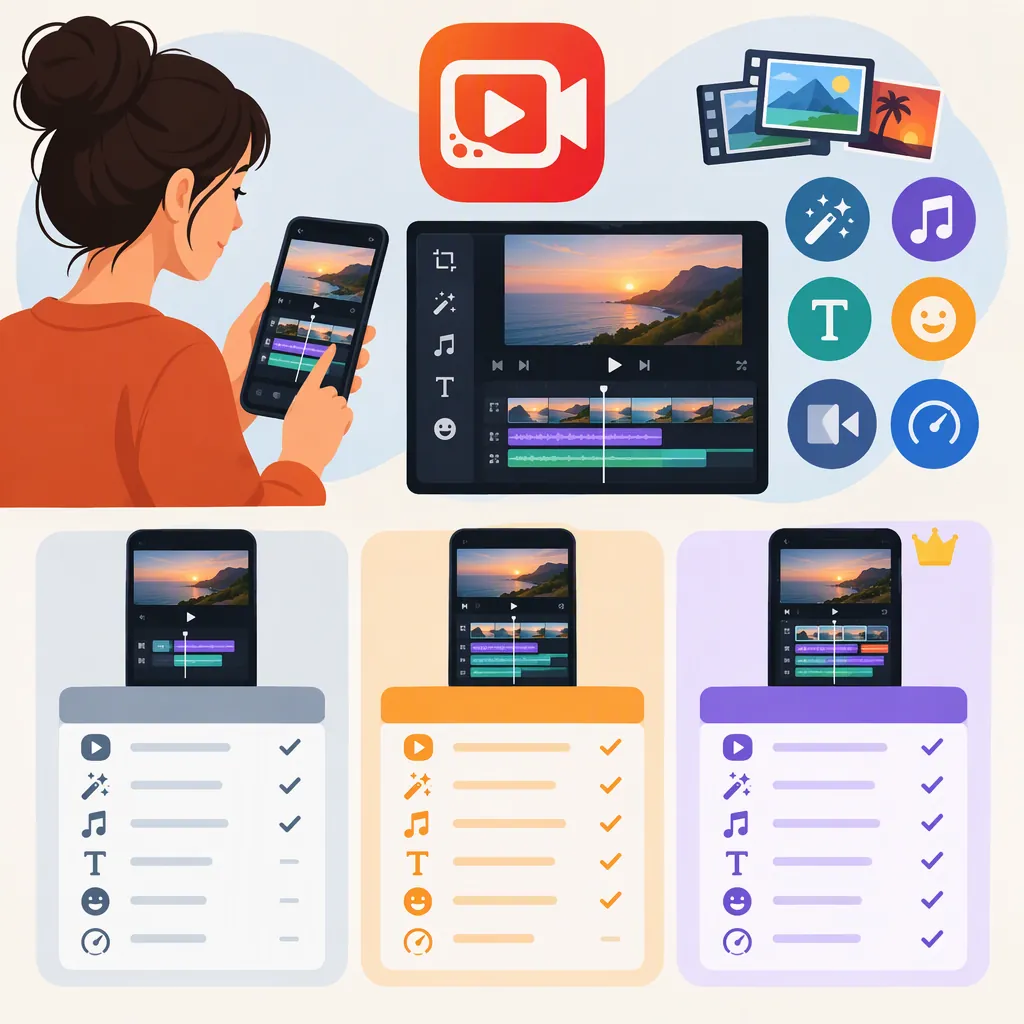
Viva Video Editor: Public-Source Feature Overview and Editing Checks
VivaVideo is a mobile video-editing app that UBC’s Teacher Education Resource Hub describes as supporting audio and visual editing, effects, transitions, filters, subtitles, dubbing, photo slideshows, and video collages. [citation-3] Public listings also describe separate Lite and PRO editions, but those edition-specific descriptions do not establish the current main app’s features or access conditions. [citation-1] [citation-2]
This overview explains the documented editing uses, separates the available edition information, and provides a small-project test for checking whether your installed app meets your needs.
What Vivavideo Is Designed to Do
UBC describes VivaVideo as an Android and iOS app for combining and editing audio and visual content on a mobile device. Its overview includes export and sharing, and identifies short documentaries, films, and video presentations as possible educational projects. These are descriptions of intended uses, not evidence of project outcomes or a verified assessment of the current interface. [citation-3]
The main editing uses can be organized into four tasks:
| Editing task | Materials to prepare | Editing goal | What to inspect in the finished sample |
|---|---|---|---|
| Combine footage | Short video clips | Assemble a sequence that communicates an event, explanation, or story | Clip order, pacing, and whether important moments remain visible |
| Build a photo slideshow | Photos you have permission to use | Present still images in a meaningful sequence | Image order, framing, and enough viewing time for each photo |
| Add subtitles and dubbing | Visual material, brief text, and narration | Make the message understandable through text and spoken audio | Text readability, audio clarity, and timing |
| Create a video collage | Multiple visual elements | Present related material together | Whether each element is visible and the layout is understandable |
UBC’s overview supports these broad feature categories. The materials, goals, and inspection points above are general project-planning suggestions—not documented button-by-button instructions or guarantees about your installed edition. [citation-3]
Edition Listings and Their Limits
Evidence boundary: The available references consist of a broad VivaVideo overview, a Lite listing showing a 2023 update date, and a PRO listing identifying a 2017 app version. They are not a verified comparison of current plans, prices, or feature availability. [citation-3] [citation-1] [citation-2]
| App or edition covered | Date or version context | What the source describes | What it does not establish |
|---|---|---|---|
| VivaVideo, in UBC’s overview | No publication date is established by the provided text | Mobile audio and visual editing, effects, transitions, filters, subtitles, dubbing, slideshows, collages, export, and sharing | Current interface, pricing, or Android/iOS feature parity. [citation-3] |
| VivaVideo Lite:Slideshow Maker, on Google Play | Listing shows an August 1, 2023 update date | Trimming, speed changes, reverse playback, aspect ratios, color adjustments, text, transitions, dubbing, photo import, and export options | Whether those features are available in the current main VivaVideo app or under a particular access tier. [citation-1] |
| VivaVideo PRO Video Editor HD, on Aptoide | Listed app version 5.8.2 is dated July 26, 2017 | Storyboard trimming and merging, text, effects, music, transitions, dubbing, and advertised export benefits | Current PRO availability, subscription terms, or main-app entitlements. [citation-2] |
The Lite export description lists 480p, 720p, 1080p, and GIF. Its page also marks the app as containing ads and in-app purchases; the listed formats alone do not establish which exports are available without payment. [citation-1]
The historical PRO listing advertises watermark-free output, unlimited export length, and 720p export. UBC’s overview also attributes watermark-free videos and unlimited video length to a Pro version. Treat these as source-specific descriptions rather than current access promises. [citation-2] [citation-3]
Match Editing Controls to Your Project
Start with the result you need, then inspect the relevant controls in your exact edition.
- For a footage-based edit: Test whether you can remove unwanted beginnings and endings and arrange the necessary sequence. The Lite listing describes trimming and speed controls; the historical PRO listing describes storyboard trimming and merging. [citation-1] [citation-2]
- For a narrated presentation: Test a short title and one spoken line. UBC describes subtitles and dubbing, while the Lite listing describes text features and recording soundtracks. [citation-3] [citation-1]
- For a photo sequence: Test a few images before assembling the full slideshow. Both UBC’s overview and the Lite listing describe photo-slideshow creation. [citation-3] [citation-1]
- For a format-sensitive project: Check the intended framing before doing detailed editing. The Lite listing describes several aspect ratios, including square, landscape, and portrait options. Their presence in that listing is not proof that every edition offers the same choices. [citation-1]
These checks translate documented feature categories into practical requirements without assuming a current menu layout.
Vivavideo Project Test Worksheet
Use a small sample before importing a complete project. This is a general verification workflow, not a claim about VivaVideo’s button names or current feature availability.
1. Record Your Editing Setup
Write down:
- Exact app name and version
- Device and operating system
- Access tier shown in the app
- Required output format, resolution, and duration
- Whether a watermark is acceptable
2. Build a Representative Sample
Use two short clips or three photos that you have permission to edit.
- Trimming: Check whether you can set the intended start and end points.
- Sequence: Arrange the sample in the order your project requires.
- Text or narration: Add one short title or spoken line, if needed.
- Framing: Inspect the available aspect ratios and any cropping.
- Export: Record the resolution, watermark status, and any payment or duration restriction shown.
- Playback: Open the exported file outside the editor and check text readability, audio timing, and framing.
3. Decide What the Results Mean
| Test result | Suggested next step |
|---|---|
| All essential requirements pass | Proceed with the full project using the tested setup. |
| Cropping hides important content or text is difficult to read | Adjust the composition or text presentation, then export another sample before continuing. |
| Audio timing or clarity is unacceptable | Revise the sample and repeat the playback check. |
| Export resolution, watermark, payment conditions, or duration limits do not meet the project requirements | Confirm the conditions for that exact edition before investing further editing time. |
| An essential requirement remains untested | Treat it as unresolved, not as a pass. |
Keep a brief record of what passed, failed, and remains untested. These decision rules are general production advice, not promises that VivaVideo provides a particular corrective feature.
Check Media Access Before Importing Sensitive Footage
The Lite Google Play listing’s developer-provided Data safety section says the app may collect photos and videos, financial information, and other data, and may share app activity and device or other IDs. It also states that practices may vary by use, region, and age. These disclosures concern the referenced Lite listing and are not an independent privacy assessment of every VivaVideo edition. [citation-1]
Before importing sensitive material, review the disclosures and permission requests for the exact app you use. For the initial editing test, choose nonsensitive footage that you have permission to edit.
FAQ
Is Vivavideo Available for Android and Ios?
UBC’s overview describes VivaVideo as available for Android and iOS. The referenced Lite and PRO listings cover Android variants; they do not confirm current iOS availability or feature parity. [citation-3] [citation-1] [citation-2]
Can Vivavideo Export Without a Watermark?
UBC’s overview attributes watermark-free videos to a Pro version, and the historical Aptoide PRO listing advertises that benefit. Neither confirms the current main app’s watermark rules. Check the export conditions for your exact edition and access tier. [citation-3] [citation-2]
Can Vivavideo Combine Photos, Text, and Narration?
The Lite listing describes photo import, subtitles, and recording soundtracks. UBC’s overview also describes photo slideshows, subtitles, and dubbing. These references support those feature categories, but not exact instructions for a current interface. [citation-1] [citation-3]
Does Vivavideo Support 1080P Export?
The referenced Lite listing includes 1080p among its export specifications. That statement applies to the Lite listing and does not establish availability in the current main app or whether payment is required. Verify it with a short sample export in your installed edition. [citation-1]