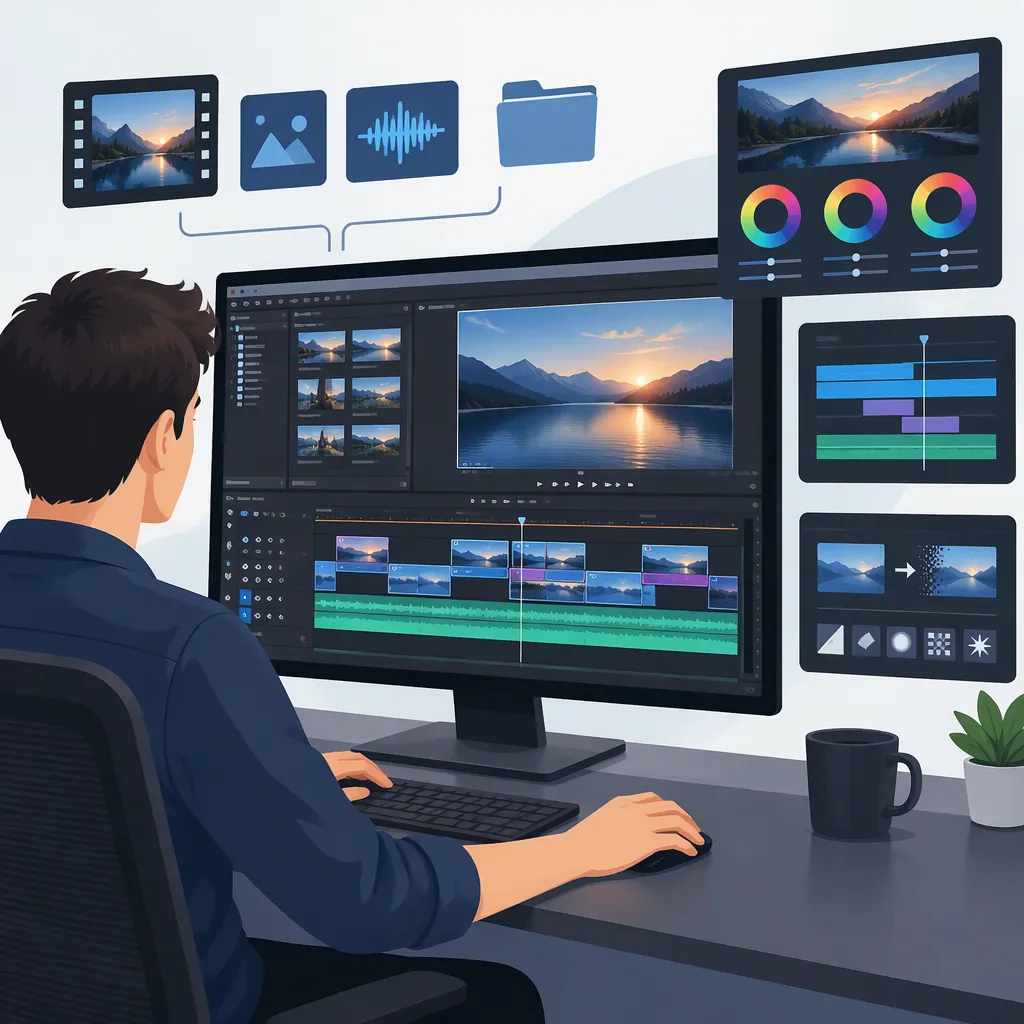
Sony VEGAS: A VEGAS Pro Editing Tool Overview
Sony Vegas is a former name associated with Vegas Pro, a nonlinear video editor designed for Microsoft Windows. The names refer to the same software lineage, not to releases with an identical feature set. [c2] For a useful starting point, identify your release, then organize your learning around four goals: preparing footage, building a timeline, handling audio, and checking the exported result.
What the Sony VEGAS Name Means
According to the Vegas Pro history on Wikipedia, Vegas began at Sonic Foundry, moved to Sony in 2003, and was sold to MAGIX in 2016. Vegas Pro 13 was the last release with Sony branding. [c2]
The Vegas Creative Software homepage now uses the name Vegas Pro and carries Boris FX branding. [c1] This explains the naming difference between older Sony Vegas learning material and current product information; it does not establish that their interfaces or included tools match.
VEGAS Pro’s Video and Audio Background
Vegas Pro is described as a Windows-based nonlinear video editor. Nonlinear editing means you can assemble and revise a sequence without following the footage’s original order. [c2]
The application also has audio-editing roots. Wikipedia’s history describes the first release as audio-only and identifies Vegas Video and Audio 2.0 as the first version to include video-editing tools. That history provides context, not evidence of present-day audio quality or editing performance. [c2]
The Vegas Creative Software homepage presents Vegas Pro, Sound Forge Pro, and Acid Pro as distinct applications. Their appearance together does not establish that every Vegas Pro edition includes the other two tools. [c1]
A Practical Learning Route for Sony VEGAS Users
The following route is a general editing practice plan, not a verified Vegas Pro menu-by-menu tutorial. Use a small practice project so that each stage has a clear result to check.
| Learning goal | Suggested practice | What to confirm in release-specific Vegas material |
|---|---|---|
| Prepare your media | Gather a few clips and any accompanying audio in a clearly named project folder. Note which files you intend to use. | How to import and organize media, which source formats are supported, and how project settings relate to the footage. |
| Build a timeline | Arrange a short sequence, remove unwanted portions, and review the order and pacing before adding effects. | The commands for placing, trimming, splitting, and moving clips, plus how track selection and snapping behave. |
| Work on audio | Listen for unclear speech, abrupt changes, unwanted noise, and synchronization problems. Address one issue at a time. | The release’s audio controls, level meters, fades, and any effects required for the task. |
| Check the output | Export a short test and watch and listen to the resulting file, rather than checking only the editing preview. | The export procedure, supported formats, and settings required by the intended destination. |
A manageable first exercise is to assemble a short sequence from a few clips, make the accompanying audio understandable, and inspect a test export. Keep advanced effects separate from this exercise so you can tell whether a problem comes from the basic edit or from an additional tool.
Documentation boundary: The available source excerpts do not verify menu paths, codec compatibility, export presets, or hardware requirements for a particular release. The practice plan above identifies learning goals; it does not prescribe those technical settings.
Check the Version Before Following a Tutorial
Vegas Pro’s documented features changed across releases. For example, Wikipedia’s version history associates OpenFX plug-in support with Vegas Pro 10, motion tracking with Vegas Pro 16, and nested timelines with Vegas Pro 17. These are historical feature records, not confirmation of availability in every edition or installation. [c2]
Before following an older Sony Vegas lesson, compare:
- Release: Which version does the lesson demonstrate, and which do you have installed?
- Task and tool: Does it cover your intended operation and name the feature you need?
- Dependencies: Does the lesson require an additional plug-in or separately included tool?
- Documentation: Do instructions for your installed release confirm the relevant command and settings?
If something differs, isolate that difference before changing unrelated settings. A missing effect, an unfamiliar menu location, and an export error are different problems and should be investigated separately.
Choose the Right VEGAS Learning Resource
The Vegas Creative Software homepage lists tutorials, support, a user forum, and system-requirements navigation. Its descriptions position tutorials for learning, support for help articles and troubleshooting, and the forum for questions and shared answers. [c1]
Use those categories according to the problem:
- Tutorials: Start here when learning an operation, such as arranging footage or working with audio.
- Support resources: Look here for errors, compatibility questions, or a documented function that does not behave as expected.
- System requirements: Check the requirements for the relevant release when investigating operating-system or hardware suitability.
- User forum: Use a focused question for a complex case that needs more context than a general lesson provides.
The homepage excerpt does not contain the underlying lessons or specifications, so it cannot confirm an answer to a release-specific technical question. [c1]
A Focused Question Template
This is a suggested reporting format, not an official Vegas support procedure:
- Vegas Pro version/build and edition:
- Windows version:
- Goal: What operation are you trying to complete?
- Steps: What actions reproduce the issue?
- Expected result:
- Actual result:
- Exact error message, if any:
- Relevant media or plug-in details:
- What you have already checked:
Share only information needed to explain the issue. Remove private footage, file paths, account details, or other sensitive information from screenshots and examples.
FAQ
Are Sony VEGAS and VEGAS Pro the Same Software?
They belong to the same software lineage: Sony Vegas and Sony Vegas Pro are former names associated with Vegas Pro. [c2] When choosing learning material, match the demonstrated release and task rather than relying on the name alone.
Is VEGAS Pro a Windows Video Editor?
Yes. Wikipedia’s overview describes Vegas Pro as designed for Microsoft Windows. It does not establish the supported Windows versions or hardware requirements for every release. [c2] The Vegas Creative Software homepage includes system-requirements navigation, but the available excerpt does not provide those specifications. [c1]
Can I Use an Older Sony VEGAS Tutorial with a Newer Release?
Use it as a starting point, then check its demonstrated version, target feature, dependencies, and instructions against documentation for your installation. The version history records feature changes, including OpenFX support, motion tracking, and nested timelines across different releases. [c2]
Should I Learn Effects Before Basic Editing?
For a first practice project, prioritize media organization, timeline edits, audio review, and a test export. This is a learning recommendation, not a required Vegas workflow. The homepage lists tutorials for both basics and more advanced tools, making that resource category a reasonable place to look for a lesson suited to your next task. [c1]