VEED Video Editor: Editing Footage, Captions, and Exports
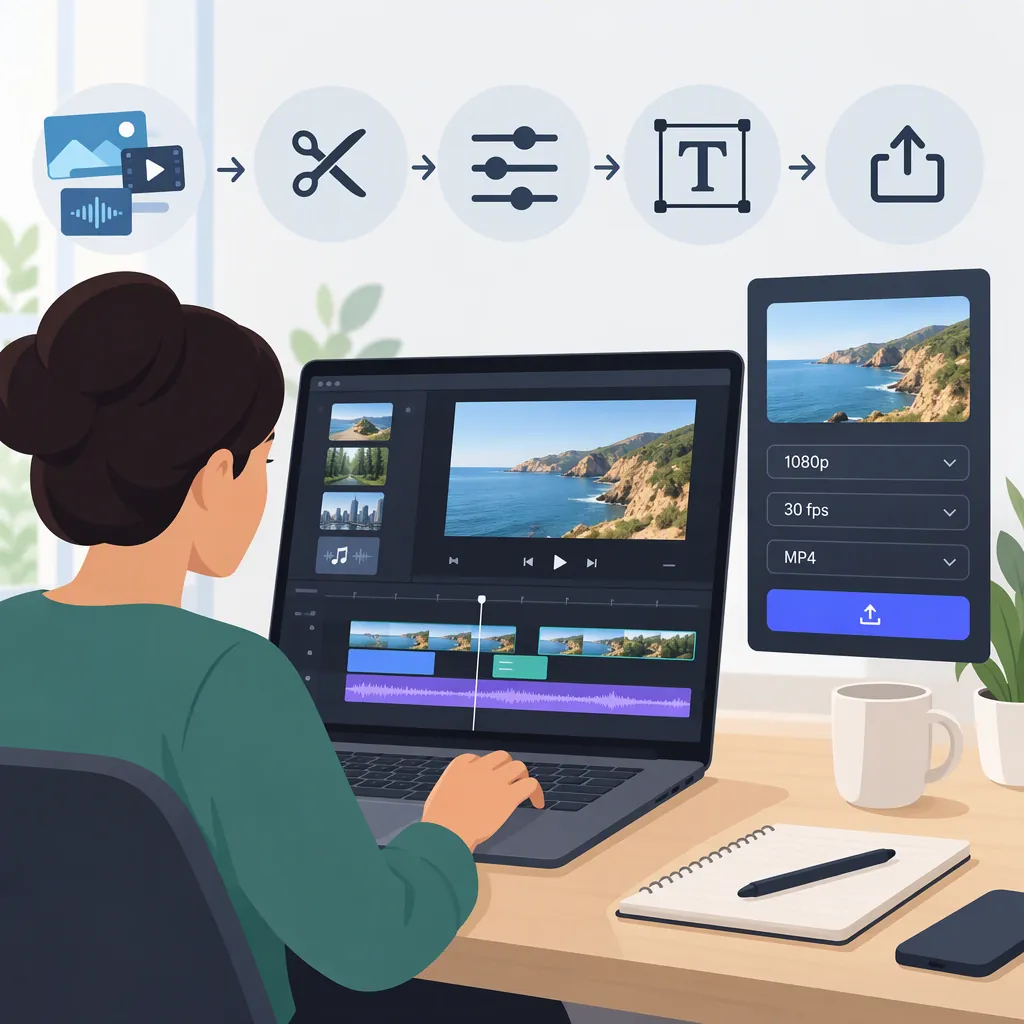
VEED’s video editor page describes a browser-based workflow: upload footage, trim and arrange clips, add text, subtitles or audio, then export. It also describes text-based editing and automated editing options. The same page states that free exports include a watermark and are limited to 720p. These are documented capabilities and limits, not independently tested results. [c1]
Start with Footage and a Clear Edit
For an existing-footage project, VEED’s documented sequence is upload, edit, then export. Its editor page lists file upload by drag-and-drop or by pasting a link, and names MP4, MOV and AVI among supported formats. It then describes trimming, cropping and arranging clips on a timeline. [c1]
Before uploading, decide what the finished video needs to communicate and which moments belong in it. Use only footage you have permission to process and publish; the supplied pages do not establish privacy or retention terms for uploaded material.
A practical sequence is:
- Upload the source footage using a documented input method.
- Arrange the clips in the intended viewing order.
- Trim unwanted material from the beginning and end of each clip.
- Review the sequence before adding captions, music or decorative elements.
VEED specifically describes dragging trim handles to shorten a clip. It also describes text-based editing, where deleting words from a transcript changes the video. [c1] After any transcript-based cut, review the surrounding picture and sound rather than relying on the text alone. Check that the edit preserves the speaker’s intended meaning and does not interrupt a useful visual demonstration.
Add and Review Captions and Audio
VEED’s video maker page describes both automatic and manually typed subtitles. Its documented automatic-caption route is the Subtitles tab followed by Auto Subtitles, with editing afterward. [c3] Treat these labels as source-described navigation, not a guarantee that every account will show an identical interface.
Review generated captions against the recording. Pay particular attention to names, specialized terms, numbers and punctuation. Then watch the video with sound muted to check whether the captions are readable and remain visible long enough to follow.
The editor page also describes adding music and using Auto Edits for audio cleanup, subtitles and automatic B-roll insertion. [c1] If using these options, review each result separately: listen for changes to the voice, inspect caption timing and check whether inserted visuals actually support the narration. Automation should not replace an editorial review.
For a straightforward spoken-video edit, finish the core sequence first, correct captions next, and add background audio only if it serves the content. This is a suggested editing order, not a required VEED workflow.
Caption and Audio Review Checklist
- Compare captions with the spoken words.
- Correct names, numbers and specialized terms.
- Watch without sound to check caption readability and timing.
- Listen through headphones for distracting edits or altered speech.
- Review any automatically inserted B-roll for relevance.
- Confirm permission to use added audio and visuals.
Check Export Limits Before Finishing
The supplied editor page states that free users can export at 720p and that free exports include a watermark. It associates watermark removal and higher-resolution exports with paid plans. [c1] Confirm the options shown for the account and project before treating a particular resolution or watermark setting as available; the supplied material is not a complete plan-by-plan entitlement table.
VEED’s editor page describes downloading the edited video, sharing a link or embedding it. [c1] Choose the delivery method based on the actual assignment. A downloaded file and a shared project or viewing link should not be treated as interchangeable deliverables.
Before final delivery, review the exported file itself—not just the editing preview. Check the opening and ending, clip order, caption placement, audio balance, visible watermark and selected resolution. If a requirement is not met, resolve it before distributing the video.
The references do not establish export processing times, upload-size limits or performance for a particular device. Avoid planning a deadline around unverified assumptions about those details.
Distinguish Editing from Video Generation
VEED’s video maker page describes separate starting points: uploading existing footage, recording or generating a video from text. [c3] For an editing assignment, existing footage can remain the source material; generation is an optional starting point, not a necessary step in trimming or captioning a recording.
Keep the task narrow when evaluating the editor. For example, assess whether a short spoken clip can be trimmed, captioned and exported in the required form. Do not infer overall output quality, editing speed or suitability for a complex production from the presence of AI features.
This overview follows the supplied public descriptions. It does not report hands-on testing, rank VEED against other editors or guarantee caption accuracy, automated-edit quality or device compatibility.
FAQ
Does VEED Require a Software Download?
The supplied video editor page describes editing in a browser without a software download. This overview does not verify performance on a particular browser or device. [c1]
How Does VEED Describe Trimming a Video?
Its editor page says to upload the video and drag the trim handles to cut material from the start or end. It also describes deleting words from a transcript to make text-based video cuts. Review the resulting sequence for continuity and meaning. [c1]
Can Captions Be Edited After Automatic Generation?
Yes. The supplied video maker page describes selecting Subtitles, using Auto Subtitles and editing as needed. Check the text and timing against the recording rather than assuming the generated captions are correct. [c3]
Are Free VEED Exports Watermark-Free?
No, according to the supplied editor page: free exports include a watermark and are limited to 720p. The page associates watermark removal with paid plans. Confirm current account-specific export options before delivery. [c1]