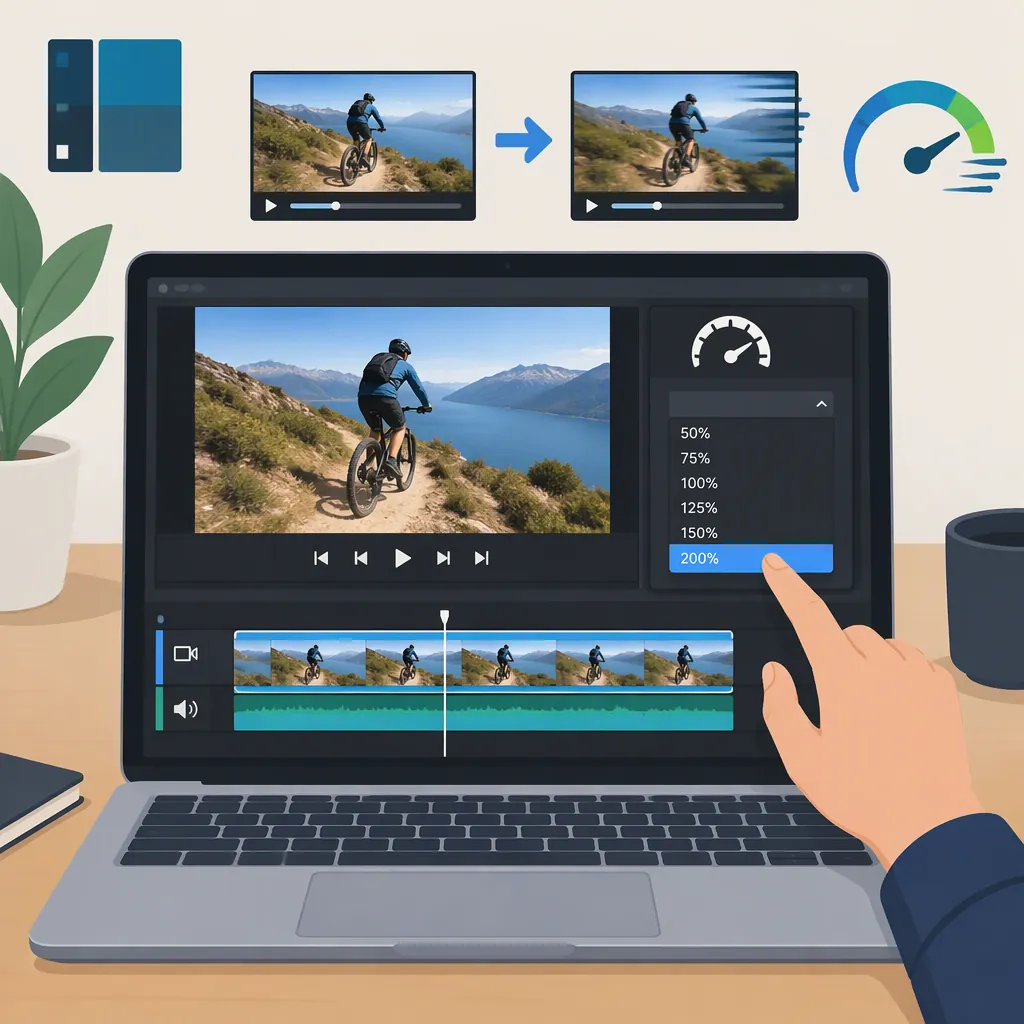
How to Speed up a Video or One Section in Shotcut
Select the clip you want to speed up, open Properties, enter a higher playback multiplier in the Speed box, and press Enter. To speed up only one section, split the clip at that section’s start and end first, then apply the change to the middle clip. This workflow is described in a 2017 Shotcut Forum answer; controls and limits may differ in your installed version. [citation-1]
Change the Selected Clip’s Speed
The supplied Shotcut Forum walkthrough places the speed setting in the selected clip’s Properties, rather than describing a speed filter. It instructs users to enter a value in the Speed box and press Enter. [citation-1]
For a clip you want to accelerate:
- Select the intended clip on the timeline.
- Open Properties and locate Speed.
- Enter the desired playback multiplier—for example, 2.00 for twice the original speed.
- Press Enter to apply the change.
- Preview the result and inspect the timeline around the edited clip.
As a simple timing example, a complete 20-second segment played at 2× speed would take approximately 10 seconds. This is an illustrative calculation, not a measured Shotcut result.
The source walkthrough dates from 2017, so use the control labels rather than its descriptions of icon locations or selection colors as your main reference. [citation-1]
Speed up Only One Section
To leave the rest of the video at its original speed, isolate the portion you want to change. The forum answer describes making two splits and then selecting the resulting section. [citation-1]
- Select the clip you want to edit.
- Move the playhead to the beginning of the section that should run faster.
- Press S, or use Split at Playhead.
- Move the playhead to the end of that section and split again.
- Select the isolated middle clip.
- Open Properties, change Speed, and press Enter.
For more precise split placement, the same answer suggests moving close to the intended point and then using the arrow keys to adjust one frame at a time. Preview both boundaries after the speed change to judge whether the transition feels right. [citation-1]
Check the Gap After the Speed Change
A faster section takes less playback time. In the workflow described by the 2017 forum answer, the selected section shrinks and leaves a gap on the timeline. The answer instructs users to right-click that gap and choose Remove, bringing the following portion up to the shortened clip. [citation-1]
Inspect the result before removing anything: confirm that you are targeting the empty gap, not the neighboring video clip. If your goal is uninterrupted playback, follow the documented gap-removal step and then preview across the join. If your version handles the timeline differently, do not assume that a gap must appear.
For an edit with additional tracks, review the surrounding material before accepting the new timing. The supplied walkthrough does not establish how every multi-track arrangement responds.
Understand High-Speed Limits
Do not treat a speed ceiling in an older tutorial as a verified current limit. The 2017 answer mentions 20×, while a separate July 2021 thread discusses a 50× limit. These dated references do not establish the maximum in today’s Shotcut releases. [citation-1] [citation-2]
In the 2021 thread, a user describes exporting a video at 50×, importing that export, and accelerating it again to obtain a higher effective speed. A reply presents that export-and-reimport approach as the available workaround at the time. Another reply explains the limit in terms of avoiding bugs associated with heavy audio resampling. [citation-2]
If your installed version rejects the multiplier you need, that historical workaround is worth distinguishing from a direct speed setting: it requires an intermediate export. Keep the original media available and assess the resulting picture and sound before relying on it. The provided references do not verify current speed limits, audio quality, or whether a newer alternative exists.
FAQ
Where Is the Speed Setting in Shotcut?
The supplied forum walkthrough says to select the clip, open Properties, and enter a value in the Speed box. Press Enter to apply it. That description is from 2017, so the exact interface may differ in your version. [citation-1]
How Do I Select Only Part of a Clip to Speed Up?
Split the clip at the start and end of the desired section using S or Split at Playhead, then select the isolated section and change its speed in Properties. [citation-1]
Can Shotcut Speed up a Video Beyond 50×?
The supplied 2021 discussion describes a 50× limit and an export-and-reimport workaround for higher effective speeds. It does not verify the limit or available methods in current releases. [citation-2]