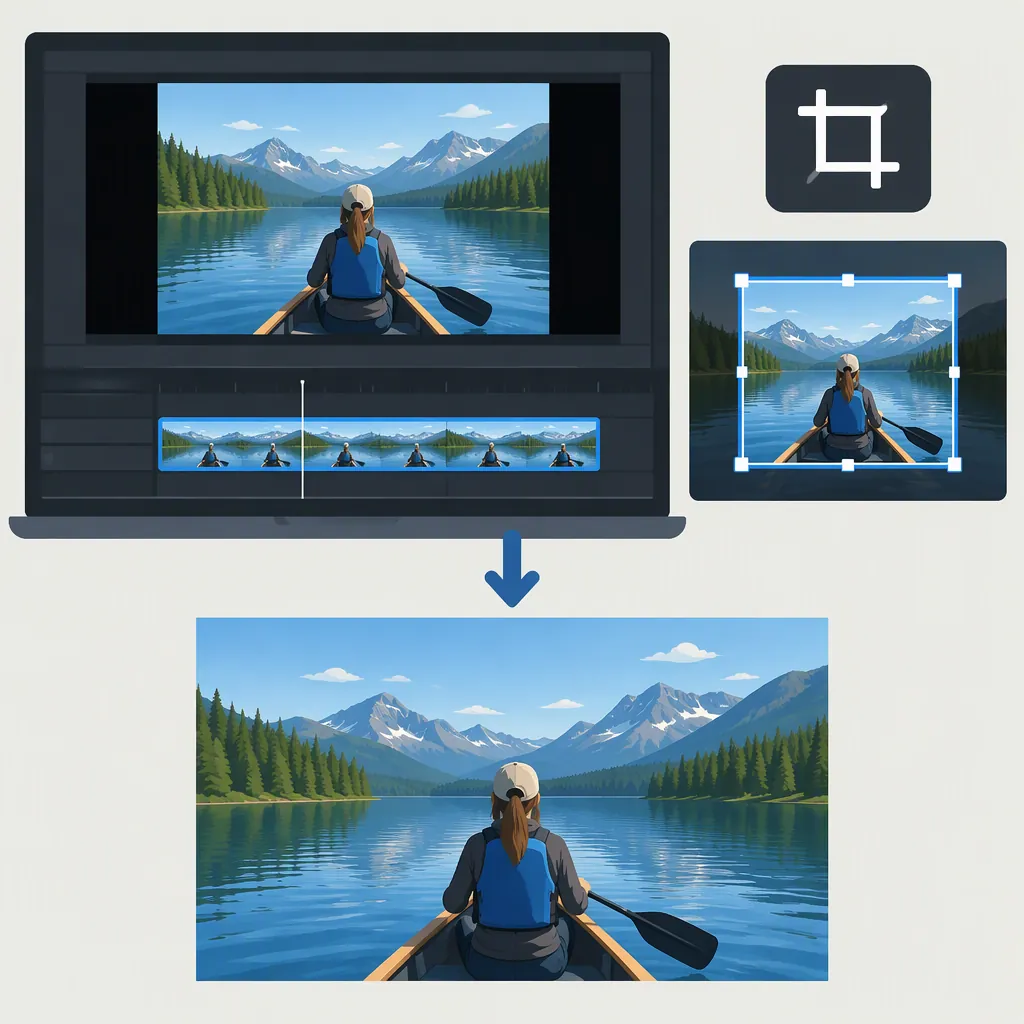
Crop Video in Shotcut: Basic Workflow and Black-Border Troubleshooting
To crop video in Shotcut, apply Crop: Rectangle to the target clip and adjust the rectangle to retain the content you want. For a layered edit, enable Transparent if the area outside the crop should reveal the track below. Cropping and output sizing are separate: cropping the source does not automatically shrink the output canvas. [c1] [c2]
The workflow below separates a basic crop from two common follow-up tasks: revealing another track and preparing a smaller output frame. The supporting Shotcut forum discussions date from 2018 and 2025; they establish these distinctions, but not a complete menu-by-menu procedure for every current version. [c1] [c2]
Start with the Result You Want
| Goal or symptom | What to check | Next action |
|---|---|---|
| Keep only a rectangular portion of a clip | Which content should remain visible | Apply Crop: Rectangle to the intended clip and define the retained area. [c2] |
| A cropped upper clip hides the video beneath it with black | Whether the outside of the crop is transparent | Enable Transparent in the upper clip’s Crop: Rectangle filter. [c2] |
| A standalone cropped video still has black borders | Whether the output canvas is larger than the retained image | Plan the intended output resolution separately from the crop. [c1] |
| Remove a green background while keeping the foreground | Whether the problem is a background color rather than a rectangular boundary | Consider Chroma Key, as recommended for the green-background example in the 2018 discussion. [c1] |
Basic Crop Workflow
Start with the clip you want to crop available in your edit. A second video track is only needed if your goal is to reveal another clip underneath.
- Select the target clip. Identify the exact clip whose visible area should change. In a layered edit, this is usually the upper clip that you want to restrict.
- Apply Crop: Rectangle. Add the filter to that clip, rather than to a different layer. The 2025 discussion describes applying this filter to an upper clip. [c2]
- Adjust the retained rectangle. Define the rectangular portion you want to keep visible. Use the preview to judge the result rather than assuming that the crop also changes the final frame dimensions. [c1] [c2]
- Check the crop throughout the clip. Preview the beginning, middle, and end as a practical check. If the subject moves, confirm that the retained area does not cut off content you still need.
- Choose the appropriate next step. For a layered composition, check transparency. For a standalone cropped output, check the canvas and intended output dimensions.
These are workflow-level steps. The cited discussions do not document the current filter-panel navigation or individual crop parameters, so this guide does not prescribe an exact click path or version-specific values.
Reveal a Lower Track with Transparent
If another clip should appear outside the upper clip’s cropped rectangle, enable Transparent in the upper clip’s Crop: Rectangle filter. The 2025 forum answer identifies this option as the fix for a cropped layer covering the track underneath with black. [c2]
Preview a point where both clips overlap. Check that:
- The retained rectangle still contains the intended upper-layer content.
- The area outside that rectangle reveals the intended lower clip.
- The crop is applied to the correct clip, not the lower layer.
- The result remains correct as playback moves through the overlap.
Transparent is a compositing option, not an output-size setting. The cited answer concerns seeing the lower track in the composition; it does not establish that an exported file will contain an alpha channel. [c2]
Plan a Standalone Cropped Output
If you want the exported video to contain only the retained region, treat these as separate decisions:
- Source crop: Which part of the original image remains visible.
- Project canvas: The frame in which that cropped image is composed.
- Export dimensions: The intended size of the finished video.
A 2018 Shotcut forum reply explains that cropping the source does not change the output canvas resolution. It recommends starting with the video mode corresponding to the intended export resolution. [c1]
Use this planning and verification sequence:
- Decide the final frame dimensions before relying on the crop. Do not assume they will become the dimensions of the retained rectangle.
- Plan the edit around the intended video mode. This follows the forum recommendation; the discussion does not provide current custom-size controls. [c1]
- Check how the retained image fits within the frame. If the preview still has unused space around it, do not treat the crop alone as a completed border-removal solution.
- Review a test export. Check both the file’s dimensions and the visible frame. A correct crop and a correctly sized output are separate checks.
The available sources do not support an exact current-version resizing or export-settings walkthrough. They support the key diagnosis: a crop can be correct while the output canvas remains too large for the retained image. [c1]
When Chroma Key Is the Better Fit
A rectangular crop removes content outside a boundary. It does not, by itself, isolate an irregular foreground from a colored background.
For the green-background example in the 2018 discussion, a reply recommends Chroma Key instead of relying on cropping. That advice is specific to the example; it does not establish that every background can be removed cleanly with the same approach. [c1]
FAQ
Does Cropping Automatically Reduce the Exported Video’s Dimensions?
No. The 2018 forum reply explains that cropping the source leaves the output canvas resolution unchanged. Plan the intended output resolution separately. [c1]
Why Is the Area Outside My Transparent Crop Still Black?
The Transparent recommendation addresses an upper clip hiding a lower track. Check the composition where another clip should be visible underneath. The discussion does not establish that transparency alone produces a smaller frame or a transparent exported file. [c2]
Will These Controls Be Identical in My Shotcut Version?
The 2025 discussion confirms Crop: Rectangle and its Transparent option, but does not establish identical interface controls across all versions. Use the workflow as a guide to the relevant filter and behavior, not as a verified menu-by-menu tutorial for every release. [c2]