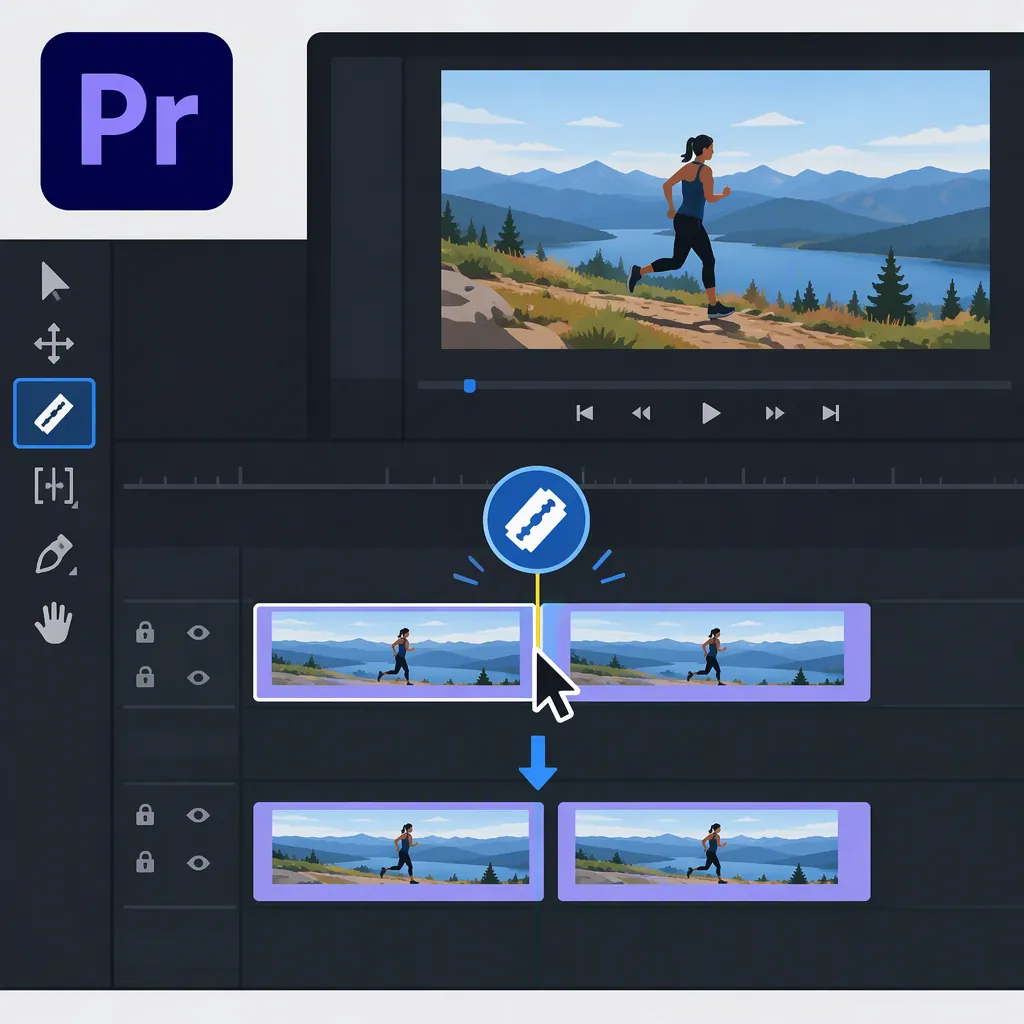
How to Split a Clip in Premiere Pro
To split a clip in Premiere Pro, place the timeline playhead at the desired cut point and use Add Edit. A 2018 Adobe Community answer identifies Ctrl+K as the shortcut that creates a cut at the current-time indicator. If it does not work, check your keyboard shortcut mapping for Add Edit. These references describe older versions, so confirm the assignment in your installation. [citation-1] [citation-3]
Split a Clip at the Playhead
For a cut within a sequence, use the keyboard command described in the cited discussions:
- Locate the clip in your timeline and position the playhead at the point where you want the split.
- Use Ctrl+K, provided that shortcut is assigned to Add Edit in your installation.
- Inspect the timeline to confirm the edit landed where you intended and affected the intended clips.
The 2018 Adobe Community answer describes Ctrl+K as creating a cut at the current-time indicator—the playhead. The Creative COW discussion identifies the relevant command name as Add Edit. [citation-1] [citation-3]
Version limitation: These are older community discussions, not current-version documentation. They do not establish a macOS shortcut or precise track-selection behavior for your installed version.
If Ctrl+K Does Not Split the Clip
Check the command assignment rather than assuming that the shortcut is unavailable. In the Adobe Community thread, the original poster reported using someone else's shortcut mapping, which explained why Ctrl+K had not worked. [citation-1]
In your keyboard shortcut settings, look for Add Edit. The Creative COW discussion distinguishes Add Edit from Add Edit All Tracks and explains that searching for “split” or “cut” can lead you away from the intended command. [citation-3]
Before assigning or using a shortcut, verify which of those commands you intend to run. Afterward, inspect the resulting edit rather than assuming only one clip was affected. The supplied references do not give enough current-version detail to specify track-targeting or linked-audio behavior.
Shortcut Troubleshooting Checklist
- Look for Add Edit in your keyboard shortcut settings.
- Check the assigned key combination against the one you are pressing.
- Distinguish Add Edit from Add Edit All Tracks.
- Position the playhead at the intended cut point.
- Run the assigned command and inspect the resulting edit.
Timeline Cuts, Subclips, and Separate Files
If your goal is to organize named excerpts in a bin rather than make a cut in a sequence, the 2019 Adobe Community discussion describes a subclip workflow:
- Double-click the source clip in a bin to open it in the Source Monitor.
- Set an In point and an Out point for the excerpt.
- Right-click and select Create Subclip.
- Name and save the subclip, then repeat for other excerpts. [citation-2]
Do not confuse a project subclip with a new media file on disk. The same discussion explains that subclips remain within the project; separate media files require exporting the excerpts. It also notes that source-level changes, described there using the older Master Clip terminology, can affect related uses. [citation-2]
This workflow comes from a Premiere Pro 2019 discussion. Confirm the available commands and terminology in your version.
FAQ
What Is the Shortcut to Split a Clip in Premiere Pro?
The cited 2018 Adobe Community answer gives Ctrl+K for a cut at the playhead. Check your installed keyboard mapping for Add Edit, especially if you use a customized preset. The supplied references do not verify a current macOS shortcut. [citation-1] [citation-3]
Why Can’t I Find a Command Named Split?
The Creative COW discussion identifies Add Edit as the command name for this timeline operation. It also lists Add Edit All Tracks as a distinct command, so check which one you are assigning. [citation-3]
How Do I Make Separate Named Excerpts?
For named excerpts inside the project, the 2019 Adobe Community discussion recommends setting In and Out points in the Source Monitor and choosing Create Subclip. For separate media files on disk, it says to export the excerpts. [citation-2]