Adobe Premiere Pro on Android: Which App to Use and How to Start
Short answer: Adobe offers a video-editing app for Android, but the official Android app is called Adobe Premiere: Video Editor (Adobe also calls it Premiere on Android or Premiere on mobile). It is a mobile app—not an Android version bearing the desktop product name Premiere Pro. In the United States, Adobe’s app is listed on Google Play under Adobe as the publisher. (play.google.com)
Which App Should You Install?
Search Google Play for Adobe Premiere: Video Editor, and check that the publisher is Adobe. Adobe’s help identifies it as the dedicated Premiere video-creation app for Android. Avoid relying on an app simply because its name contains “Premiere Pro”: the name alone does not establish that it is Adobe’s app. (play.google.com)
The Google Play listing states that the app requires an Android device with at least 5 GB of RAM to download. If the Play Store says the app is unavailable or incompatible, check the device requirement and the listing for your account’s region before troubleshooting the editing workflow. (play.google.com)
How to Start Editing on Android
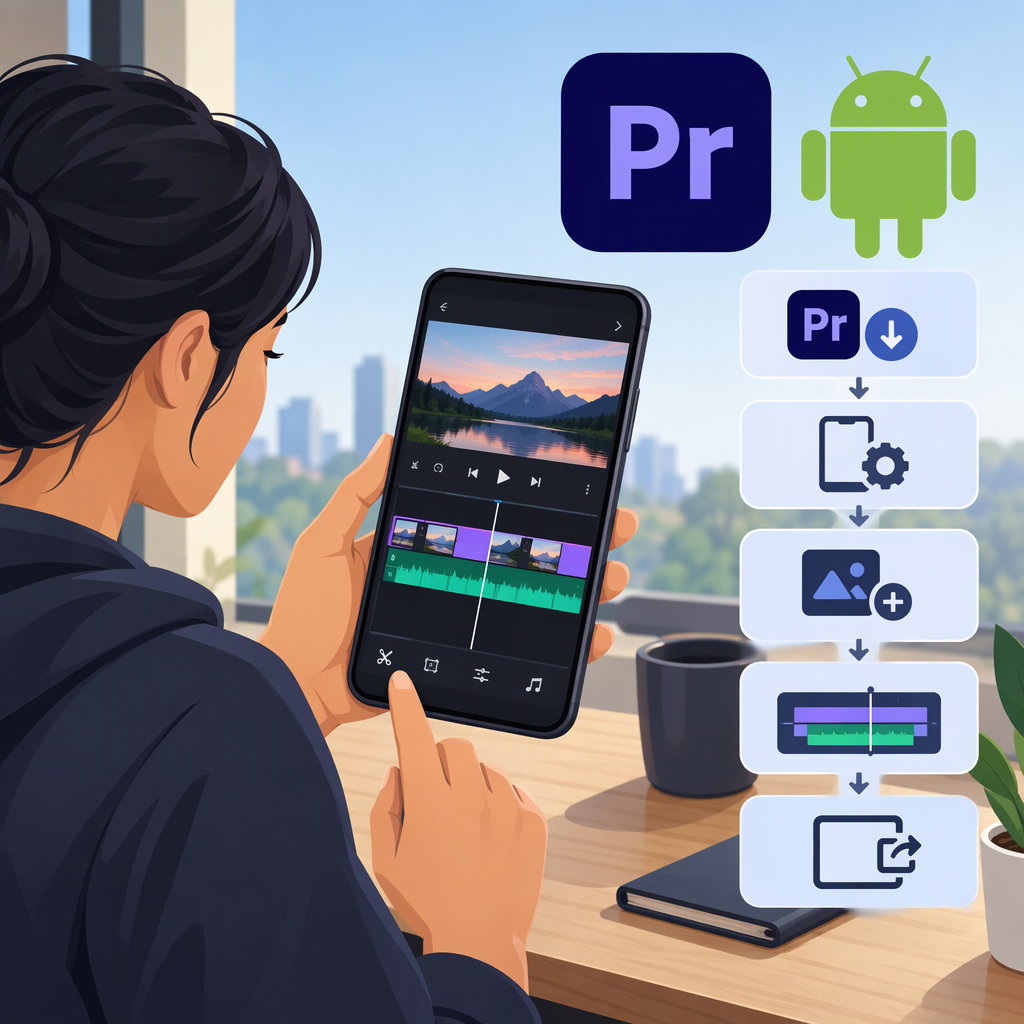
- Install the Adobe app from Google Play. Confirm the listing is published by Adobe. (play.google.com)
- Start a project and bring in footage. Adobe documents options to select media from your device’s photo library or import it from the file picker. Its instructions also describe selecting files from supported cloud-storage apps already installed on the device. (helpx.adobe.com)
- Assemble your edit. Use the timeline to arrange clips; Adobe documents controls for trimming, splitting, and rearranging clips. You can add elements such as text or audio when they suit the video. (helpx.adobe.com)
- Preview, then export. Review the edit before exporting. Adobe’s mobile export instructions cover resolution, frame rate, and quality settings; the Android app listing says video export is available up to 4K. (helpx.adobe.com)
Example: For a short vertical clip, choose the original phone footage, put the moments in story order, trim pauses, then add a title or voice-over if needed. Preview the result and select export settings suitable for where you plan to share it. This is a practical example, not a claim that every project or device will export at the same speed or quality.
What to Expect—And What Not to Assume
Premiere on Android provides a mobile editing workflow, including a multitrack timeline and clip controls, but its name and documentation distinguish it from the desktop application. If you need a particular desktop feature or want to move an in-progress project between devices, confirm that exact feature or transfer route in Adobe’s current documentation rather than assuming the mobile and desktop workflows are interchangeable. Adobe documents a route for sending mobile projects to Premiere on desktop, but the cited help page does not establish every Android-device or project-compatibility condition. (helpx.adobe.com)
Bottom line: For Adobe video editing on an Android phone, install Adobe’s Premiere mobile app from Google Play. If you specifically need the desktop product called Premiere Pro, treat the Android app as a separate mobile editing option—not as proof that the desktop application or every desktop workflow is available on Android. (play.google.com)
Availability and requirements summarized for the United States as of November 13, 2026; app-store availability and requirements may change.