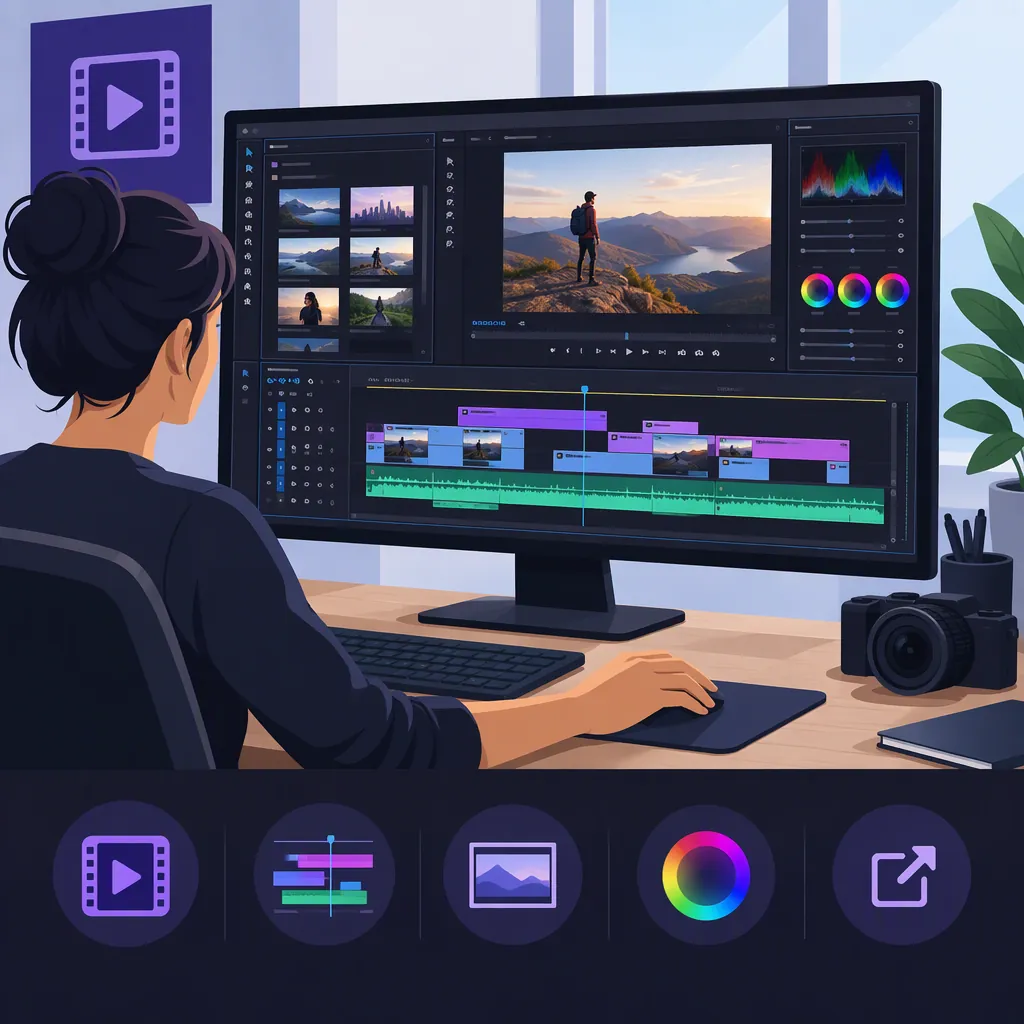
Adobe Premiere Video Editor: A Premiere Pro Overview
Adobe Premiere Pro is a desktop video editor for macOS and Windows. It supports importing video, audio, and graphics; editing them together; adding titles and effects; and exporting a finished video. [reference-2] This overview focuses on that desktop workflow, not the separate Premiere app for iPhone announced in September 2025. [reference-1]
For a first project, concentrate on one complete editing cycle: choose usable footage, arrange and refine a short sequence, then export and review the result.
What Premiere Pro Does
American Graphics Institute’s What is Premiere Pro describes Premiere Pro as Adobe video-editing software with audio-editing functionality. Its basic workflow runs from importing media to creating an edited video and exporting it for distribution. [reference-2]
Three concepts help make that workflow understandable:
- Source material: The original clips, recordings, and images you plan to use.
- Editing sequence: The working arrangement of selected material—what appears first, what follows, and how long each part lasts.
- Exported video: The output file you review or distribute after editing.
These terms describe different stages of the task. Importing footage makes it available for editing; it does not, by itself, decide what belongs in the finished video. Likewise, completing an arrangement is not the same as checking the exported result.
The important beginner decisions are selection, order, timing, and delivery. Effects can wait until those decisions are working.
A Focused First Editing Exercise
Premiere Pro supports importing media, combining and editing it, and exporting a version for distribution. [reference-2] The exercise below turns that broad workflow into a small practice project.
This is a conceptual desktop editing exercise, not a verified menu-by-menu tutorial. The cited overview does not document current interface controls. Use instructions that match your installed Premiere Pro version when locating import, sequence-editing, trimming, and export controls.
Example Project: A Short Introduction
Use three to five clips you have permission to use to introduce an object, place, or activity. Aim for approximately 20–30 seconds.
Those numbers are teaching targets, not Premiere Pro limits or official publishing specifications. For this exercise, the destination is local playback: produce a file you can open and watch on your intended device. If you plan to publish it elsewhere, establish that destination’s current delivery requirements separately.
Plan a simple structure:
- Opening: Show the subject clearly.
- Middle: Add one or two details that explain it.
- Ending: Finish with a shot that feels intentional rather than abruptly interrupted.
From Imported Media to an Exported Edit
-
Prepare and import the material. Write one sentence describing what the introduction should communicate, then import your chosen video and any audio or images. Premiere Pro supports importing these types of material, though compatibility should be checked for your files and software version. [reference-2]
-
Build the working sequence. Choose an opening shot, then arrange the remaining shots in the order you want viewers to see them. Treat this as a rough assembly: decide which clips belong before spending time on titles or effects. Importing and arranging are separate tasks—you still need to construct the edited result.
-
Refine the boundaries and order. Review each shot’s beginning and ending. As a practice task, remove unnecessary waiting time, keep the part that communicates the subject, and reconsider any shot that repeats information. Then watch adjacent shots together: does the second shot follow logically from the first?
-
Review sound and text. Listen to the whole sequence, not only individual clips. Note unclear speech or distracting changes in sound level. If a title helps identify the subject, add a short one and check that it stays visible long enough to read. Audio editing and adding titles are among the functions described in AGI’s overview. [reference-2]
-
Export the edited sequence. Once the arrangement is ready, use your version’s export controls to produce a video file for the intended destination. Premiere Pro supports exporting edited work for distribution, but this overview does not prescribe a current preset or format. [reference-2]
-
Watch the output file. Open the exported video outside the editing workspace. Check the opening, every shot change, the sound, any title, and the ending. Record specific revision notes, such as “the title disappears before I finish reading,” rather than only “improve pacing.”
First-Edit Acceptance Checklist
The practice project is complete when:
- The opening makes the subject recognizable.
- The shots follow an understandable order.
- Each shot lasts long enough to communicate its purpose without unnecessary waiting.
- Any title is readable.
- Any speech is understandable, and the sound does not distract from the subject.
- The exported file plays from beginning to end on the intended playback device.
- You have recorded up to three concrete improvements for a second pass.
These are editorial checks for the exercise, not a guarantee of compliance with a publishing platform’s specifications.
Premiere Pro and Premiere on iPhone
Adobe’s September 30, 2025 announcement introduced Premiere for iPhone and described sending mobile work to desktop for further editing in Premiere Pro. [reference-1]
The announcement listed mobile capabilities including a multitrack timeline, frame-accurate editing, animated captions, and audio tools. Those statements concern the mobile app; they are not evidence that the desktop application has identical controls or an interchangeable interface. [reference-1]
Before following a tutorial, confirm whether it covers Premiere Pro on desktop or Premiere on iPhone, and whether it matches your software version.
What the Sources Establish—And What They Do Not
AGI’s What is Premiere Pro is dated January 21, 2024, but also contains older version references. [reference-2] Adobe’s mobile source is a September 2025 launch announcement. [reference-1] These sources support the broad application overview and desktop/mobile distinction, not a verified account of current pricing, system requirements, interface layout, or version-specific feature availability.
FAQ
What Can I Edit with Premiere Pro?
Premiere Pro can combine video, audio, and still images into an edited video, with titles and effects where needed. [reference-2] Check compatibility for your particular files and installed version; this overview is not a current supported-format checklist.
Is Premiere Pro the Same as Premiere on iPhone?
No. Adobe’s announcement distinguishes the iPhone app from desktop Premiere Pro and describes transferring mobile work to desktop for further editing. [reference-1] Do not assume that their controls or tutorial steps are interchangeable.
Does Premiere Pro Include Audio Editing?
Yes. AGI identifies audio editing as part of Premiere Pro’s functionality. [reference-2] For the first exercise, focus on understandable speech and sound that supports rather than distracts from the video.
What Should I Practice First?
Start with a complete import–edit–export cycle, which follows the broad workflow described by AGI. [reference-2] Use a few clips, refine their order and timing, and review the exported file before expanding into more elaborate effects.
Sources
-
[reference-1] Adobe Premiere Now Delivers Fast, Pro-Quality Video Editing on Mobile
-
[reference-2] What is Premiere Pro