Adobe Premiere on Android: Availability and a Basic Editing Guide
Short Answer
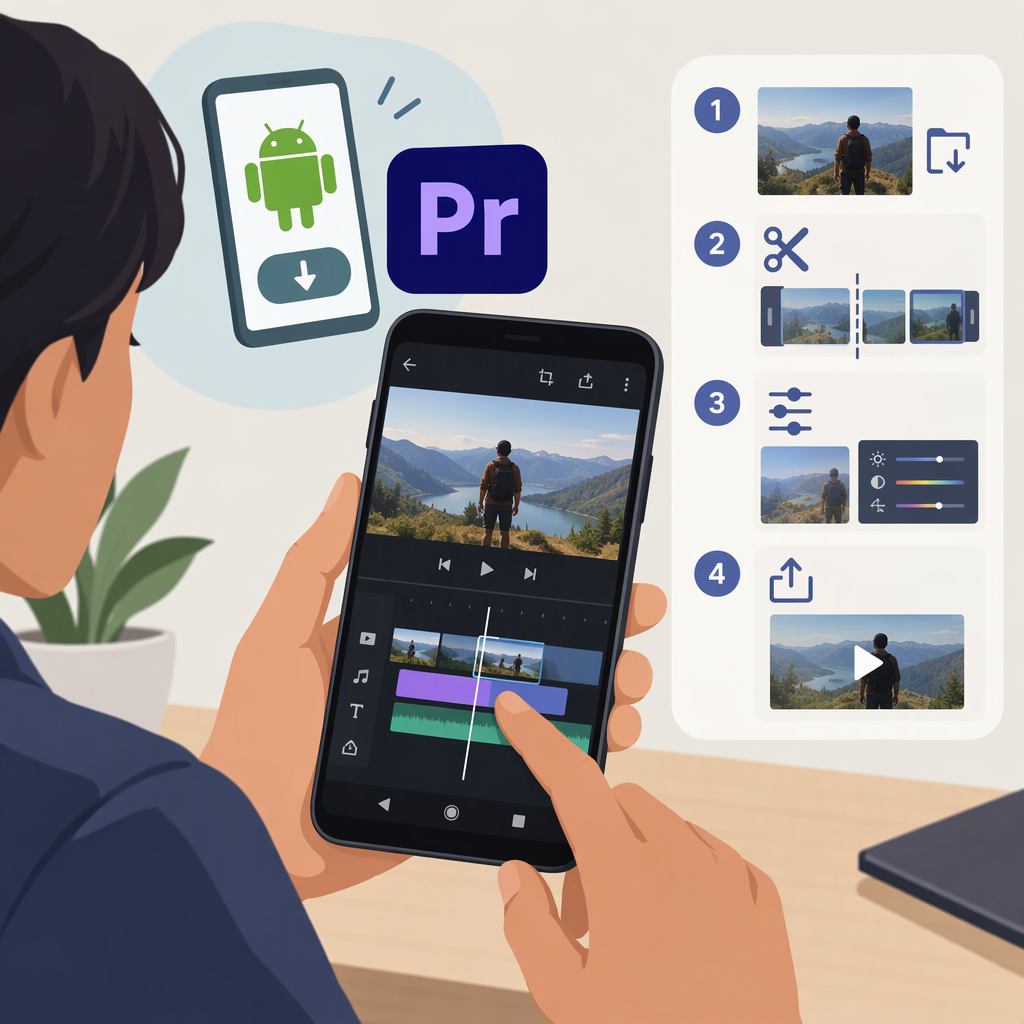
Yes—Adobe offers a dedicated Premiere mobile app for Android. It is a mobile video editor, not the desktop version of Premiere Pro running on your phone. Adobe identifies Premiere on Android as a video-creation app, and its Android download is distributed through Google Play. (helpx.adobe.com)
On Google Play, look for Adobe Premiere: Video Editor published by Adobe. The listing says the device needs at least 5 GB of RAM to download the app. It does not establish a minimum Android operating-system version here, so check the Play Store listing on your device for compatibility. (play.google.com)
Make a Basic Edit
- Install the app. Find Adobe Premiere: Video Editor by Adobe in Google Play. If the listing is unavailable or says your device is incompatible, the information here does not establish why; check the listing’s current compatibility details.
- Start a project and import media. Adobe documents starting from the phone’s photo library, or choosing New from files to bring in media through the file manager or an installed cloud-storage app. Select the video clips you want to use. (helpx.adobe.com)
- Trim out an unwanted moment. In the timeline, position the playhead where you want a clip divided and use Premiere mobile’s split-clip function. Remove the unwanted resulting section. Adobe’s mobile help documents splitting and deleting clips; the exact controls may vary with app updates. (helpx.adobe.com)
- Review the sequence. Play the edit and check that the clips are in the intended order. If you’re making a vertical or widescreen video, choose an aspect ratio suited to its destination; Premiere mobile documents changing the aspect ratio. (helpx.adobe.com)
- Export the video. Use Premiere mobile’s export function. Adobe documents export settings for resolution, frame rate, and quality, so select settings appropriate for where you plan to share the video. The Google Play listing says the app supports exports up to 4K, but your device and selected settings may affect what is available. (helpx.adobe.com)
Example: For a short phone-recorded clip, import the footage from your gallery, split it just before and after a pause, delete that middle section, review playback, and export. The result should be a shorter video without the selected pause.
What This Does—And Doesn’t—Mean
The Android app is useful for creating and editing videos on a phone. Don’t assume that instructions for desktop Premiere Pro apply to it, or that an Android project can automatically be opened as an editable desktop Premiere Pro project. This guide does not establish a project-transfer workflow. For the current app identity and download route, consult Adobe’s Premiere on Android overview and the Google Play listing.