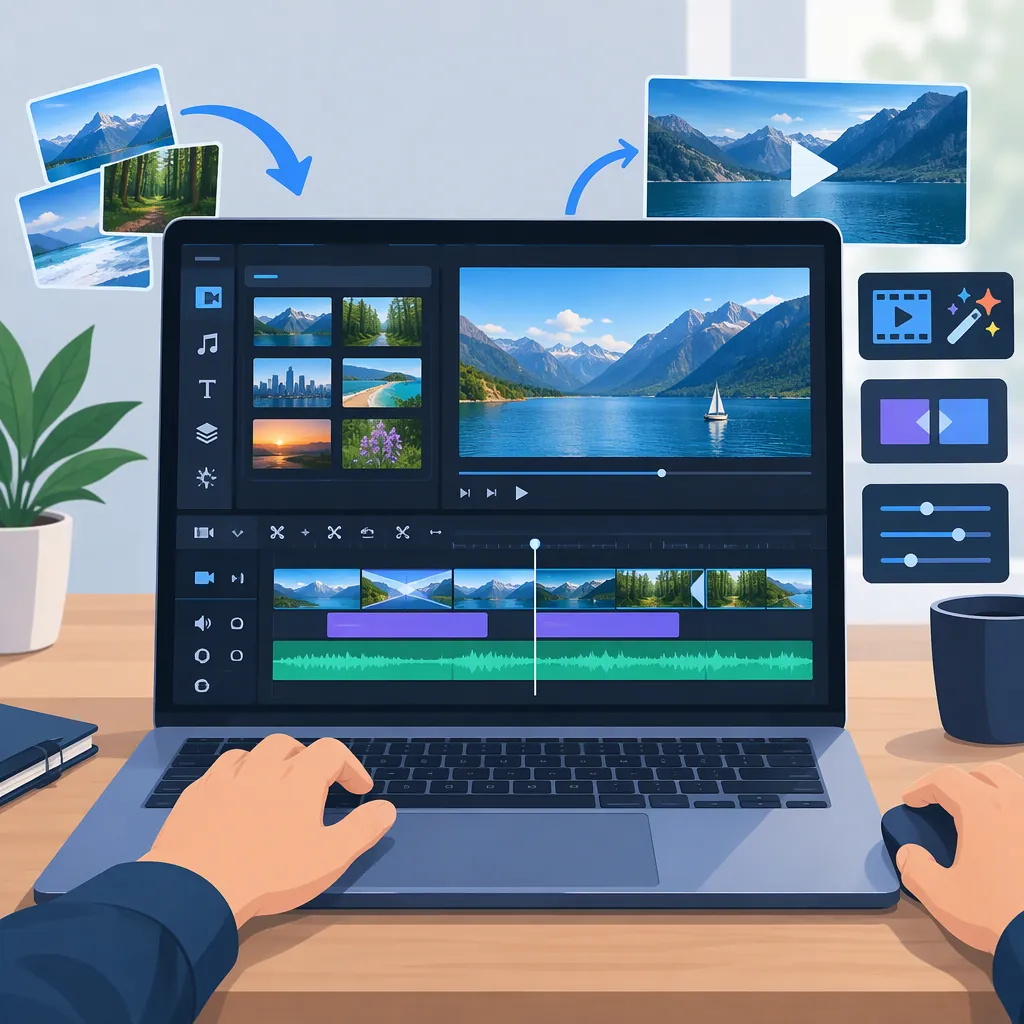
PowerDirector Video Editor: Tools and Editing Workflow
PowerDirector is a video editor whose public product descriptions list timeline editing, titles, audio tools, and AI-assisted features. The PowerDirector Android app and PowerDirector 365 desktop offering have different feature and licensing descriptions, so they should not be treated as interchangeable. A basic workflow is to arrange and trim clips, refine audio, add readable text, and review a test export. [pd-mobile] [pd-desktop]
This guide draws on public product descriptions, not hands-on testing. It explains how the documented tools can fit into an edit without assuming exact menu locations, device compatibility, or access in every edition.
Identify Your PowerDirector Version
Before starting, confirm the product and edition shown in your installation. Use the following comparison to distinguish what the public descriptions establish.
| Area | PowerDirector Android app | PowerDirector desktop overview |
|---|---|---|
| Timeline tools | Trimming, cutting, cropping, speed changes, and a multi-track timeline. [pd-mobile] | Trimming, splitting, layering, and arranging clips; multi-track timelines, markers, snapping, and ripple editing. [pd-desktop] |
| Text and audio | Text and animated titles, music, voiceover recording, and speech enhancement. Auto Captions appears under premium benefits. [pd-mobile] | Animated titles, audio denoise, text-to-speech, automatic captions, and transcript-based editing. [pd-desktop] |
| Licensing information | The app listing identifies ads, in-app purchases, and premium benefits. [pd-mobile] | The overview distinguishes PowerDirector 365, free PowerDirector Essential, and a one-time-purchase edition. [pd-desktop] |
| Export information | The listing describes output up to 4K. [pd-mobile] | The overview lists MP4 with H.264/H.265, MKV, WMV, and MPEG-2, with output up to 4K; some export options are restricted in the free edition. [pd-desktop] |
These sources do not provide a complete device compatibility table or per-plan feature and export matrix. Confirm access to any essential captions, assets, AI tools, or export settings before building a project around them.
Build the Edit on the Timeline
Start with the sequence rather than effects. Decide what the viewer needs to understand, arrange the relevant clips, and remove material that does not serve that purpose.
Example: A Short Explanation in PowerDirector Desktop
For a minimal practice project, use one main speaking clip, two supplementary shots showing the subject, and a short title. This is a suggested editing exercise—not a tested interface walkthrough. It uses the multi-track, split, layering, and title capabilities described in the PowerDirector 365 desktop overview. [pd-desktop]
| Step | Tool and editing decision | What to check |
|---|---|---|
| 1. Establish the main sequence | Arrange the speaking clip as the backbone of the timeline. Trim its beginning and end so the explanation starts and finishes cleanly. | The first retained sentence has enough context, and the ending is not cut off. |
| 2. Remove an unnecessary section | Split around a pause, mistake, or repeated sentence, then remove the unwanted segment. | Play across the new cut. The meaning should remain intact, with no missing word or abrupt change in action. |
| 3. Add supplementary footage | Use another video track to layer a relevant shot over the portion of the explanation it illustrates. Keep the intended spoken audio audible. | The supplementary shot matches what is being discussed, appears at the right time, and does not unintentionally replace the dialogue. |
| 4. Add a title | Place a brief title over the opening footage using the title tools. Limit its duration to the period when it helps orient the viewer. | The text is readable against the footage and does not cover a face or important detail. |
| 5. Recheck timing | After edits that move clips, inspect nearby footage, titles, and audio. The desktop overview lists snapping and ripple editing among its timeline tools. [pd-desktop] | Later elements still align with the intended moment; no accidental gap or overlap has appeared. |
Keep the first pass simple. Once the explanation works, decide whether an effect solves a specific problem.
The PowerDirector Android app listing names keyframes, chroma key, masks, and blend modes. The PowerDirector 365 desktop overview describes keyframe controls for motion and effects, plus multi-camera and color tools. These are documented capabilities, not evidence of identical controls across the two products. [pd-mobile] [pd-desktop]
For example, consider animation only when movement helps direct attention. Review the sequence again after applying it to ensure the effect has not obscured the subject or distracted from the explanation.
Review Audio, Titles, and Captions
For spoken content, make dialogue understandable before adding background music. Listen across cuts for missing words, sudden volume changes, and mismatches between speech and the picture. Then introduce music only if it serves the video, checking that it does not obscure the voice.
The PowerDirector Android app lists music, voiceover recording, and speech enhancement. The PowerDirector 365 desktop overview describes audio denoise and text-to-speech. These descriptions establish available tool categories, not guaranteed improvements for a particular recording. [pd-mobile] [pd-desktop]
Review titles and captions against the actual footage:
- Wording: Correct names, technical terms, and transcription errors.
- Timing: Keep captions aligned with the spoken words and titles visible long enough to read.
- Contrast: Check readability over both light and dark parts of the shot.
- Placement: Avoid covering important action, faces, or other on-screen information.
Automatic-caption access requires particular attention: the Android app listing places Auto Captions among premium benefits, while the desktop overview describes automatic captions and editing footage through its transcript. [pd-mobile] [pd-desktop]
If you edit by deleting transcript text, play across the resulting video cut. A readable transcript alone does not establish that the spoken transition or picture still works.
Treat AI-Assisted Edits as Drafts
The PowerDirector Android app and PowerDirector 365 desktop descriptions list AI-assisted editing and generation tools. The desktop overview specifically describes automated rough cuts that can be refined on the timeline. [pd-mobile] [pd-desktop]
Review an automated sequence as you would a manual edit:
- Check that selected shots support the intended explanation.
- Remove duplicated, irrelevant, or misleading material.
- Inspect cut timing and alignment with narration or music.
- Verify any generated narration against the facts you intend to present.
- Examine generated footage for visual details that could misrepresent the subject.
Neither cited product description establishes output accuracy for your project. Automation does not replace factual, visual, or audio review.
Choose and Check the Export
The PowerDirector Android app advertises export up to 4K. The PowerDirector desktop overview lists MP4 with H.264/H.265, MKV, WMV, and MPEG-2, also with output up to 4K, while noting restrictions on some free-edition export options. [pd-mobile] [pd-desktop]
Separate delivery requirements from the settings your installation actually offers. Before exporting, check the destination’s requirements for:
- Aspect ratio and framing: Whether the video needs a vertical, square, or horizontal frame, and whether important content remains visible.
- Resolution: The required or accepted dimensions—not simply the highest advertised option.
- Frame rate: Any destination requirement and whether motion looks appropriate in the resulting file.
- File format and codec: What the destination accepts, compared with the options available in your edition.
These are general selection criteria, not a claim that every PowerDirector version offers every setting.
Export a short representative section before rendering the complete project. Include dialogue, text, a cut or transition, and any demanding effect. Play the exported file itself and check:
- Speech stays synchronized with the picture.
- Dialogue remains clear and music does not overpower it.
- Captions and titles are not cropped or obscured.
- Cuts, transitions, and effects appear as intended.
- The file meets the destination’s stated requirements.
A successful short test is useful, but it does not replace reviewing the complete export. The cited sources do not establish render-time benchmarks or guarantee successful output on every device.
PowerDirector Pre-Export Checklist
- Confirm the product, edition, and required tool access.
- Review every cut for missing content or unintended timing changes.
- Check supplementary footage against the spoken explanation.
- Listen for clear dialogue and balanced music.
- Check titles and captions for wording, timing, contrast, and placement.
- Inspect AI-assisted material for factual and visual errors.
- Confirm permission to use imported footage, music, and other assets.
- Match available export settings to the destination’s requirements.
- Export and inspect a representative test section.
- Review the complete exported file before delivery.
FAQ
Are the Android App and PowerDirector 365 the Same Offering?
No—treat them as separate offerings when checking features and licensing. The Android listing describes a mobile app with ads, in-app purchases, and premium benefits; the PowerDirector 365 overview describes desktop editing and distinct licensing options. A shared feature name does not establish the same controls or entitlement. [pd-mobile] [pd-desktop]
Can PowerDirector Be Used Without a Subscription?
The desktop overview describes PowerDirector Essential as free without a time limit, with restrictions on advanced AI tools and some export options. It also describes a one-time-purchase edition. The Android app has a separate listing identifying ads and in-app purchases, so desktop licensing terms should not be applied to it. [pd-desktop] [pd-mobile]
Does PowerDirector Include Automatic Captions?
The Android app listing names Auto Captions as a premium benefit. The desktop overview describes automatic captions and transcript-based editing. Once you confirm access, review caption wording and timing rather than assuming the transcription is correct. [pd-mobile] [pd-desktop]
Sources
-
[pd-mobile] PowerDirector - Video Editor - Apps on Google Play
-
[pd-desktop] PowerDirector: Video Editing Software with AI