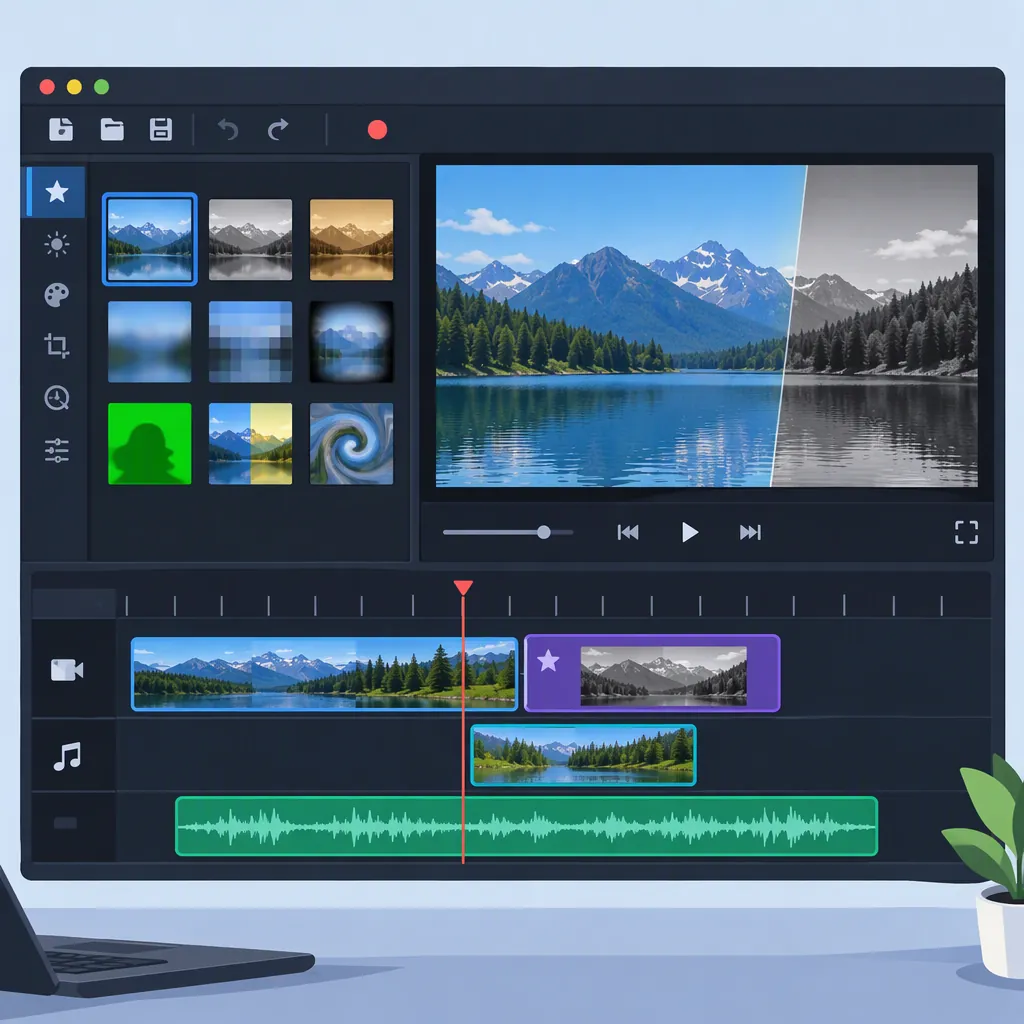
Openshot Video Editor: Timeline and Effects Basics
OpenShot Video Editor is a free, open-source video editor. For learning its editing workflow, focus on timeline navigation, clip snapping, overlapping transitions, and clip effects. TechRadar’s review documents these controls in OpenShot 2.6.1; the instructions below are tied to that version, not verified for the newer 4.0.1 Windows version listed by Uptodown. [c1] [c2]
Start with the Interface and Version
TechRadar’s July 2022 review describes OpenShot 2.6.1 as having Simple and Advanced views. Simple view reduces the number of panels; panels can also be moved, removed, or turned into floating windows. For an initial editing exercise, a useful approach is to keep the layout simple before rearranging it. [c1]
Keep the version boundary in mind throughout this article. Uptodown lists OpenShot Video Editor 4.0.1 for Windows, dated September 28, 2026, but that listing does not document its editing controls. The older review provides the usage detail here; it does not establish how every control behaves in 4.0.1. [c1] [c2]
Navigate the Timeline and Align Clips
In the reviewed version, the Zoom Slider sits above the timeline. Its blue highlighted region represents the visible timeline area. Drag that region left or right to move through the project, or drag its side handles to change the zoom level. This separates two tasks: choosing where to look and choosing how much of the timeline to see. [c1]
The same review describes snapping as enabled by default. When one clip approaches another, snapping helps align their edges without an unintended overlap. It can also help match a clip’s duration to another clip on a track above or below. Use snapping for alignment, then inspect the edit rather than assuming the placement matches your intended cut. [c1]
Timeline Alignment Exercise
With two practice clips already on the timeline:
1. Locate the Zoom Slider, if your version presents the control described here.
2. Move the highlighted region to bring the clip boundary into view.
3. Adjust its side handles to inspect that boundary more closely.
4. Move one clip toward the other and observe whether snapping aligns their edges.
5. Review the join for an unintended gap or overlap.

This exercise follows the controls described for OpenShot 2.6.1. Do not assume identical placement in another version.
Distinguish a Cut from an Overlapping Transition
The reviewed OpenShot workflow treats an overlap differently from an edge-to-edge join: overlapping two clips automatically creates a crossfade. TechRadar also reports that placing a transition between non-overlapping clips can produce a transition from black to the second clip instead of a transition between both clips. [c1]
For a different transition in that version, the review describes overlapping the clips first, deleting the automatically created crossfade, and placing the chosen transition over the overlap. Treat this as a version-specific procedure. Check the result before repeating it throughout a project. [c1]
Transition Check
On a practice pair of clips:
1. Decide whether the edit should be a direct cut or a transition.
2. For the reviewed transition workflow, overlap the clips and inspect the automatic crossfade.
3. If replacing it, remove that crossfade and place the chosen transition over the overlap.
4. Review the full transition for an unexpected black frame or incorrect start and end points.

If your installed version behaves differently, stop rather than applying the older procedure blindly.
Choose Effects by the Editing Problem
The OpenShot 2.6.1 review describes Stabilization as analyzing a clip to smooth its motion. It cautions that results depend on the original footage, especially when a shot is very jittery. Use a short test segment to judge whether the change helps; an effect’s availability is not a guarantee of an acceptable result. [c1]
Tracker serves a different purpose: the review describes isolating an on-screen object, tracking it through the clip, and connecting another object to the tracking data so it moves in sync. The review also lists audio effects including Compressor, Expander, Distortion, and Delay. These descriptions establish functions and names in the reviewed version, not detailed settings or current-version performance. [c1]
FAQ
Is Openshot Video Editor Free and Open Source?
TechRadar describes OpenShot as free and open source. Uptodown’s Windows listing also identifies free pricing and a GPL 3.0 license. [c1] [c2]
Why Might a Transition Start from Black?
In the reviewed 2.6.1 workflow, TechRadar reports that placing a transition between non-overlapping clips can transition from black to the second clip. Its described alternative is to overlap the clips, remove the automatic crossfade, and put the replacement transition over the overlap. This behavior is not verified here for newer versions. [c1]
Does the Review Establish Current Mac Compatibility?
No. TechRadar reported a Mac launch problem with the official 2.6.1 release and a working daily build in its 2022 testing. That historical report does not establish current Mac compatibility, and the supplied newer listing covers Windows. [c1] [c2]