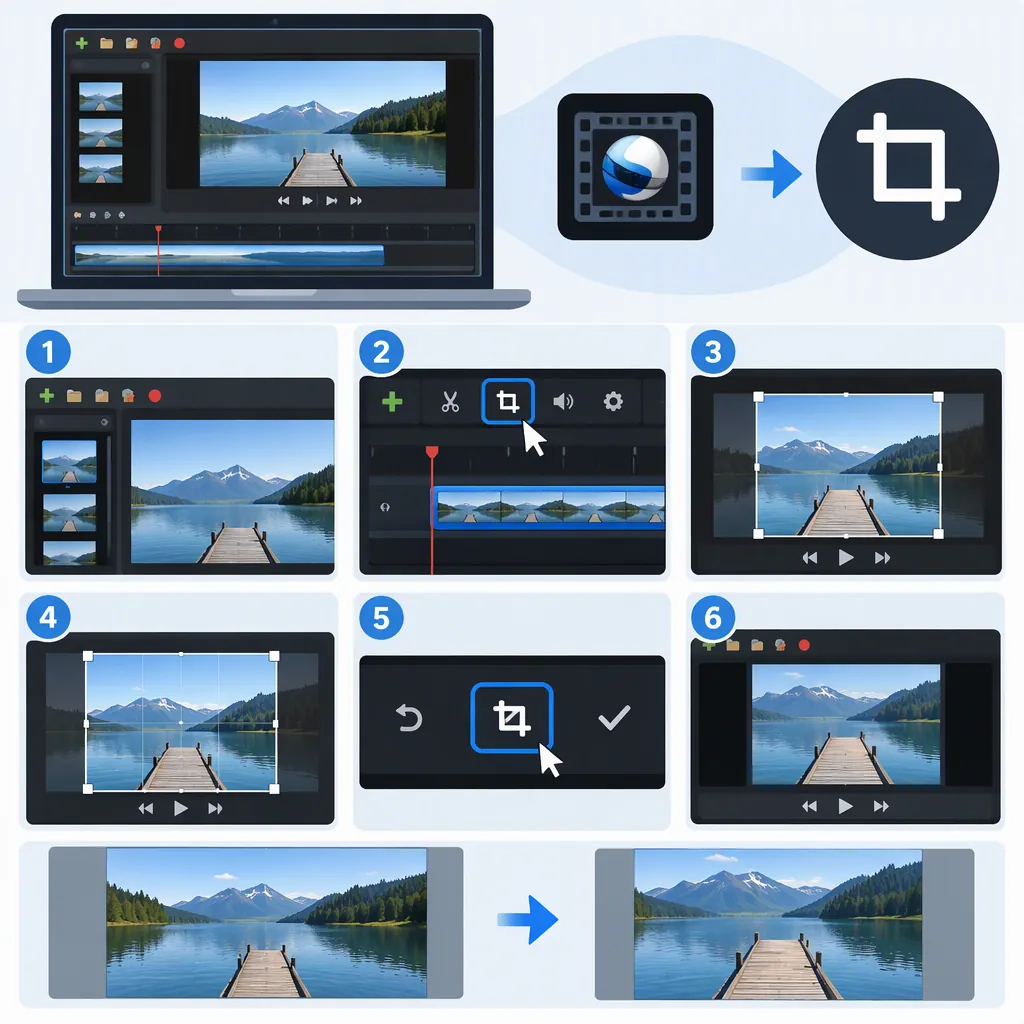
How to Crop a Video in Openshot
To crop a video in OpenShot, place the clip on the timeline, find Crop in the Effects panel, and drag it onto the clip. Right-click the effect’s “c” badge and choose Properties to adjust the crop edges. For a crop intended to stay constant throughout the clip, put the playhead at the clip’s first frame before changing values. This workflow comes from a 2018 OpenShot issue discussion; interface details may differ in your installed version. [crop-source]
Crop the Frame, Not the Duration
First decide what you want to remove. Cropping changes which part of the picture is visible. Trimming shortens the clip by removing time from its beginning or end.
The OpenShot issue discussion describes a Crop effect for changing the frame’s edges. By contrast, the supplied wikiHow tutorial describes dragging timeline clip edges inward to shorten a clip, along with Razor, Slice, and Split Clip methods for cutting it. Those cutting methods are not the frame-cropping workflow. [crop-source] [cut-source]
Apply the Crop Effect in Openshot
The following sequence follows the October 2018 instructions in the supplied OpenShot issue discussion. Treat it as a documented workflow, not a guarantee that every current version uses identical labels or icons. [crop-source]
- Place your video clip on the timeline.
- Move the playhead to the clip’s first frame if you want one crop setting for the whole clip.
- Open the Effects panel and locate Crop.
- Drag the Crop effect onto the timeline clip.
- Right-click the “c” effect badge on that clip and select Properties. This opens the effect’s controls rather than merely selecting the clip’s general properties.
- Adjust the crop-edge values to remove the unwanted portions of the picture. [crop-source]
As a practical check, review the resulting framing before making further changes. Keep important subjects and any text you need inside the visible area. The supplied source does not establish exact crop-value ranges or current export behavior, so this guide does not prescribe numeric settings.
Check for Unintended Crop Changes
The same issue discussion warns that OpenShot’s keyframing behavior matters when editing crop properties. Its first-frame instruction is particularly relevant when you want a fixed crop rather than a changing one. [crop-source]
After setting the crop, review the beginning, middle, and end of the clip. If the framing changes when you intended it to remain fixed, check where the playhead was when you edited the values and review the effect’s keyframes before adjusting the crop again.
This is a verification step, not a version-specific keyframe-removal procedure: the provided material does not document the current controls for resetting or deleting crop keyframes.
Fixed-Crop Review Checklist
- Confirm that you edited the Crop effect’s properties.
- Confirm that the playhead was at the clip’s first frame for the initial fixed-crop settings.
- Review the beginning, middle, and end for unexpected framing changes.
- Check that the subject and required text remain visible.
If You Cannot Find Crop
Older advice can be misleading without its date. The supplied issue began with a report about OpenShot 2.3.1 in 2017. A March 2018 comment stated that the Crop effect had been added to source code and daily builds and was planned for version 2.4.2. Later comments in that thread supplied the effect-based workflow above. [crop-source]
If your interface does not show Crop, note your installed version before comparing instructions. The early claim in that thread that OpenShot lacked a crop tool should not be treated as a statement about every later release. The supplied references do not verify the interface or feature availability of your particular installation.
FAQ
Where Are the Crop Controls in Openshot?
In the documented 2018 workflow, add Crop from the Effects panel, then right-click its “c” badge on the timeline clip and choose Properties. The supplied source does not verify identical interface details in every later version. [crop-source]
How Do I Crop the Whole Clip Rather than Change the Crop Partway Through?
Put the playhead at the clip’s first frame before setting the crop values. The supplied discussion gives this instruction for cropping the entire video and warns about keyframing. Review the clip afterward for unintended changes. [crop-source]
Should I Use Crop to Shorten a Video?
No. To shorten a clip, the supplied cutting tutorial describes dragging its left or right timeline edge inward. It also covers splitting methods. Use the Crop effect when your goal is to remove parts of the picture instead. [cut-source] [crop-source]
Sources
-
[crop-source] Can't crop videos · Issue #575 · OpenShot/openshot-qt · GitHub
-
[cut-source] How to Use Openshot to Cut Video: 4 Ways