Inshot Photo Editor: Photo Editing and Collage Guide
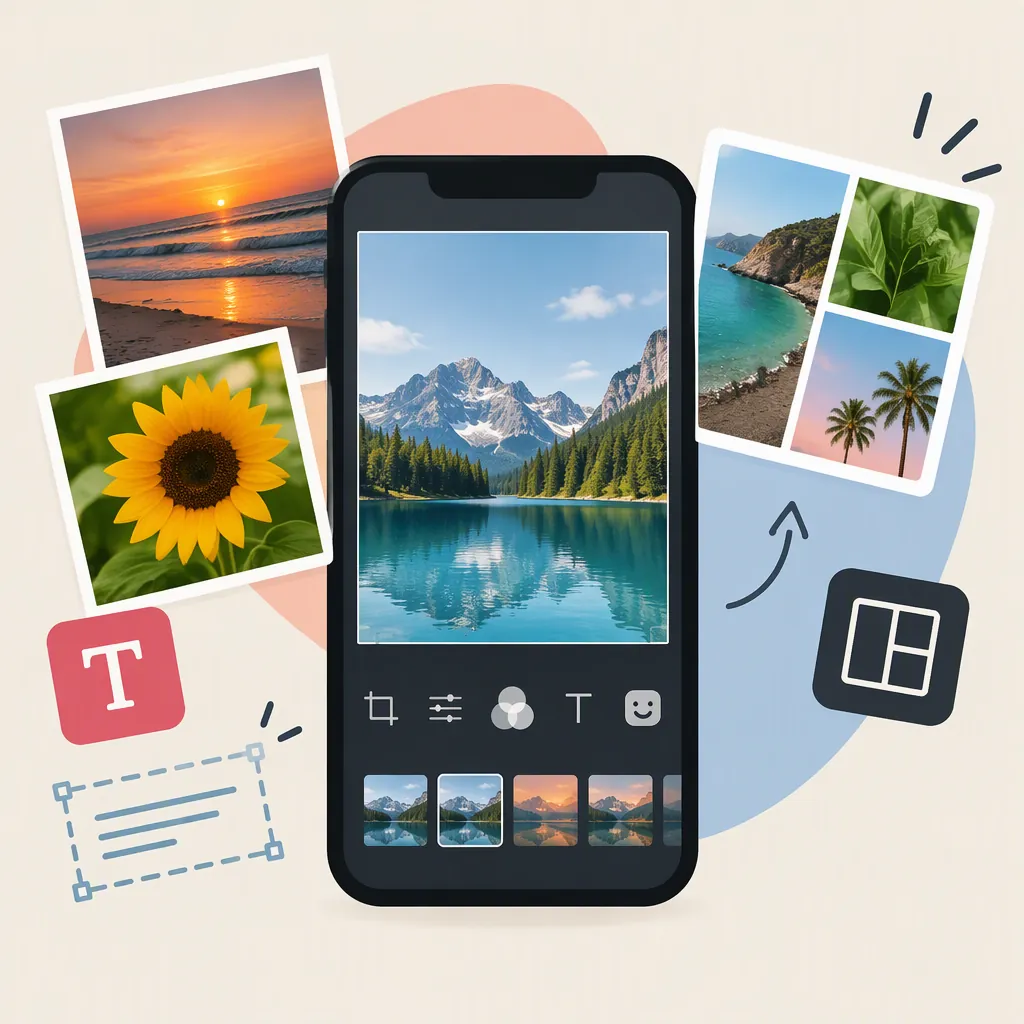
InShot includes photo editing alongside its video tools. Based on its Android Google Play description, its photo options include backgrounds, multiple aspect ratios, frames, text, stickers, background removal, cutouts, and collage layouts. This guide connects those listed features to a practical editing plan for a single photo or a collage. [citation-1]
The source supports a feature overview, not a verified button-by-button tutorial. Below, you’ll find editing goals, a sequence of decisions, and completion checks without invented menu names or screen locations.
What Can You Do with Inshot’s Photo Editor?
The Google Play description lists the following photo-editing options. [citation-1]
| Your editing goal | Listed InShot options | What to check |
|---|---|---|
| Fit a photo to a different shape | Multiple aspect ratios, backgrounds, and frames | The subject remains visible in the chosen shape |
| Add a caption or visual detail | Text, stickers, and custom images | Added elements are readable and do not obscure important details |
| Separate a subject from its surroundings | Photo background removal and cutouts | Fine edges and gaps look acceptable |
| Combine several photos | Collage creation with layout choices | Each image has enough space to communicate its content |
Evidence boundaries: The listing does not document the complete photo import-to-save workflow, exact menu locations, or still-photo output dimensions and formats. It identifies ads and in-app purchases without a photo-tool-by-photo-tool payment breakdown. Its 4K and custom-resolution export statements concern video, not still photos. This guide therefore does not establish iOS feature parity, unrestricted free access, or specific photo export settings. [citation-1]
A Single-Photo Editing Plan: Create a Captioned Image
Use this example goal: prepare one photo for a square destination, preserve the main subject, and add a short title without covering important details. The square shape is a chosen design requirement, not a claim about a particular InShot preset.
InShot’s listed multiple-ratio, background, and text options correspond to this goal. [citation-1] The sequence below explains what to accomplish at each stage; use the controls actually shown in your installed app.
1. Select the Original Photo
Choose an image with a clearly identifiable subject and enough surrounding space for the intended composition. Keep the original separately so you can compare it with the finished result.
At the image-selection stage, confirm that you are working with the intended photo. The cited description does not establish the name or location of the photo-import control. [citation-1]
Completion check: You have selected the correct image and identified the subject or details that must remain visible.
2. Set the Shape and Background Treatment
Decide how the photo should fit the destination before adding text. InShot lists multiple photo ratios and photo backgrounds. [citation-1]
Choose between these approaches:
- Reframe the image if the subject can fit the required shape without losing important details.
- Use surrounding background space if preserving more of the original photo matters.
- Remove the original background if the goal is an isolated subject rather than a photo of its surroundings. Background removal and cutouts are listed features. [citation-1]
For the captioned-image example, preserve the subject first, then leave an uncluttered area for the title. Background removal is optional—not a necessary step for every photo.
Completion check: The composition fits the intended shape, and no essential part of the subject is unintentionally excluded.
3. Add a Short Title
InShot’s listing explicitly supports adding text to photos. [citation-1] Write the title before positioning it so you can judge how much space it needs.
Review four things:
- Length: Remove words that do not contribute to the message.
- Placement: Avoid covering faces, objects, or defining details.
- Contrast: Make sure the lettering is distinguishable from its background.
- Viewing size: Check whether the title remains readable when the image is displayed small.
For example, “Community Garden Day” could sit in unused background space rather than across the people in the photo. This is a composition suggestion, not a description of automatic text placement.
Completion check: The title is accurate, readable, and visually separate from the main subject.
4. Decide Whether Decoration Is Needed
Stickers and custom images are also listed photo options. [citation-1] Add them only if they serve a clear purpose, such as labeling or emphasis. A captioned photo does not need decoration simply because it is available.
Completion check: Every added element helps communicate the intended message.
5. Save and Inspect the Result
Use the saving controls available in your installed app. The cited listing does not establish the exact still-photo saving sequence or output settings. [citation-1]
Open the saved file and check:
- Its dimensions against the destination’s requirements.
- The subject’s framing.
- Title spelling and readability.
- Any cutout edges or unwanted additions.
Finished result: A saved image that fits the intended use, preserves the subject, and displays a readable title. Do not assume the editing preview alone proves that the saved file meets those requirements.
Collage Example: Three Photos from One Event
Suppose you want to combine a wide event scene, a group photo, and a close-up detail into one titled collage. InShot lists photo collage creation with layout choices, as well as text added to photos. [citation-1] The following is a composition plan, not a verified template or button tutorial.
| Stage | Decision for this example | Connection to listed features |
|---|---|---|
| Select images | Use three photos that explain the same event | Photo collage creation |
| Choose a layout | Give the wider scene enough room to establish context | Collage layout choices |
| Review framing | Keep faces and the close-up detail visible | Assess the composition within the chosen layout |
| Add a title | Use one short title that clearly applies to the whole collage | Text on photos |
| Inspect the saved result | Check all three images and the title at the intended viewing size | General completion check |
The feature connections above are supported by the Google Play description; the layout decisions are editorial recommendations. [citation-1]
Balance Context and Detail
Let the wide scene establish where the event happened. Use the group photo to show participants and the close-up to add a specific detail.
If a layout makes the group’s faces too small or hides the close-up’s defining feature, reconsider the arrangement or image selection. Filling every available position is less important than keeping the content understandable.
Give the Title a Clear Role
A title such as “Community Garden Day” should read as describing the entire collage. Avoid placing it where it appears to label only one image unless that is the intention.
Before finishing, view the collage small. Confirm that the title remains legible and that each photo contributes something distinct.
FAQ
Can Inshot Edit Photos, or Is It Only a Video Editor?
Its Google Play description explicitly includes photo editing. Listed options include backgrounds, multiple ratios, text, stickers, background removal, cutouts, and collages. [citation-1]
Does This Guide Cover the iPhone Version?
This guide’s feature evidence comes from the Android Google Play listing. That source alone does not establish identical controls, feature access, or output settings on iOS. [citation-1]
Is the Inshot Photo Editor a Browser-Based Tool?
The Google Play source establishes an Android app listing, not a browser-based editing workflow. A CapCut article uses the phrase “InShot Online Photo Editor,” but that wording alone does not verify a working InShot web editor or establish that CapCut and InShot share editing controls. [citation-1] [citation-2]
Are All Inshot Photo-Editing Features Free?
The Google Play listing identifies ads and in-app purchases but does not specify payment requirements for each photo tool. Check the access conditions shown in your installed app. [citation-1]
Does Inshot Export Still Photos in 4K?
The cited listing’s 4K export statement applies to video. It does not establish still-photo dimensions or formats, so check the photo output options and inspect the saved file. [citation-1]