Inshot Video Editor: From Imported Clips to Final Export
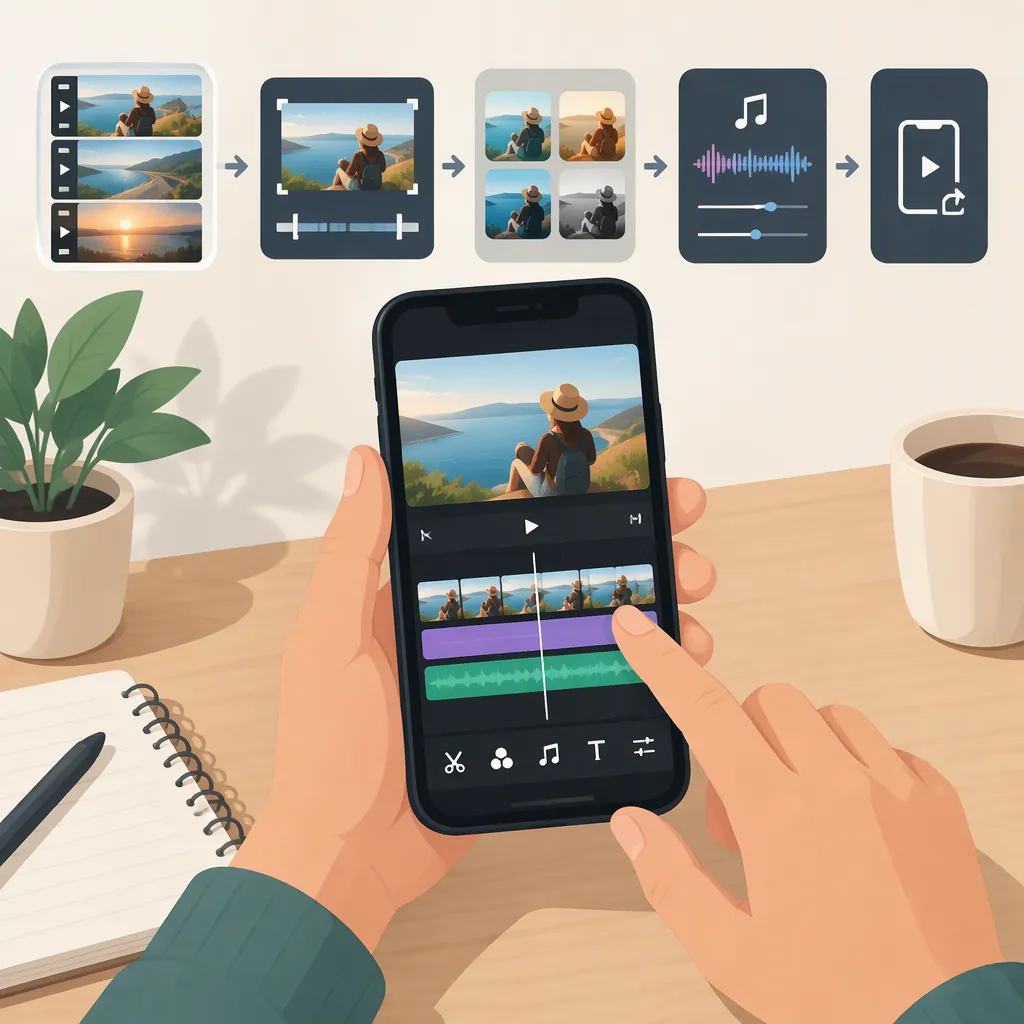
To edit a video in InShot, start a Video project, import your footage, trim and arrange clips, adjust the presentation and audio, then choose export settings. The supplied Vidpros review describes this workflow and reports tools including transitions, voiceovers, and automatic captions. The guidance below relies on third-party descriptions, not a verified walkthrough of the current app; labels and feature access may differ. [inshot-review]
Start an Inshot Video Project
The Vidpros review describes opening InShot, selecting Video, and importing videos or photos from the device gallery. It also reports multiple aspect-ratio options. Use that as the starting sequence rather than a guarantee of the exact controls in your installed version. [inshot-review]
Before editing, decide where the finished video will appear and what framing it needs. Prepare only the footage needed for this draft, and keep the original files separate from the finished export. After import, check that each intended clip is present and that the framing does not cut off important subjects or text.
Trim and Arrange Clips Before Adding Effects
The review describes using InShot’s timeline to trim, merge, and rearrange clips, followed by filters, effects, and transitions. [inshot-review]
For a first editing pass, focus on sequence and duration. Remove unwanted material at the beginning and end of each clip, arrange the remaining shots in the intended order, and play through the joins. Check whether the viewer can follow the action without an effect explaining the transition.
Only then consider filters or transitions. Treat them as optional presentation choices, not required steps. Review the complete sequence after adding them so that an effect does not obscure a necessary detail or interrupt the pacing.
Review Audio and Captions
Vidpros reports options for background music, sound effects, and recording voiceovers in InShot. It also lists Auto Captions among the app’s features, but the supplied material does not establish supported languages, caption accuracy, or current access requirements. [inshot-review]
For a spoken video, listen through the dialogue before adding background audio. If you add music, check that speech remains understandable throughout the edit. Use only audio you have permission to include.
If automatic captions are available in your version, treat their output as a draft. Compare the words against the recording, correct names and punctuation, and check timing and placement. Do not assume that generated captions are ready to publish without review.
Export and Inspect the Finished Video
The review describes selecting resolution and frame rate before exporting. It also reports ads and watermarks in the free version. These are third-party descriptions, not confirmation of current pricing, entitlements, or watermark-removal options. Check what your installed app displays before relying on a particular export condition. [inshot-review]
Choose export settings for the intended destination rather than automatically selecting the highest available option. After export, open the saved file and inspect it separately from the editing preview. This final check should cover the entire video, including the opening, clip boundaries, captions, audio, and ending.
Final Export Review Checklist
- Confirm that the saved video opens and plays to the end.
- Check that the framing preserves important subjects and text.
- Watch every clip boundary for unintended gaps or cuts.
- Listen for understandable speech and distracting audio changes.
- Compare captions with the spoken words.
- Inspect the output for unexpected branding or visual artifacts.
- Confirm that the file meets the destination’s requirements.
Keep Inshot Separate from Desktop Alternatives
Movavi’s article describes InShot as an iOS and Android mobile app without a native desktop version. It describes an Android emulator as a way to run the mobile app on a computer, while warning about possible performance limitations. This is a third-party account, not a current platform statement from InShot. [inshot-desktop]
Running the mobile app through an emulator is different from using a native desktop editor. Likewise, the desktop alternatives discussed by Movavi are separate tools, not versions of InShot. The mobile workflow above should not be treated as instructions for those editors.
FAQ
Can I Trim and Combine Clips in Inshot?
The supplied Vidpros review describes trimming, merging, and rearranging clips on InShot’s timeline. It does not provide a version-specific walkthrough of every control. [inshot-review]
Does Inshot Have Automatic Captions?
Vidpros lists Auto Captions as a feature. The supplied reference does not establish current language support or access requirements. If the feature is available in your app, review its text and timing before publishing. [inshot-review]
Is Inshot Available as a Native PC Editor?
Movavi’s article says InShot does not have a native desktop version and describes running the mobile app through an Android emulator instead. That workaround is distinct from a desktop edition, and the article warns that performance may be limited. [inshot-desktop]
Sources
-
[inshot-review] InShot Review 2026: Best Free Mobile Video Editor?
-
[inshot-desktop] InShot for PC: The best desktop alternatives