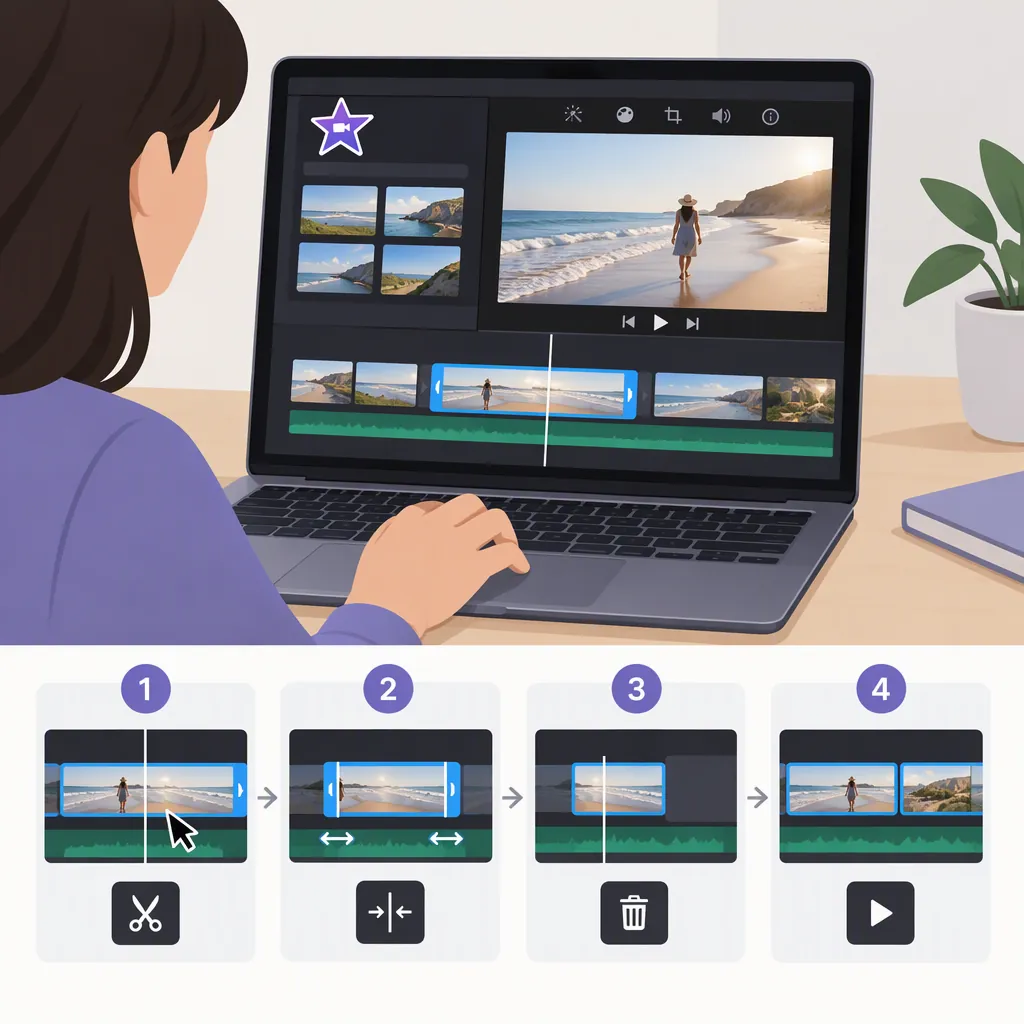
How to Cut and Trim Video in iMovie on Mac, iPhone, and iPad
To cut video in iMovie, trim a clip’s edges to shorten its beginning or end, or split the clip at the playhead to create separate sections. On Mac, use Modify > Split Clip or Command-B. On iPhone or iPad, select the clip, tap the Actions button, then tap Split. These steps apply to clips already added to your project timeline. [imovie-trim]
Choose Between Trimming and Splitting
In iMovie, trimming and splitting serve different purposes:
- Trim when you want a clip to start later or finish earlier. You change its duration by dragging its beginning or end.
- Split when you want separate sections that you can adjust independently. Apple describes splitting as a way to adjust each section’s duration, remove unwanted sections, or give sections different titles.
For an unwanted section in the middle, place splits at its beginning and end to separate it from the portions you want to keep. The device-specific splitting steps are below. [imovie-trim]
Cut Video in iMovie on Mac
With your project open and the video in the timeline, use the following steps.
Trim the Beginning or End
- Locate the clip you want to shorten.
- For a closer view, choose View > Zoom In or press Command-Plus (+).
- Hold the pointer over the beginning or end of the clip until the clip trim tool appears.
- Drag that edge toward the center of the clip to shorten it. Drag away from the center to extend it, if additional video is available. [imovie-trim]
Split at a Specific Point
- Position the playhead—the white line—where you want the split.
- Choose Modify > Split Clip, or press Command-B.
- Adjust the resulting sections as needed. [imovie-trim]
Refine the Trim by Frames
- Select the clip in the timeline.
- Choose Window > Show Clip Trimmer.
- Find the two white lines: the portion between them is visible in your movie; the dimmed portions outside them are not.
- Drag a boundary toward the center to remove frames, or away from the center to add available frames.
- Press Return to close the clip trimmer. [imovie-trim]
Cut Video in iMovie on iPhone or iPad
Open the project with your video clips already in the timeline.
Trim the Beginning or End
- Tap the clip. A yellow highlight appears around it.
- Pinch open in the center of the timeline to see more detail if needed.
- Drag the beginning or end toward the center of the clip to shorten it.
- To extend the clip, drag the edge away from the center, provided additional video is available. [imovie-trim]
Split at the Playhead
- Scroll the timeline until the white playhead is at the desired cut point.
- Tap the clip.
- Tap the Actions button, then Split.
Apple also documents a gesture alternative: select the clip and swipe down over the playhead on the clip. After a split, iMovie places a None transition, also called a cut, between the two new clips. [imovie-trim]
Why a Clip Edge May Not Move
A clip cannot be extended beyond the video available at that edge. Apple’s example is a 20-second source clip: trimming cannot make it longer than 20 seconds. [imovie-trim]
An edge may also stop moving because the clip has reached iMovie’s minimum allowed duration. The supplied Apple guidance lists 0.1 seconds on Mac and 0.3 seconds on iPhone or iPad. It suggests changing clip speed if you still need to change duration; that is a separate operation from trimming. [imovie-trim]
These instructions cover timeline trimming and splitting as documented in the supplied Apple support article. They do not cover exporting the finished movie or provide step-by-step deletion controls.
Clip-Edge Troubleshooting Checklist
- Check whether any additional video exists beyond the selected edge.
- Check whether the clip has reached the documented minimum duration: 0.1 seconds on Mac or 0.3 seconds on iPhone or iPad.
- Zoom in on the timeline for a more detailed view before adjusting the cut. [imovie-trim]
FAQ
What Is the Shortcut to Split a Clip in iMovie on Mac?
Position the playhead where you want the split, then press Command-B. You can also choose Modify > Split Clip. [imovie-trim]
How Do I Cut Out a Section in the Middle?
Split the clip at the beginning and end of the unwanted portion to separate it from the surrounding video. Apple confirms that splitting lets you remove unwanted sections, but the supplied article does not specify the deletion controls. [imovie-trim]
Can I Make a Trimmed Clip Longer Again?
Yes, if additional video remains at that edge. Drag the edge away from the center of the clip. You cannot extend it beyond the available source video. [imovie-trim]