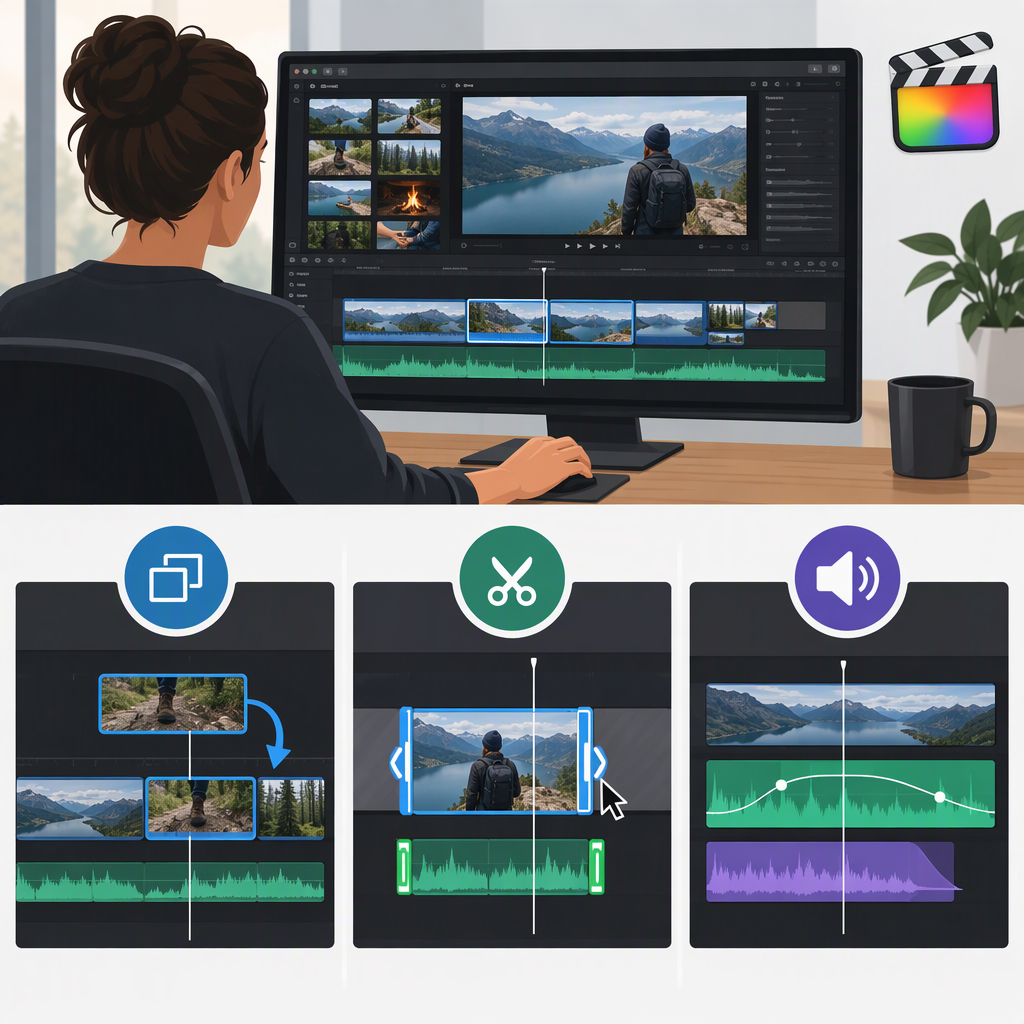
How to Edit B-Roll in Final Cut Pro: Placement, Trimming, and Audio
Final Cut Pro B-Roll: Placement, Trimming, and Review
In Final Cut Pro for Mac, a common way to add B-roll as a cutaway is to connect it to the primary storyline. Connected clips sit above the main sequence in the timeline, so they can add a shot without replacing the underlying footage. You can then trim the connected clip and play through the edit to check its timing, coverage, and sound. (support.apple.com)
The steps below are for the Mac version of Final Cut Pro. They describe an editing approach, not a required duration or style: choose the part of the shot that communicates what you need, then judge its pace in context.
Place B-Roll over the Main Footage
- In the browser, select the B-roll clip you want to use. If you want to use only part of it, set a range in the browser first.
- In the timeline, position the playhead or skimmer at the point where you want the cutaway to begin.
- Press Q to connect the selection to the primary storyline. The B-roll appears above the main footage as a connected clip. Apple describes connected clips as a way to add cutaways while keeping them attached to the primary storyline. (support.apple.com)
- Play the passage from just before the cutaway through the return to the main shot. Confirm that the B-roll appears at the intended moment and that the underlying sequence continues as expected.
Why connect instead of insert? Connecting is suited to a cutaway that should play over the main footage. An insert edit is different: it adds the new clip into the primary storyline and moves later clips forward to make room. Choose based on whether you want to cover the main footage temporarily or change the sequence itself. (support.apple.com)
Trim and Time the Shot
Trim the B-roll so its visible portion covers the action or detail that matters. In Final Cut Pro, trimming changes the portion or duration used in the project; it does not alter the underlying source media. (support.apple.com)
A practical review loop:
- Select the connected B-roll clip in the timeline.
- Adjust its start and end using the timeline’s trimming controls, keeping the useful action and removing material that does not help the sequence.
- Play through the edit from before the B-roll begins to after it ends. Check whether the cutaway arrives in time, gives viewers enough information, and returns to the main footage without feeling abrupt or unnecessarily long.
- If the shot starts or ends awkwardly, refine the trim and review again.
There is no universal number of seconds that makes a B-roll shot the right length. For example, a close-up showing a single clear action may need less screen time than a shot where viewers need to notice several details. Treat that as an editorial judgment, then test it in playback rather than relying on a fixed timing rule.
Final Cut Pro offers different trim methods, including ripple, roll, slip, and slide edits. The right choice depends on what you need to change: the clip’s duration, the boundary between adjacent clips, or which part of the source appears. (support.apple.com)
Check B-Roll Audio and Playback
Listen to the passage with the B-roll in place. Ask whether its recorded sound contributes useful atmosphere or action, or whether it competes with dialogue or other important audio.
- Keep useful sound: If the B-roll audio helps the scene, listen for distracting noise or a sudden change in level at the cut.
- Lower competing sound: In the timeline, drag the horizontal volume line across the clip’s audio waveform down. Final Cut Pro shows the level in decibels as you adjust it. (support.apple.com)
- Silence unwanted clip audio: Select the clip or range, then choose Modify > Adjust Volume > Silence. If only part of the sound is unwanted, use a range or audio keyframes for a more targeted adjustment rather than silencing the whole clip. (support.apple.com)
For a final check, play the edit from a little before the B-roll starts until a little after it ends. Look for a gap in visual coverage, an awkward join, or a cutaway that distracts from the point of the scene. Listen for sound that masks dialogue or jumps noticeably in level. If you adjust the trim or volume, play the passage again.
Quick Checklist
- Is the B-roll connected at the intended point in the main sequence?
- Does the chosen portion show the action or detail needed?
- Does the cutaway last long enough to read without slowing the sequence unnecessarily?
- Does its audio support the moment, or should it be lowered or silenced?
- Does playback sound and look continuous across both edits?