Filmora Text to Speech: Turning a Script into Narration
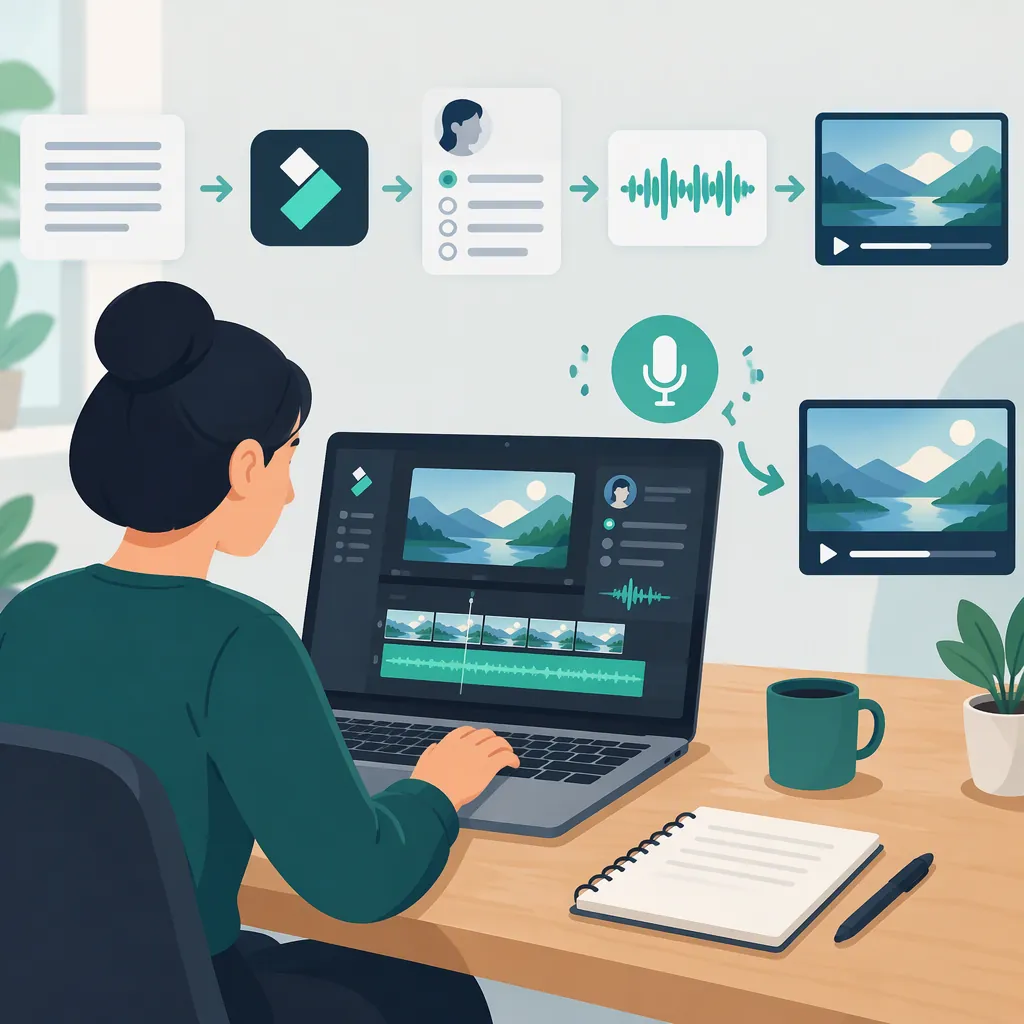
Filmora text to speech converts written text into spoken narration. The supplied Peech article describes a workflow of entering text in a title, selecting Tools > Text to Speech, choosing a language and voice, and generating audio. Treat those steps as a third-party description rather than a verified guide for your installed version; the supplied Filmora tutorial covers AI Text-to-Video, a different workflow.
How to Generate Narration in Filmora
The Peech article reports the following sequence for Filmora text to speech. These are the source's described steps, not independently tested instructions for every Filmora version. [citation-1]
- Open a project. Start a new project in Filmora and navigate to Titles.
- Enter your script. Double-click the title and enter the words you want spoken.
- Select text to speech. Use Tools > Text to Speech, as described in the article.
- Choose the language and voice. The article also describes speech-speed and pitch adjustments; check which controls your installation actually offers.
- Generate the audio. The article says to wait for the “In Transcription” progress indicator to finish. [citation-1]
Before applying this sequence to a full project, try a short passage. If the menu names or controls do not match your installation, do not assume that the article's interface applies to your version. The supplied sources do not establish the current text-to-speech interface across desktop and mobile editions.
Prepare and Review Your Narration
For this Filmora workflow, prepare the text as a spoken script rather than copying every on-screen label into the narration. Use short sentences, make the intended pronunciation of abbreviations clear, and start with a small test before generating the complete script.
After generation, review the audio against your video:
- Pronunciation: Listen for names, technical terms, numbers, and abbreviations.
- Pacing: Check whether each instruction finishes before the corresponding visual changes.
- Meaning: Confirm that the spoken text matches what the viewer sees.
- Mix: Listen with any background music enabled and check that narration remains understandable.
- Captions: Review captions separately; spoken narration alone should not be treated as a complete accessibility solution.
These are editorial review recommendations, not claims that Filmora automatically performs these checks.
Short Narration Test Script
Open the project and select the title. Enter one sentence, then generate the narration. Listen to the result before continuing.
Text to Speech Vs. AI Text-To-Video
Text to speech is the narration task: converting written words into audio. Peech describes this feature within Filmora. [citation-1]
AI Text-to-Video is a separate workflow. The supplied Filmora tutorial describes entering a script, choosing preferences, and generating a video containing voiceovers, background music, images, and video material. It explicitly identifies the tutorial as compatible with Filmora V13. [citation-2]
If your goal is to narrate an existing edit, follow the text-to-speech route described above rather than assuming that the AI Text-to-Video tutorial documents the same controls. Its version-specific voice and language counts should not be used as current limits for standalone text to speech. [citation-2]
FAQ
Where Is Text to Speech in Filmora?
The Peech article describes entering text through Titles and then selecting Tools > Text to Speech. This is a third-party account; the supplied references do not verify that exact menu path for every current Filmora version or platform.
Is Filmora Text to Speech Free?
The supplied references do not establish current text-to-speech pricing, credits, quotas, or subscription requirements. The download language in the AI Text-to-Video tutorial is not evidence that standalone text-to-speech generation is free.
Can I Change the Voice or Speaking Speed?
Peech describes language and voice selection, along with speech-speed and pitch adjustments. Check the controls available in your installation before planning around them; the supplied evidence does not confirm those options for every version.
Sources
-
[citation-1] Text to Speech in Filmora: Enhancing Your Video Narratives - Peech
-
[citation-2] Filmora AI Text-to-Video