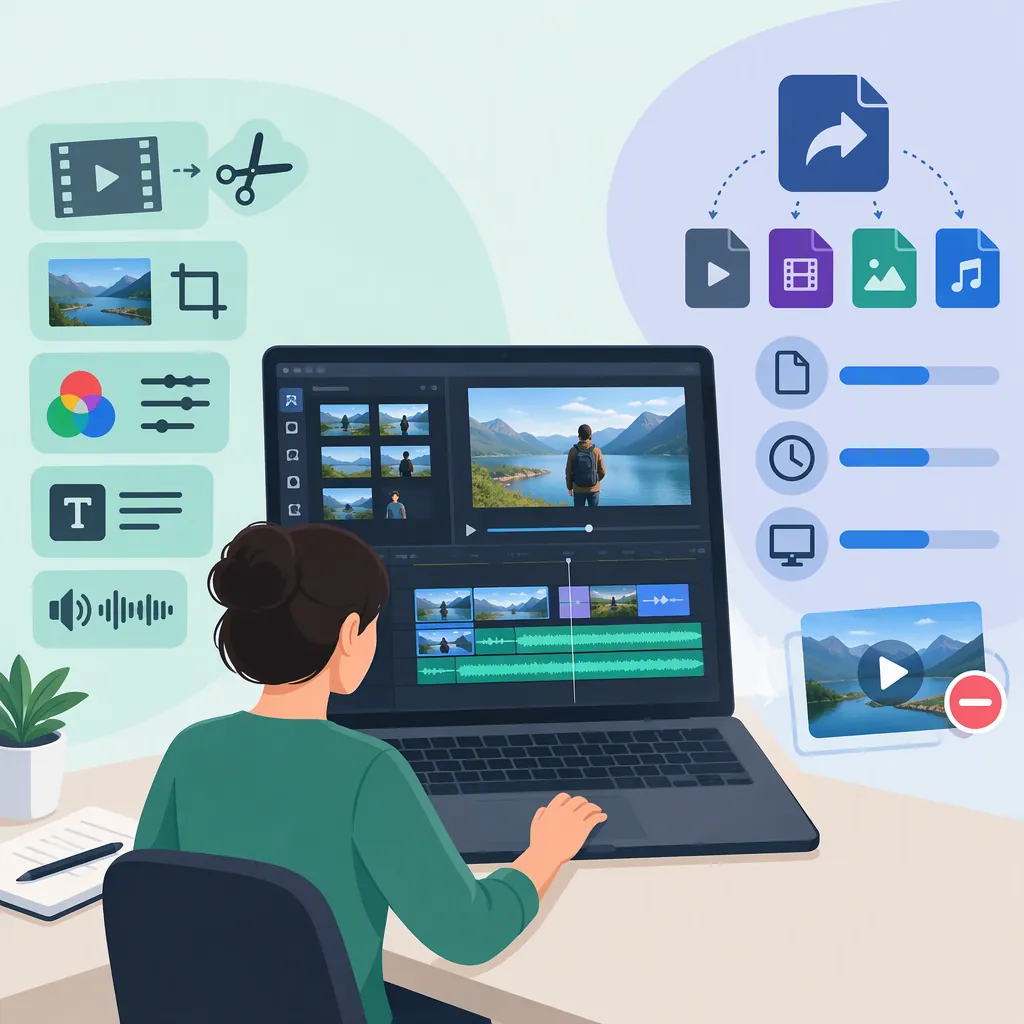
Filmora Overview: Editing Tasks, Practice Workflow, and Export Checks
Filmora is a video editor that Wondershare describes as combining timeline editing with audio, visual effects, and AI-assisted tools. Its documented uses include social videos, presentations, tutorials, and personal projects. This guide connects those tools to editing problems and provides a focused practice assignment with export checks. [c3]
Check exports early: Wondershare’s export guide says the free version or trial includes a watermark. Do not assume a trial can produce a watermark-free delivery file. [c2]
Scope and Source Limits
The product information below comes from Wondershare’s public descriptions, not independent testing. Those descriptions establish listed capabilities, but not their quality, availability in every plan, or identical behavior across desktop and mobile versions. They also do not provide enough operational detail for verified, version-specific button names, shortcuts, or menu instructions. The practice workflow therefore specifies editing actions and observable results rather than an exact control sequence. [c3] [c2]
What Filmora Is Used For
Wondershare’s overview lists trimming, cutting, splitting, and merging clips as basic Filmora editing tools. It also describes templates, transitions, text animations, filters, and a built-in media library. [c3]
More specialized tools include screen recording, multi-camera editing, motion tracking, green screen, and split screen. The overview lists Audio Ducking and Auto Beat Sync for audio, alongside AI-assisted features such as masking, text-to-speech, voice cloning, and image-to-video generation. [c3]
Match the Editing Problem to the Tool
Start with the result the video needs, then identify a relevant tool. The tool names below come from Wondershare’s overview; the result checks are proposed educational criteria. [c3]
| Editing problem | Documented Filmora tool | Result to check |
|---|---|---|
| A clip starts too early or ends too late | Trim or cut | The retained footage starts and ends with useful action or explanation. |
| An unwanted section appears inside a clip | Split and cut | The section is absent, while necessary context remains. |
| Separate clips need to form a sequence | Timeline editing and merging | Their order communicates a clear beginning, middle, and end. |
| Viewers need a title or explanation | Text tools and text animations | The wording is accurate and readable without pausing. |
| Music competes with speech | Audio Ducking | Spoken words remain understandable; compare treated and untreated audio. |
| A montage needs music-related timing | Auto Beat Sync | The cuts support the intended pacing, not merely every beat. |
| A tutorial needs an on-screen demonstration | Screen recording | Required actions are visible, and important interface details remain readable. |
Use only the tools needed for the task. Music competing with speech is different from unwanted background noise, for example. Likewise, an animated title still needs to pass the same readability check as static text.
A Focused Filmora Practice Project
Default Assignment: A Three-Clip Explanation
Use three video clips you have permission to use to make a 30–45-second explanation of a simple process. For example, the clips might show preparation, the main action, and the finished result.
Complete these required actions:
- Arrange all three clips in a meaningful order.
- Trim unnecessary material from at least one clip.
- Make at least one split and remove an unwanted section.
- Add one short title.
- Export an early test file and inspect it for a watermark.
- Review the complete export and record at least one revision.
These numbers and deliverables are teaching settings, not Filmora capabilities or limits. The required clip and text tasks draw on the basic tools listed in Wondershare’s overview. [c3]
For this practice exercise, a watermark is acceptable if its presence is recorded. If your actual assignment prohibits one, treat that as a separate delivery requirement; the export guide says free or trial exports include a watermark. [c2]
1. Record the Setup and Prepare the Material
Write down the platform and installed Filmora version before starting. Keep the exercise in that installation rather than assuming desktop and mobile workflows are interchangeable. Wondershare describes Windows, macOS, Android, and iPhone/iPad versions, but does not establish complete feature parity. [c3]
Identify the clips as A, B, and C in your notes. For each, write its role:
| Clip | Example role | What to retain |
|---|---|---|
| A | Introduce the process | Enough footage to show what is about to happen |
| B | Show the main action | The essential action, without unnecessary waiting |
| C | Show the result | A clear view of the outcome |
Bring the selected material into the project using the controls available in your installation. The public references describe media import and timeline editing, but do not verify the import control’s location or its behavior for every file type. If a file cannot be used, record the problem rather than assuming universal format support. [c2] [c3]
2. Build the Sequence, Then Trim It
Arrange A, B, and C in the intended sequence using the documented timeline editing tools. First check whether the order explains the process; then use trim or cut operations to remove unnecessary beginnings or endings. [c3]
For each clip, identify two editorial points:
- Useful start: the first moment the viewer needs.
- Useful end: the last moment that contributes necessary information.
Watch each cut with its surrounding footage. Do not shorten the sequence so much that the viewer loses context.
3. Split and Remove an Internal Section
Choose a clip containing an unnecessary pause, repeated action, or other removable section. Mark the beginning and end of that section in your notes, then use the documented split and cut operations to isolate and remove it. [c3]
Check the resulting join:
- Is the unwanted section gone?
- Does the remaining action still make sense?
- Was any necessary speech or visual information removed?
- Is there an unintended gap or interruption?
If the removal makes the explanation confusing, restore the needed context or choose a different section. Completing a split is not enough; the resulting sequence must still communicate the process.
4. Add One Necessary Title
Use Filmora’s documented text tools to add a short title that identifies the process. Animation is optional. [c3]
Check spelling and accuracy, then watch at the intended viewing size without pausing. If the title disappears before it can be read, revise its wording, duration, size, or presentation.
For this exercise, the title should help viewers understand the sequence—not introduce a separate effects task.
5. Review Audio Only as Needed
Listen to the sequence before adding music or optional treatment. If speech is present, check that each spoken section is understandable.
If music competes with speech, Audio Ducking is a documented Filmora tool to investigate. Compare any treatment with the untreated audio and judge the actual result. [c3]
If the clips contain no speech or music, mark those audio checks as not applicable. Do not add audio solely to demonstrate another feature.
6. Export, Inspect, and Revise
Make an early test export containing a representative edited section and the title. Inspect the exported file for a watermark; Wondershare’s guide says free or trial exports include one. [c2]
After completing the sequence, export the full video and watch it from beginning to end. Check the file itself rather than relying on the editing preview.
Record one concrete revision, such as:
- “Extend the title because it disappears before it can be read.”
- “Restore part of clip B because the action becomes unclear after the cut.”
- “Remove unused footage at the start of clip A.”
Make the revision and recheck the relevant part of the export. If everything passes, record the change already made during review and what it corrected.
Filmora Practice Review Sheet
Use the default targets below or replace them with your assignment’s requirements. Mark each check Pass, Revise, or Not applicable, and record what you observed.
| Requirement or check | Default target or custom requirement | Observed result / revision |
|---|---|---|
| Purpose and audience | Explain one simple process to a viewer unfamiliar with it | ____ |
| Platform and installed version | Record before editing: ____ | ____ |
| Material | Three permitted clips | ____ |
| Duration | 30–45 seconds | ____ |
| Aspect ratio / frame shape | Set for the intended viewing context: ____ | ____ |
| File format and resolution | Record requirements, if any: ____ | ____ |
| Sequence clarity | Preparation, action, and result are understandable | ____ |
| Trimming | At least one clip has unnecessary opening or ending material removed | ____ |
| Split and removal | At least one internal section removed without losing needed context | ____ |
| Title | One accurate title, readable without pausing | ____ |
| Speech clarity | Understandable at a normal listening level, if present | ____ |
| Test-export watermark | Allowed for this exercise; record Yes / No | ____ |
| Complete-file playback | No missing material or unintended changes | ____ |
| Revision record | One specific change and its reason | ____ |
| Final acceptance | All mandatory requirements met | ____ |
A required format, resolution, or frame shape is an assignment target—not proof that every installation supports it. If the available export options cannot meet a mandatory requirement, record the limitation instead of marking the project complete.
Platforms, Plans, and Export Limits
Wondershare’s overview describes desktop versions for Windows and macOS and mobile applications for Android and iPhone/iPad. It does not provide a complete feature-parity table, establish unchanged project transfer between platforms, or supply enough system-requirement detail to confirm suitability for a particular device and workload. [c3]
What the Watermark Guide Actually Says
The export guide contains conflicting wording. Its headings and some promotional passages describe Filmora as watermark-free, while its summary, explanatory text, and export FAQ say the free version or trial includes an export watermark and watermark-free exports typically require a paid plan. The conservative reading is not to assume watermark-free trial delivery. [c2]
The overview describes a trial and paid offerings, but the available references do not establish a current, complete price schedule or every feature entitlement. Before a delivery deadline, record the installed version, available tools, and actual export result. Do not infer plan terms from a broad feature list. [c3] [c2]
Resource Dependency: Filmstock
Filmstock’s notice, dated August 31, 2026, announced that operations would cease on September 30, 2026, Eastern Time. That date has passed, but the notice alone does not independently verify completion. The announcement concerns Filmstock, not Filmora’s discontinuation. [c1]
The notice says existing Filmstock resource entitlements would be retained and relevant resources would remain usable within Filmora desktop. It also says existing subscriptions and auto-renewal arrangements would remain unchanged. Discontinuation therefore should not be interpreted as automatic subscription cancellation. [c1]
For projects using Filmstock material, separately verify account access and permission for the intended use. The announcement’s entitlement statement does not establish an individual account’s status or provide a full resource-license analysis.
FAQ
What Is Filmora Used For?
Wondershare describes Filmora as a video editor for assembling clips, adding text and effects, treating audio, and creating social, presentation, tutorial, or personal videos. These are documented uses, not independent findings about performance. [c3]
Which Filmora Tools Should a Beginner Practice First?
Start with the documented trim, cut, split, and text tools. A focused exercise is a three-clip sequence with unnecessary material removed and one readable title; those exercise parameters are teaching choices, not product limits. [c3]
Does This Guide Provide Exact Filmora Button-By-Button Instructions?
No. The references establish relevant features but do not verify a complete control sequence for a specific platform and version. The workflow provides editing actions and acceptance checks without inventing menu locations or shortcuts. [c3] [c2]
Can the Filmora Free Trial Export Without a Watermark?
Do not assume so. Wondershare’s guide says free or trial exports include a watermark and watermark-free exports typically require a paid plan, despite conflicting promotional wording on the same page. Inspect a test export before relying on it for delivery. [c2]
Are Filmora Desktop and Mobile Features Identical?
The overview describes Windows, macOS, Android, and iPhone/iPad versions, but does not establish complete feature parity or unchanged project transfer. Confirm the tools available in the installation used for the task. [c3]
Does the Filmstock Notice Mean Filmora Is Discontinued?
No such conclusion is supported. The notice announces Filmstock’s discontinuation and says existing Filmstock resources would remain usable in Filmora desktop. It does not announce Filmora’s discontinuation. [c1]