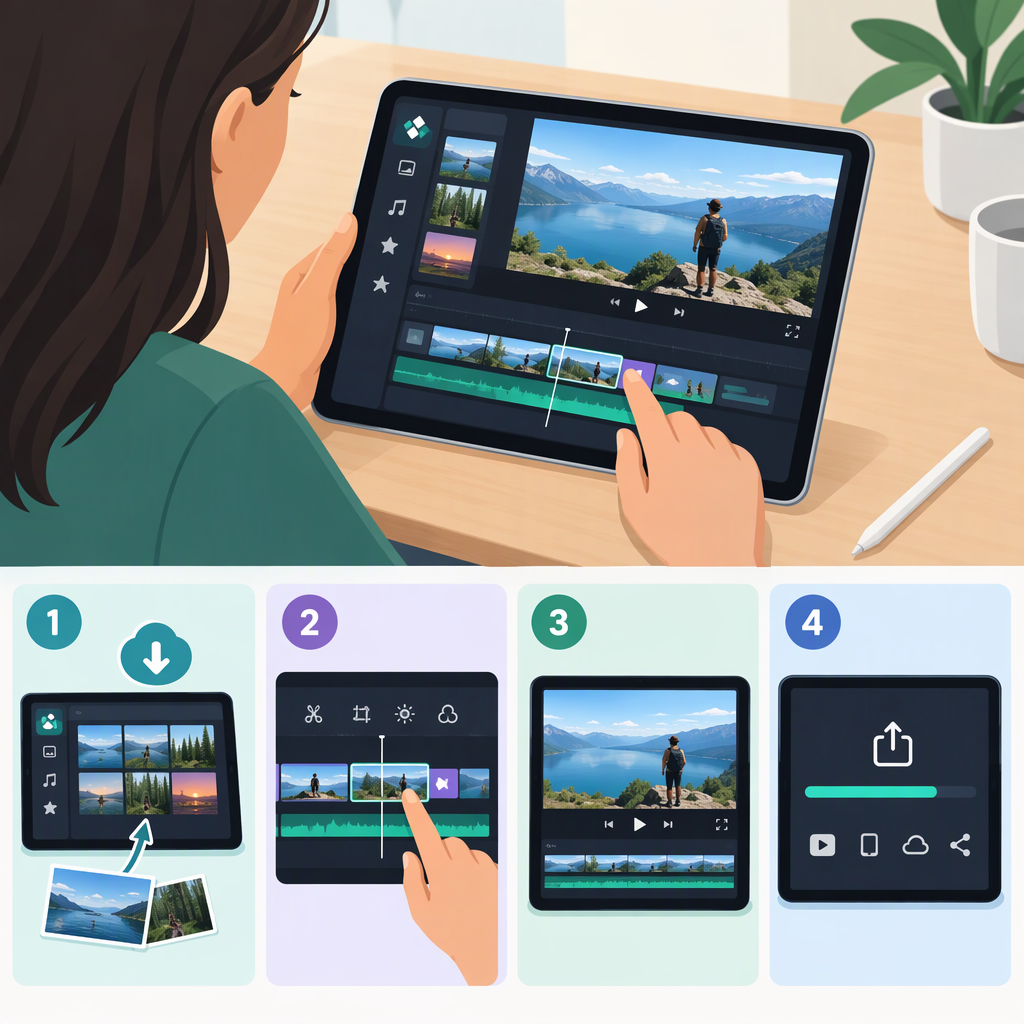
How to Use Filmora on an iPad: A Basic Editing and Export Guide
Can You Use Filmora on an iPad?
Yes. The US App Store lists Filmora: AI Video Editor&Maker as compatible with iPhone and iPad. The listing says the app is free to download and offers in-app purchases. Wondershare also provides a page specifically about Filmora for iPad. (apps.apple.com)
To get started, find the app by its current listing name in the US App Store and check that the listing offers it for your device. The sources cited here do not establish a minimum iPadOS version or a complete list of compatible iPad models, so confirm compatibility on the listing for your own device before downloading. Availability in the US listing does not establish availability in every country.
Basic Filmora Workflow on iPad
Wondershare’s iPad page describes a multitrack timeline and gestures for adding files, while its mobile guide covers starting projects and basic editing for iOS and Android. The precise controls can differ by app version, so use the labels currently shown in your iPad app rather than assuming they match desktop Filmora. (filmora.wondershare.com)
- Start a project. Open Filmora and choose the option to create a project. The mobile guide describes starting with existing media, a template, or media made with Filmora’s built-in camera. For a straightforward edit, choose existing photos or videos from your iPad. (filmora.wondershare.com)
- Add media to the timeline. Select the clips or images you want to use and add them to the editing workspace. Wondershare’s iPad page describes dragging files onto the timeline; it also describes adding media from other apps. If a gesture or import option is unavailable in your version, follow the on-screen import controls instead. (filmora.wondershare.com)
- Put clips in order. Arrange your footage in the order you want it to play. Filmora’s iPad page describes multitrack editing, which can place different footage on separate tracks; a simple sequence can stay on the main track. (filmora.wondershare.com)
- Trim or split unwanted footage. Select a clip and use the editing controls for trimming its beginning or end, or splitting it into separate pieces. The mobile guide documents a Trim tool and says trimming does not affect the source media. Filmora’s iPad page also describes trimming and splitting clips. (filmora.wondershare.com)
- Check the frame shape. Before exporting, choose a canvas or aspect ratio that suits where you plan to share the video. Wondershare lists Canvas as an iPad editing function and describes choosing an aspect ratio. (filmora.wondershare.com)
- Preview the edit. Play through the sequence and check that the clip order, cuts, and framing look right. This is a practical review step, not a claim that a particular Filmora version has a specific preview control.
Example: For a short travel video, import three clips, arrange them as arrival → activity → closing shot, trim pauses from the start and end of each clip, then check that the framing works for your intended destination before exporting.
Export or Share the Finished Video
When the edit is ready, open Filmora’s export or share flow and follow the available on-screen options to save or share the video. Wondershare’s mobile guide says the app supports adjusting export settings and sharing creations to social networks, but it is labeled for Android and iPhone; it does not provide enough captured detail here to verify the exact iPad button labels, output settings, or destinations. (filmora.wondershare.com)
After export, open the resulting video on your iPad and check the beginning, ending, and framing before posting or sending it. If you need a specific resolution, format, or destination, confirm that it appears in your version’s export screen rather than relying on desktop instructions.
Limitations Worth Checking
- Device and OS compatibility: The US listing confirms iPad availability, but the cited listing excerpt does not show a minimum iPadOS version or supported model list. Check the listing on your iPad before installing. (apps.apple.com)
- Paid features and watermark: The App Store listing says a Filmora Pro subscription includes paid editing materials and removes the watermark and logo roll. It also indicates in-app purchases. The source excerpt does not establish a price, billing amount, or which specific tools are included in each purchase, so check the current in-app terms if those details affect your decision. (apps.apple.com)
- Export controls: The mobile guide says that exporting a single audio clip or setting the bitrate requires the desktop version. That limitation matters if either task is part of your workflow; it does not mean ordinary video export on iPad is unavailable. (filmora.wondershare.com)
For a basic video made from clips, simple trims, and an aspect-ratio choice, the documented iPad and mobile features cover the main editing stages. For device eligibility or a particular export setting, rely on what the App Store listing and your installed iPad app show.