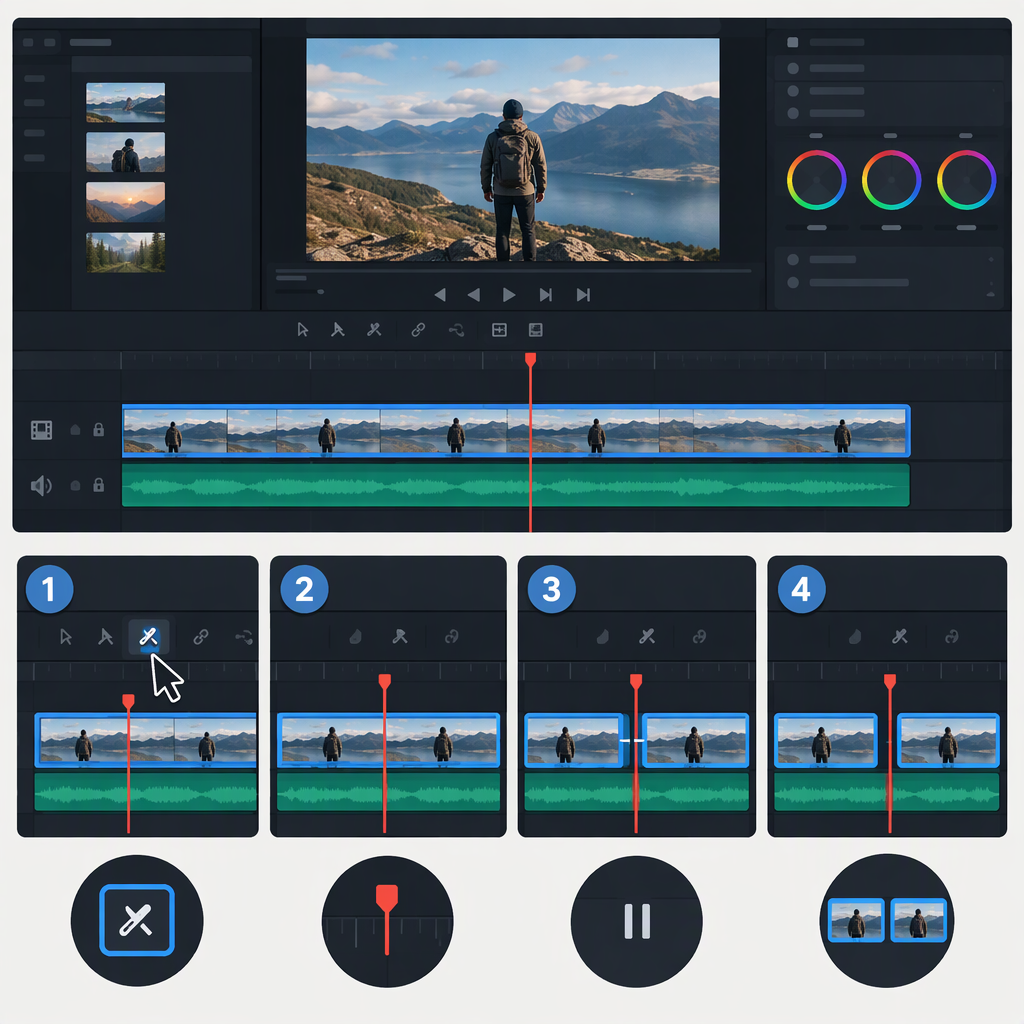
How to Split a Clip in DaVinci Resolve
To split a clip at a specific point, place the timeline playhead there, then use the timeline’s Split Clips command. Blackmagic Design’s Beginner’s Guide describes right-clicking the playhead and choosing Split Clips to add an edit point at that position. (documents.blackmagicdesign.com)
Split a Clip at the Playhead
- Open the timeline containing the clip you want to cut.
- Move the playhead to the frame where you want the new edit point. Zoom in if needed to position it accurately.
- Right-click the playhead and choose Split Clips from the shortcut menu.
- Check the timeline: the original clip should now appear as adjoining segments with a new edit point between them.
For example, if you want to separate a sentence from the rest of an interview, place the playhead on the first frame where the next section should begin, split there, and confirm that the edit point is in the intended place. This example illustrates the workflow; it is not a report of a hands-on test.
Blackmagic Design’s guide documents the playhead-based command, but the cited passage does not specify which clips or tracks it affects when multiple items cross the playhead. Before splitting a layered timeline, inspect the tracks that intersect that point and check the result immediately. If the cut affects more items than intended, undo it and consult the manual for your Resolve version or verify the command’s scope in a copy of the timeline before continuing.
Split, Trim, or Delete?
- Split adds an edit point, dividing a timeline clip into segments; it does not, by itself, remove either segment.
- Trim changes the position of an existing edit point, shortening or extending an adjacent clip edge.
- Delete removes a selected item or segment. Whether a gap remains depends on the delete operation.
Use a split when you need a new boundary—for example, to treat two sections separately. Split first, then select and delete a segment only if you intend to remove it.
Shortcuts and Version Notes
Keyboard shortcuts can depend on the selected keyboard preset or custom mappings. Rather than assume a shortcut applies to every installation, use the timeline’s Split Clips command or check its current assignment in DaVinci Resolve’s Keyboard Customization. Blackmagic Design lists a DaVinci Resolve 21.1 Reference Manual on its manual download page; consult the manual matching your installed version if the menu wording or behavior differs. (blackmagicdesign.com)