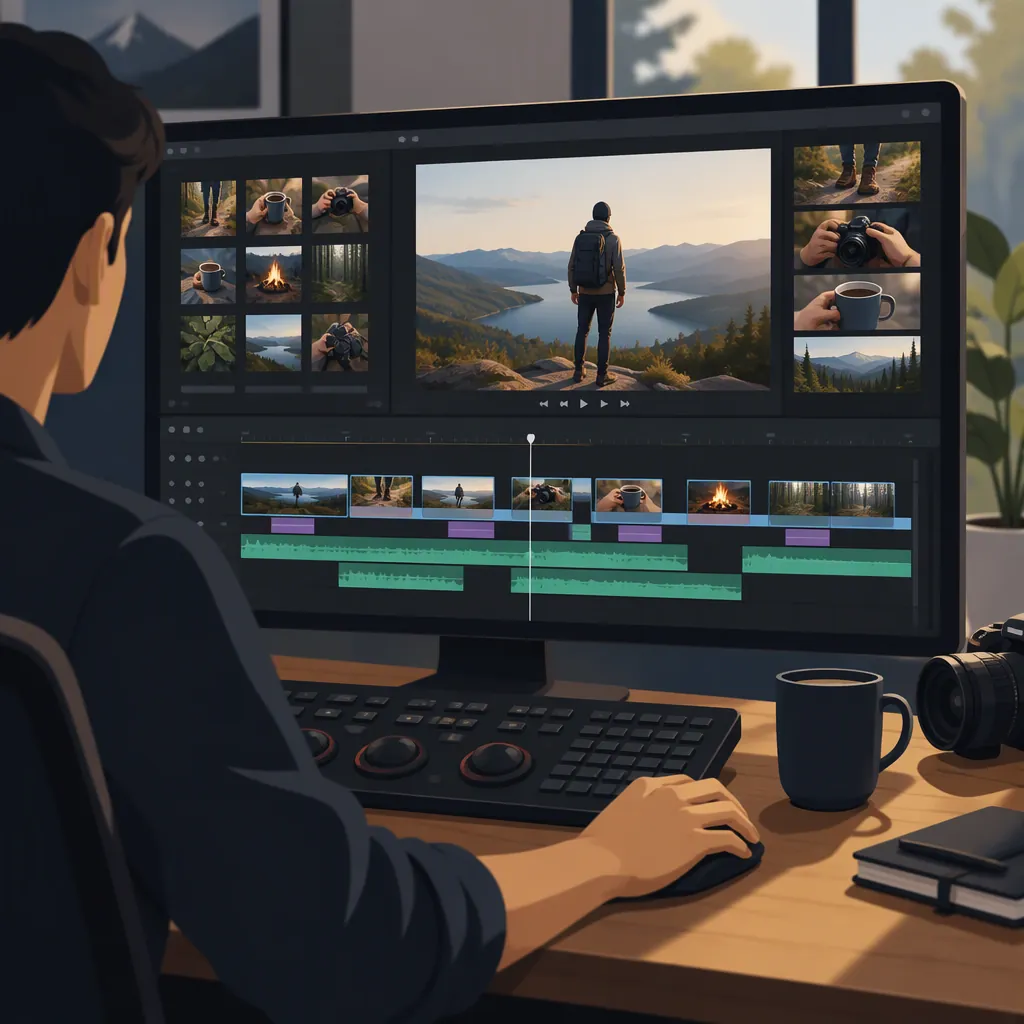
DaVinci Resolve B-Roll Editing: Plan and Review the Cut
For a DaVinci Resolve B-roll edit, aim to show a relevant cutaway while the main narration continues, then return to the main shot when the illustration is complete. The supplied reference covers FireCut, a separate tool used with Resolve—not Resolve’s native editing controls. It therefore cannot substantiate a step-by-step native workflow for importing clips, placing them on tracks or trimming them. [citation-1]
Define the B-Roll Edit Before Choosing Footage
The supplied reference describes B-roll as cutaway footage that illustrates ideas in the main video, or A-roll. [citation-1] For your DaVinci Resolve edit, turn that relationship into a specific editing decision: identify the spoken idea, select a shot that demonstrates it and decide when the viewer should return to the main shot.
Hypothetical edit: The narrator says, “Before leaving, I pack the camera and check the batteries.” Plan a cutaway showing the camera being packed, followed by a battery check if suitable footage exists. Keep the narration as the intended audio through those shots. Return to the speaker after the illustrated action, rather than extending the cutaway into an unrelated sentence.
This example specifies the intended cut, not verified Resolve commands. The available source does not document native clip placement, audio handling or trimming.
Example B-Roll Edit Brief
Narration: Before leaving, I pack the camera and check the batteries.
First cutaway: Camera being placed in a bag.
Second cutaway, if available: Battery being checked.
Intended audio: Continue the main narration.
Cut-in cue: The narration begins describing packing.
Cut-out cue: The illustrated preparation is complete.
Return shot: The speaker delivering the next thought.
Reject: Footage that implies a different person or an unestablished location.
Review Timing, Audio and the Return to A-Roll
Once your proposed cut is assembled in Resolve, review it against the brief rather than judging each B-roll clip in isolation:
- Meaning: Does the image illustrate the spoken idea without suggesting an unsupported person, place or event?
- Cut-in: Does the cutaway arrive when the relevant thought begins?
- Cut-out: Does it end before the narration moves to a different subject?
- Audio: Is the intended narration still audible? If the cutaway includes recorded sound, decide whether that sound belongs in the edit.
- Return: Does the move back to the main shot feel purposeful?
For the packing example, revise a cutaway that continues through the next unrelated sentence. If no battery-check shot is available, do not imply that a different action shows a battery check; return to the speaker instead.
These are editorial review recommendations. They do not establish which Resolve buttons, shortcuts or track settings perform the edits. Confirm permission for each clip’s intended use separately from its visual suitability.
Cut Review Record
Narration phrase supported:
B-roll clip selected:
Cut-in cue:
Cut-out cue:
Intended audio:
Return to main shot:
Misleading details to remove:
Permission confirmed:
Revision needed:
Keep the Optional Firecut Workflow Separate
The only supplied usage reference describes FireCut’s Find B-roll feature for DaVinci Resolve. It is not documentation for Resolve’s native B-roll editing controls. The page lists DaVinci Resolve 20+ as a requirement for that FireCut workflow. [citation-1]
Its documented sequence is to open Find B-roll, adjust settings and select Go. The page says FireCut analyzes the main video, adds stock footage to the timeline and offers alternatives in a results list. It also describes a Personal library created from a folder, with automatically generated tags that users can modify. These are source-described FireCut functions, not independently verified results or native Resolve instructions. [citation-1]
If you use that separate workflow, apply the same cut brief and review checks to its selections. Finding a candidate clip does not settle its meaning, timing, audio treatment or permission for your intended use. The supplied page does not provide enough detail to explain FireCut’s individual settings or a complete native Resolve editing procedure.
FAQ
What Are the Native DaVinci Resolve Steps for Adding B-Roll?
The supplied evidence does not document native import, track-placement, trimming or audio controls, so this article cannot give a verified button-by-button procedure. It provides a concrete cut plan and review criteria; the cited workflow belongs to FireCut, not Resolve’s native controls. [citation-1]
When Should the B-Roll Start and End?
As an editorial recommendation, start the cutaway when its relevant spoken idea begins and return to the main shot when the illustration is complete. In the packing example, avoid carrying the preparation footage into the next unrelated sentence. There is no fixed duration prescribed here.
Is Find B-Roll a Native DaVinci Resolve Command?
The supplied page presents Find B-roll as a FireCut feature used with DaVinci Resolve. It does not establish a native Resolve command with that name. [citation-1]
Sources
- [citation-1] AI B-Roll Finder for DaVinci Resolve | FireCut