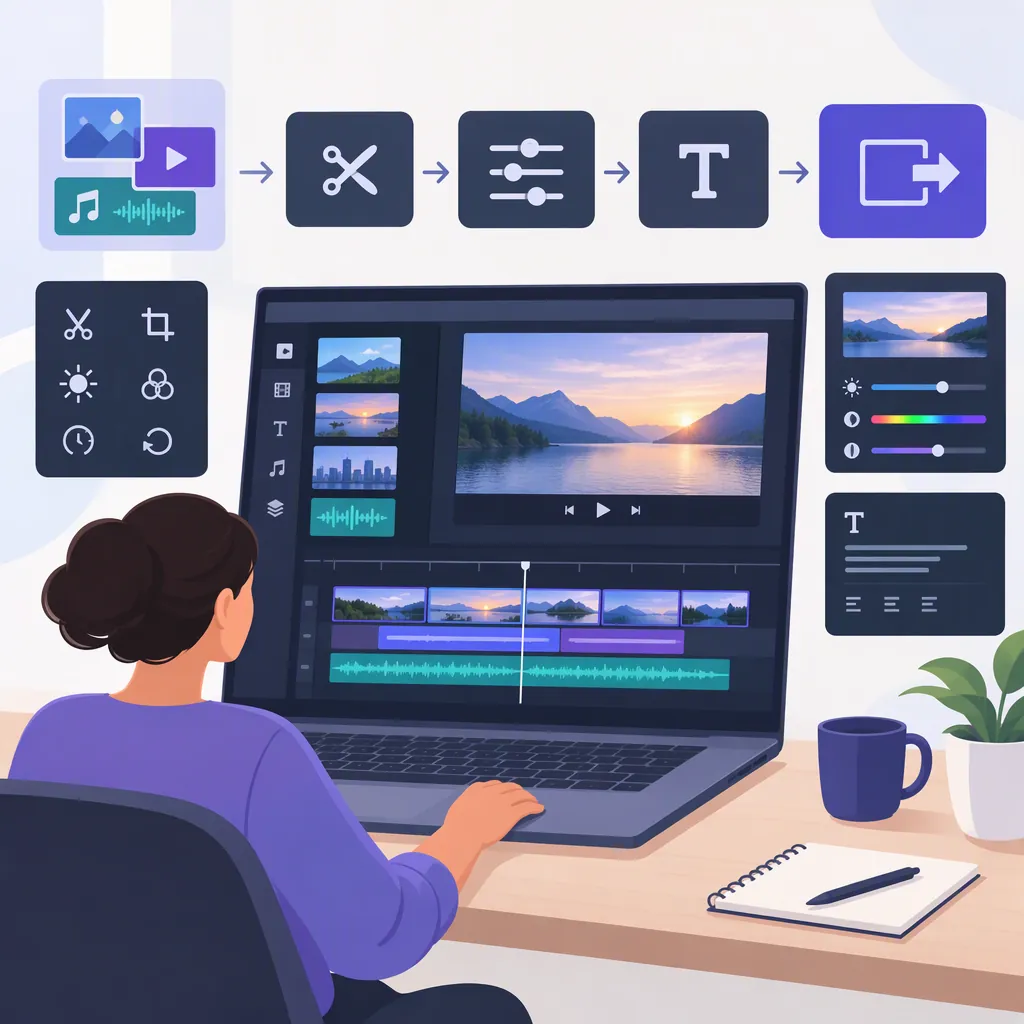
Clipchamp Overview: Editing Tools and a Simple Workflow
If you are searching for “clip champ,” Microsoft Clipchamp is a video editor available in a browser and through a Windows desktop app. Its product page lists trimming, cropping, resizing, text, recording, audio, and automatic caption tools. [clipchamp-overview]
This overview connects those listed capabilities to practical editing decisions. It is based on Clipchamp’s product page, not a hands-on test or a click-by-click interface tutorial.
What Clipchamp’s Editing Tools Cover
Clipchamp’s product page covers recording source material, editing visuals and sound, adding text or captions, and exporting a finished video. Its listed visual tools include trimming, cropping, resizing, rotation, and video overlays. [clipchamp-overview]
The following table suggests how to use those capabilities in a simple project. These are editing recommendations, not instructions for locating specific controls.
| Editing need | Relevant listed tool | What to check afterward |
|---|---|---|
| Remove a pause before the speaker begins or unnecessary footage at the end | Trimming | The clip starts and ends naturally without cutting off speech or an important action. |
| Remove distracting edges or tighten the view around a subject | Cropping | The subject and any essential visual information remain visible. |
| Adapt the video’s dimensions or format to its intended destination | Resizing | The resulting frame suits the destination, and important content is not cut off. |
| Correct footage that appears sideways | Rotation | The image has the intended orientation. |
| Add a title, label, or brief explanation | Text | The wording is concise, readable, and does not obscure the subject. |
| Place an additional visual over the main footage | Video overlays | The added visual supports the explanation rather than competing with it. |
These tool categories are listed on Clipchamp’s product page. [clipchamp-overview]
Trimming, cropping, and resizing solve different problems: trimming changes which portion of a clip plays over time; cropping changes which part of the picture is visible; resizing addresses the video’s dimensions or format. Decide which problem you need to solve before changing the clip.
Recording, Audio, and Captions
Clipchamp’s product page also lists camera, screen, and voice recording, text-to-speech, AI audio enhancement, and automatic caption generation with styling options. [clipchamp-overview]
For a presentation or demonstration, consider these suggested uses:
- Camera or screen recording: prepare the explanation or demonstration before recording so the material has a clear sequence.
- Voice recording or text-to-speech: draft the narration first, then review the result for pronunciation, pacing, and agreement with the visuals.
- Audio enhancement: compare the processed sound with the original and check that the speech remains understandable.
- Automatic captions: compare the generated text with the speech, especially names, technical terms, and numbers. Check timing and readability as well.
Generated speech, captions, and processed audio still need review; the presence of a tool does not establish the accuracy of its output.
Plan a Simple Clipchamp Edit
Use this sequence as a project plan rather than an exact menu walkthrough.
-
Define the finished video. Identify the audience, destination, and main point. For a short demonstration, write down what viewers should understand by the end.
-
Prepare the source material. Gather footage, images, and audio you have permission to use. If something is missing, Clipchamp lists camera, screen, and voice recording tools that may be relevant. [clipchamp-overview]
-
Build the sequence and remove unnecessary time. Put the material in a logical order before adding decoration. Use trimming as an editing choice for opening pauses, repeated explanations, or footage that does not advance the main point; Clipchamp lists a trimming tool. [clipchamp-overview] Check that each cut preserves the meaning and continuity of the explanation.
-
Adjust framing and add only useful text. Clipchamp lists cropping, resizing, and text tools. [clipchamp-overview] Consider cropping when distracting edges weaken the shot, resizing when the destination calls for a different format, and text when a label or brief explanation helps viewers follow along. Recheck framing after format changes.
-
Review sound and captions together. If you use Clipchamp’s listed automatic caption feature, compare the captions with the final speech rather than relying on the generated text alone. [clipchamp-overview] Listen for uneven volume, unclear words, and music that obscures the voice.
-
Export and inspect the actual file. Clipchamp’s product page describes video export. [clipchamp-overview] Review the options available in your session, then watch the exported file from beginning to end. Check the opening, cuts, text, captions, sound, and ending before sharing it.
Clipchamp Project Review Checklist
- The main message and intended audience are clear.
- Footage, images, and audio permissions have been checked.
- Opening pauses, repetitions, and unnecessary closing footage have been removed.
- Cuts do not interrupt important speech or actions.
- Cropping and format changes preserve essential visual information.
- Text remains readable at the intended viewing size.
- Generated narration and captions have been reviewed.
- Music does not obscure the voice.
- Export settings have been reviewed in the current session.
- The exported file has been watched from beginning to end.
Browser and Windows Access
Clipchamp’s product page describes browser-based editing without downloading software. It also says the desktop editor can be found through the Windows 11 Start menu and downloaded from the Microsoft Store for Windows 10. [clipchamp-overview]
The cited page is in Portuguese. It does not establish the exact English interface labels, a complete browser compatibility list, or every account-specific export setting and restriction. Check the controls and options available in your current session rather than treating this overview as an interface guide.
A Note About Similar App Names
Clipchampion Video Editor is a differently named app in the cited Google Play listing, which identifies its developer as MNL ZaviaVerse. These references do not establish a relationship with Microsoft Clipchamp. Do not use that listing as evidence of Microsoft Clipchamp’s Android availability, features, or data practices. [clipchampion-listing] [clipchamp-overview]
FAQ
Can I Use Clipchamp in a Browser?
Yes. Clipchamp’s product page describes a browser editor that does not require a software download. The cited text does not provide a complete browser compatibility list. [clipchamp-overview]
What Is the Difference Between Trimming and Cropping?
Trimming removes time from a clip, such as an opening pause or an unnecessary ending. Cropping changes the visible area of the picture, such as removing distracting edges. Clipchamp’s product page lists both tools. [clipchamp-overview]
Does Clipchamp Have an Automatic Caption Tool?
Clipchamp’s product page describes automatic caption generation and caption styling options. [clipchamp-overview] Review generated captions against the speech and check their timing and readability before sharing the video.
Can I Record Material for an Edit in Clipchamp?
The product page lists camera, screen, and voice recording tools. [clipchamp-overview] Choose the recording type that fits the explanation, and review the resulting material before incorporating it into the finished video.
Does This Overview Establish Which Export Options My Account Includes?
No. The product page describes video export, but the cited material does not establish every account-specific setting or restriction. [clipchamp-overview] Review the options shown in your session and inspect the exported file before sharing it.
Sources
-
[clipchamp-overview] Editor de vídeo online da Microsoft Clipchamp
-
[clipchampion-listing] Clipchampion Video Editor – Apps on Google Play