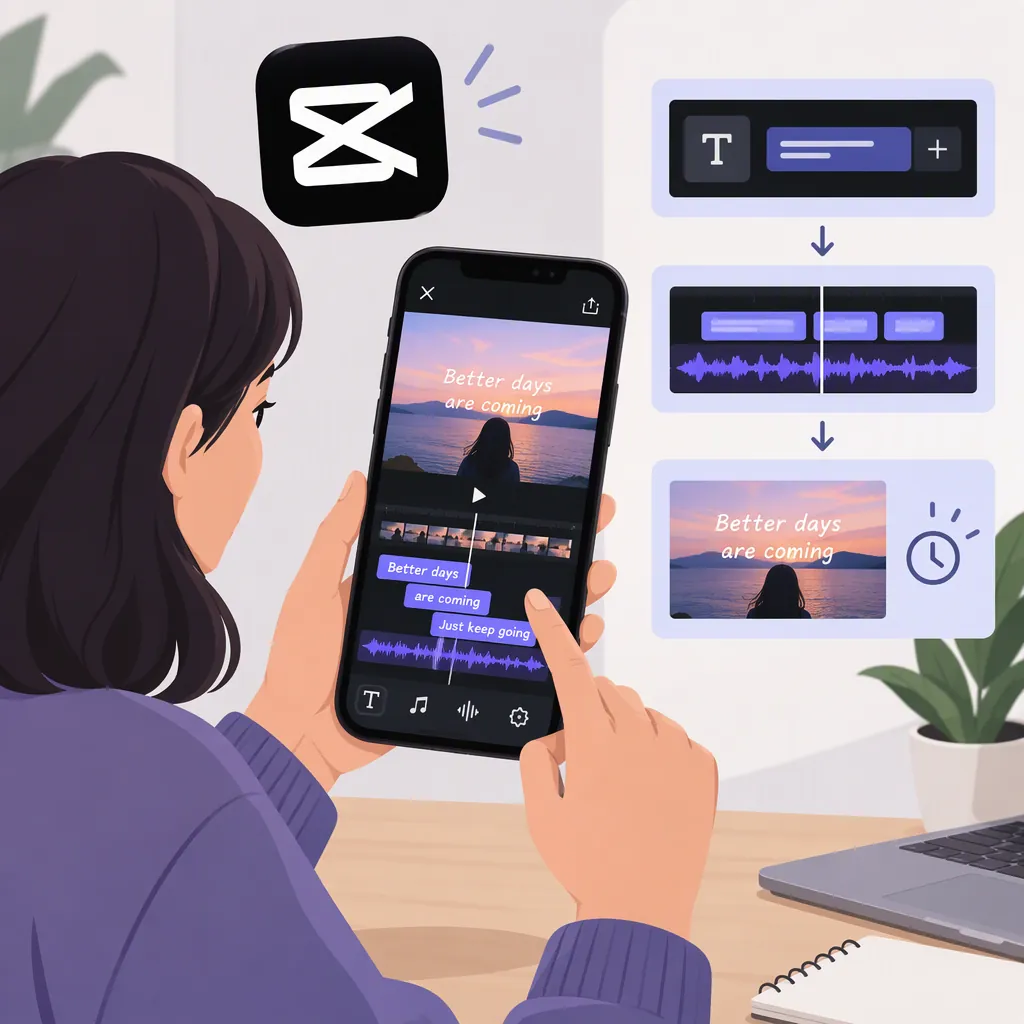
CapCut Lyrics Video Tutorial: A Manual Text and Timing Workflow
To make a lyrics video in CapCut, prepare your permitted audio and lyric text, confirm that you can edit text and its display interval, then time each phrase to the vocals. Review the transitions, readability, and saved video before considering the passage finished.
Scope: This is a manual lyrics-timing workflow, not a version-specific button-by-button guide. CapCut’s music lyric video page lists templates and describes customization and automatic lyric syncing, but it does not document the editing controls or establish availability in every client, version, or template. The steps below apply where your setup provides editable text and timing controls. [citation-1]
1. Confirm That Your CapCut Project Supports the Edits
Begin with a short passage rather than an entire song. Before preparing every lyric line, test whether your project lets you complete the essential edits.
Using the controls available in your version:
- Create or open a project. Add the video or images you intend to use behind the lyrics.
- Add your permitted audio. Play the selected passage to confirm that you have the intended recording and section.
- Add a test phrase. Create an editable text item or replace editable template wording.
- Check the wording. Confirm that you can change the actual words, not just the background media.
- Check the timing. Locate the text item’s duration or timing controls. Confirm that you can change when it appears and disappears.
- Preview the test. Check that the phrase appears over your visuals only during the interval you selected.
These are capability checks, not verified menu names. If you cannot find the relevant controls, pause before entering the remaining lyrics. The workflow depends on being able to edit both wording and timing.
If You Start from a Template
A template preview containing lyrics does not establish that those lyrics are editable. Test the specific template:
- Can you replace the words?
- Can you adjust each line’s display start and end?
- Can you remove unwanted text during pauses?
If the template does not support the required changes, use an editable project instead, if your setup offers one. Keep the planned lyrics and timestamps separate so you do not have to prepare them again.
2. Prepare the Lyrics and Choose a Time Reference
Use audio and lyric text that you have permission to include. Check the words against the selected recording, including repeated phrases. Treat automatically generated text as a draft to verify.
Divide the passage into short display units. Start with one sung phrase per unit, then split any phrase that would crowd the frame. Include instrumental gaps in your plan so that text behavior during pauses is deliberate.
Keep these measurements separate:
- Vocal start and end: when the phrase’s singing begins and ends.
- Display start and end: when its text appears and disappears.
Initially, match the display interval to the vocal interval. Add any intentional lead-in or reading hold afterward.
Blank Lyric Timing Worksheet
| Unit | Lyric text | Vocal start | Vocal end | Display start | Display end | Checked |
|---|---|---|---|---|---|---|
| 1 | Your first phrase | ___ | ___ | ___ | ___ | No |
| 2 | Your next phrase | ___ | ___ | ___ | ___ | No |
| 3 | Instrumental—no lyric text | ___ | ___ | ___ | ___ | No |
Label your worksheet times as either passage-relative or project-timeline times. Do not mix the two.
Hypothetical Filled Example
The following lines and timestamps are invented practice material, not a real song transcription or a tested CapCut result. This example assumes the selected audio passage begins at project time 0.00 seconds.
| Unit | Lyric text | Vocal start | Vocal end | Display start | Display end |
|---|---|---|---|---|---|
| 1 | Watch the daylight cross the room | 0.80 | 3.20 | 0.80 | 3.40 |
| 2 | Let the quiet carry us home | 3.50 | 6.10 | 3.50 | 6.10 |
| 3 | Instrumental—no lyric text | — | — | 6.10 | 8.00 |
The first line has a 0.20-second reading hold after the vocal ends. It disappears at 3.40 seconds, before the next line begins at 3.50 seconds.
Extending the first line to 3.70 seconds would create a 0.20-second overlap with the second line. For a one-line-at-a-time presentation, shorten the hold rather than delaying the second line away from its vocal entrance.
The instrumental row describes a blank-text interval; it is not wording to put on screen.
If the Passage Starts Later in the Project
Convert passage-relative times before applying them:
Project time = passage start on the project timeline + passage-relative time
If the passage begins at project time 10.00 seconds, the first line’s relative display interval of 0.80–3.40 seconds becomes 10.80–13.40 seconds on the project timeline. The second line becomes 13.50–16.10 seconds.
If you move the audio passage later, recheck the text intervals against its new position.
3. Add and Time Each Lyric Line
Work through one phrase at a time in your editable CapCut project. The following sequence describes the edits to make, rather than assuming a particular interface.
- Enter the first phrase. Add editable text or replace editable template wording. Check spelling and punctuation.
- Find the vocal entrance. Replay the phrase and note when its first sung word begins.
- Set the text’s display start. Use the corresponding project-timeline time, converting from passage-relative time if necessary.
- Find the vocal ending. Note when the final sung word ends.
- Set the display end. Start with the vocal ending. Add a reading hold only if it helps without creating an unwanted overlap.
- Preview the phrase. Play from just before the entrance until after the text disappears.
- Add the next phrase. Repeat the process, then preview both lines together.
In the example with the passage at project time 0.00, the first text item would display from 0.80 to 3.40 seconds and the second from 3.50 to 6.10 seconds. Review the handoff between them, not only each line in isolation.
Handle repeated lyrics separately: identical wording does not mean identical duration. During an instrumental gap, end the previous text item unless retaining it is intentional.
Start with whole-line timing. Attempt word-by-word highlighting only if your available controls support it. If you use an automatic syncing option, apply the same phrase-by-phrase review rather than treating its output as finished.
4. Check Readability and Styling
Once timing is settled, judge the text at the size viewers are likely to see it—not only in an enlarged editing preview.
Use these checks:
- Inspect the longest line. At the intended viewing size, confirm that you can read it without struggling. If it crowds the frame, split it at a meaningful phrase boundary.
- Inspect contrasting backgrounds. Pause on the lightest and darkest frames behind the words. Adjust the available text styling or placement if the words become difficult to distinguish.
- Check placement throughout the passage. Make sure the text does not obscure important faces, actions, or other visual content.
- Preview animation without sound. Check whether movement hides words, delays their readability, or makes the transition distracting.
- Compare consecutive lines. Keep the main lyric treatment consistent unless a change serves a deliberate purpose.
If a line feels rushed, check both its timing and its length. Splitting a crowded phrase may work better than extending it into the next vocal phrase.
5. Review, Export, and Inspect the Saved Video
Review the passage twice:
- With sound: check wording, entrances, endings, repeated phrases, and instrumental gaps.
- Without sound: check readability, line breaks, placement, and transitions.
Export using the controls available in your version. This workflow does not prescribe export settings. Inspect the saved file as well as the editing preview.
Final Lyrics Video Review Checklist
- The wording matches the selected recording.
- Repeated phrases appear in the correct places.
- Worksheet times use a clearly identified reference.
- Any passage-relative times have been converted correctly.
- Each display interval has been checked against the vocals.
- Reading holds do not unintentionally overlap the next line.
- Instrumental gaps have intentional text behavior.
- The longest line is readable at the intended viewing size.
- Text remains readable across changing backgrounds.
- Animation does not hide or delay the words.
- The saved video has been reviewed from beginning to end.
FAQ
What If I Cannot Edit the Lyrics in a CapCut Template?
Check whether you can select and change the lyric wording separately from the background media. CapCut’s page describes customizable templates, but it does not confirm lyric replacement or timing changes for every template. If your selected template fails those checks, use an editable project if available, and transfer your prepared lyrics and timing plan there. [citation-1]
What Should I Check After Automatic Lyric Syncing?
If your setup offers it, compare the output with the recording for missing or incorrect words, repeated phrases, early entrances, late endings, and text left visible during pauses. CapCut’s page mentions automatic lyric syncing but does not document its operating steps or supported setups. [citation-1]
Why Are All My Lyrics Shifted by the Same Amount?
Check your time reference first. You may have applied passage-relative timestamps directly to a project where the passage starts later. Add the passage’s project start time to each relative timestamp, then preview again. Also check whether the audio was moved after you timed the text.
What If Only One Lyric Line Appears Too Early or Too Late?
Compare its display start with the first sung word and its display end with the final sung word. Adjust one boundary at a time, then replay the transition into the next phrase. Check whether an intentional lead-in or reading hold explains the apparent mismatch.
How Do I Prevent Two Lyric Lines from Overlapping?
For a one-line-at-a-time presentation, keep the earlier line’s display end at or before the next line’s display start. If a reading hold causes the overlap, shorten that hold rather than moving the next line away from its vocal entrance.
Should Lyrics Stay Visible During an Instrumental Break?
Choose deliberately. This workflow uses blank instrumental gaps as its baseline. If you retain a previous line for stylistic reasons, record the extended display interval and review the transition back into the vocals.