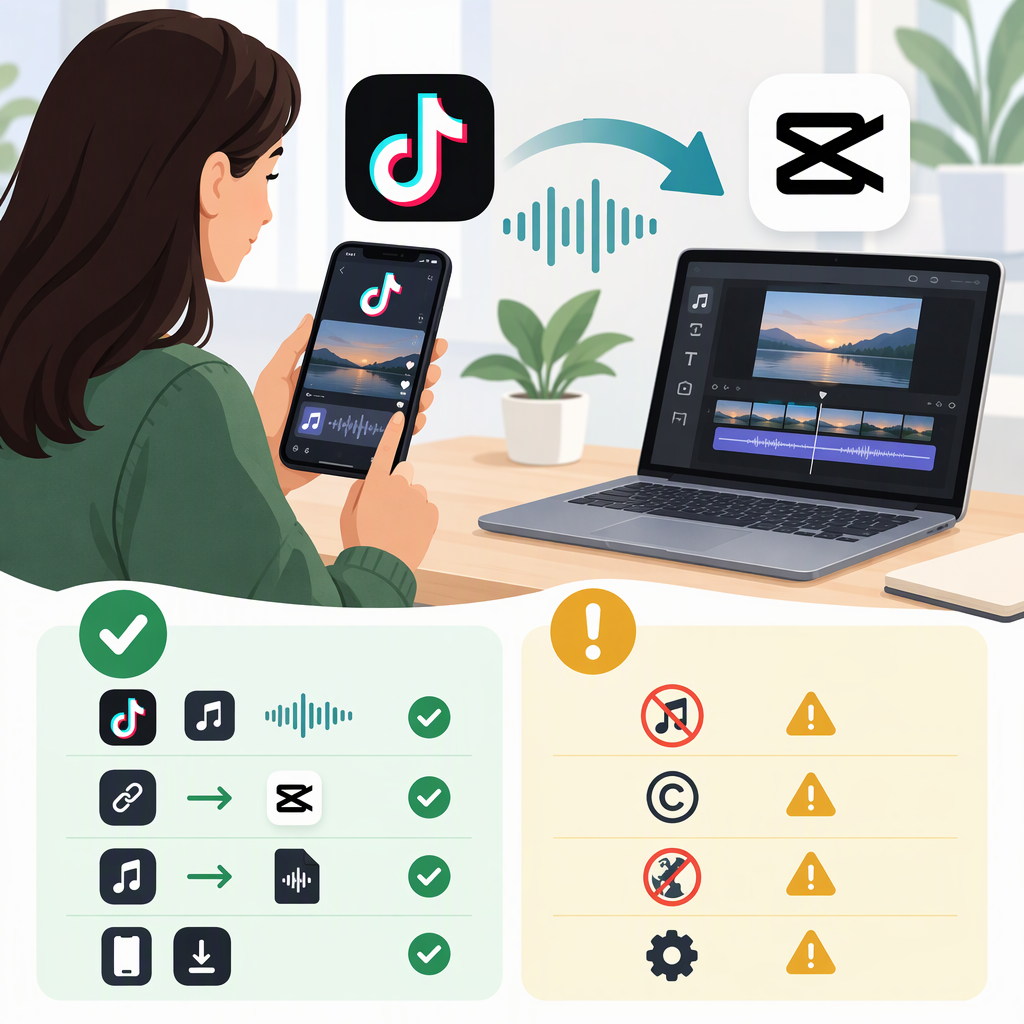
How to Get Songs from TikTok to CapCut: What Works and What to Check
The easiest option is to look for the sound in CapCut’s mobile app: CapCut describes TikTok account linking as a way to access TikTok-specific sounds and other features. But that doesn’t mean every sound on TikTok can be transferred into CapCut. If the sound you want isn’t available there, use an audio file you have permission to use—or add the sound in TikTok after editing. A sound being available in TikTok does not, by itself, establish permission to use it elsewhere. (capcut.com)
Option 1: Look for the Sound in CapCut Mobile
CapCut says TikTok account linking is available in its mobile app, not its desktop or web versions. Its support article describes access to TikTok sounds as a benefit of linking; it does not say that every sound on TikTok can be imported. (capcut.com)
- In CapCut on iOS or Android, open Settings and tap Manage Account.
- Under Connected accounts, tap Link next to TikTok and follow the authorization steps.
- Start a project and open the audio controls. Search for the sound by its title or creator, if search is available in your version.
- If the exact sound appears, add it to the timeline, align it with your video, and preview the edit.
If you don’t see the sound, don’t assume there is another official transfer button. CapCut’s documented account-linking features include TikTok-specific sounds, templates, effects, draft syncing on supported devices, and publishing—but don’t promise that every TikTok sound will be available. Interface labels and availability may vary. (capcut.com)
Option 2: Import an Audio File You’re Allowed to Use
If the sound isn’t in CapCut, the dependable alternative is an audio file you obtained with permission—for example, your own recording, a file supplied by the rights holder, or a track whose license covers your intended use. Don’t assume a TikTok video can be saved or its audio extracted: TikTok says its Save video option appears only when downloads are permitted, and saving a video is not the same as receiving permission to reuse its music. (support.tiktok.com)
- Save the permitted audio file to your phone or computer.
- In CapCut, create or open a project and import your video.
- Open Audio and use the available upload, device, or import option to add the audio file. The precise label can vary by version.
- Move and trim the audio on the timeline, adjust its volume, and preview the full edit before exporting.
CapCut’s mobile guidance confirms the basic flow of creating a project, importing video, adding a soundtrack through Audio, and previewing the result. If you cannot find an import option or file, check the app’s media permissions and whether the file is accessible on your device. (capcut.com)
Example: If a sound appears in CapCut’s audio search, add it there. If it doesn’t, and you have only found it on a TikTok video, don’t treat the video as a licensed audio file. Look for an authorized source or use another track you have permission to include.
Before You Publish: Check the Destination and Use
Importing a sound into an editor is a technical step, not proof that you can publish it. Check the sound’s permissions for each destination—especially if you plan to post outside TikTok or promote a brand, product, or service.
TikTok says music outside its Commercial Music Library is not covered by the licenses it holds for commercial use on TikTok. For promotional TikTok posts, it recommends using music from that library; if using other music or an original sound with content disclosure turned on, TikTok says you must confirm you have the necessary rights. These TikTok-specific terms should not be read as permission to use the track on other platforms. (support.tiktok.com)
Before exporting, ask:
- Do I have permission to use this particular recording—not just access to it in an app?
- Does the permission cover my publishing platform and the kind of video I’m making?
- If the video promotes a business, product, or service, does the license allow commercial use?
If any answer is unclear, choose audio with terms that explicitly cover your intended use or get permission from the rights holder. Rules can depend on the sound, license, destination, and region; this is practical guidance, not a legal determination.
If the Sound Is Missing or Silent
- Not in CapCut search: Try the exact title or creator name. If it still doesn’t appear, use the permitted-file route instead; linking accounts does not guarantee access to every TikTok sound. (capcut.com)
- File doesn’t appear: Check that CapCut has access to your device’s media and that the file is available locally. CapCut notes that media permissions and file-loading or compatibility issues can affect imports. (capcut.com)
- Audio plays in the editor but not after posting: Check the destination’s music rules and whether the track is cleared for that use. TikTok may remove sounds from videos, including for copyright-related reasons. (support.tiktok.com)
Bottom Line
First search for the sound in CapCut mobile, where CapCut says linked TikTok accounts can access TikTok-specific sounds. If it isn’t there, import only an audio file you’re permitted to use—or add a suitable sound in TikTok after editing. In all cases, check that the permission covers your final video and its destination.