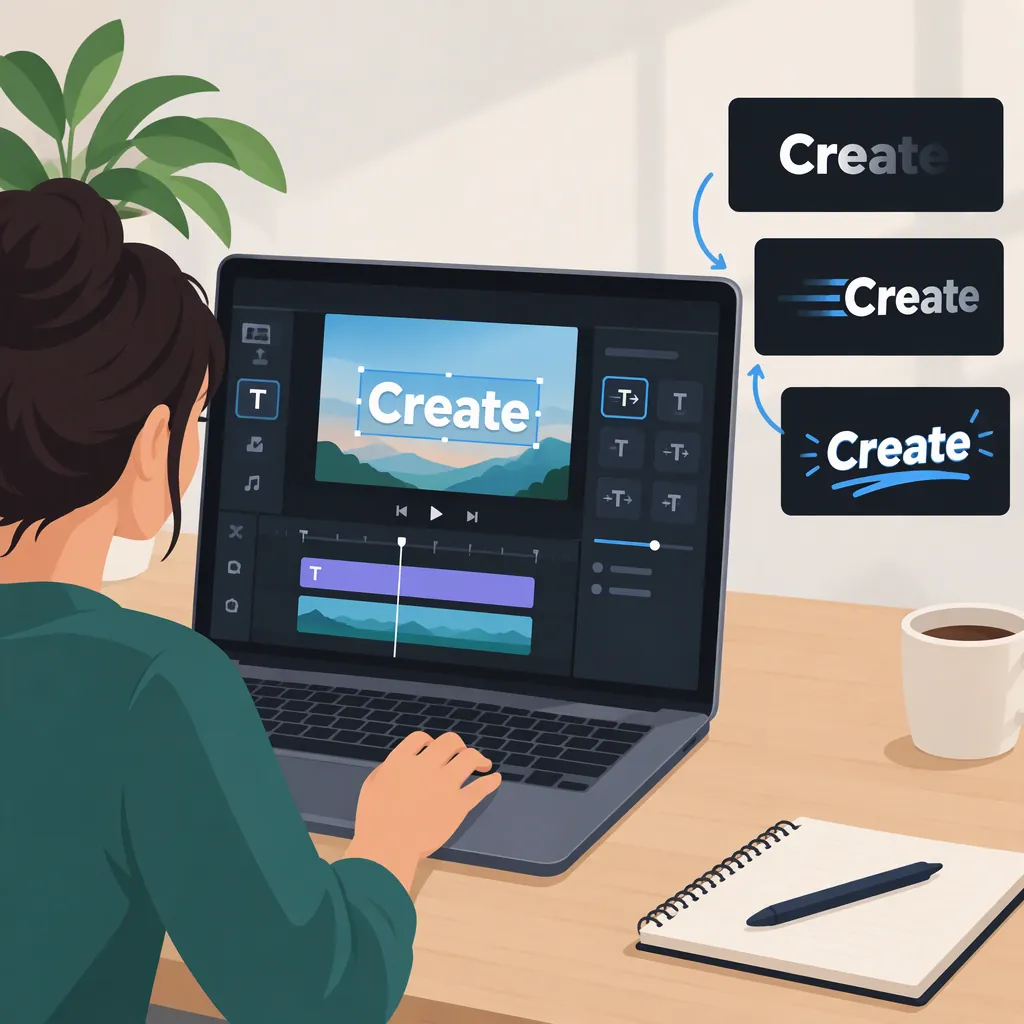
CapCut Animation Tutorial: Add and Preview Text Motion
To animate text in CapCut, add your video to the timeline, use Text to add and customize a title, then open Animation and test a motion style. This tutorial follows Keenya Kelly’s December 2024 walkthrough; it does not establish the exact controls for every CapCut platform or version. [capcut-text]
1. Add Your Video to the Timeline
Start with a clip you want to use for a text-animation exercise. Kelly’s walkthrough describes opening CapCut, using the + button to upload a video, and dragging the loaded video onto the timeline. Follow that sequence if it matches your interface. [capcut-text]
Before adding motion, choose a short phrase and decide what it should identify or explain in the clip. For this exercise, use one title rather than several animated elements so you can evaluate its movement on its own.
Interface limitation: The cited walkthrough does not identify a CapCut platform or version. Its button locations should not be treated as a universal map for mobile, desktop, and web.
2. Add and Customize Your Text
Find Text and add the phrase you prepared. The cited walkthrough places Text toward the top left of its described interface and says you can enter text, change its font style, and choose its color. Treat that location as a reference rather than a guaranteed position in your version. [capcut-text]
For this exercise:
- Enter a brief title, such as “Morning Walk.”
- Choose a font and color that you can read against the footage.
- Review the wording before adding movement.
These are practice choices, not required CapCut settings. Keep the title simple enough that you can judge whether the animation makes it harder to read.
3. Open Animation and Test a Style
For the text you just added, locate Animation. Kelly’s walkthrough describes opening this control after customizing the text, then trying animation options such as fades and pops. [capcut-text]
Start by testing one available style. Watch how the text appears, then compare it with a second style while keeping the wording, font, and color unchanged. This gives you a focused comparison of the motion rather than several design changes at once.
The source also mentions adjusting animation speed and intensity, but it does not name the settings or show a version-specific control path. If your interface exposes relevant adjustments, change one at a time and preview again; this tutorial cannot confirm that those controls appear in every version. [capcut-text]
4. Review the Result for Readability
The cited walkthrough recommends testing different animation styles. Use that testing step to review the title in context, rather than choosing motion solely because it looks noticeable. [capcut-text]
As an editorial check, ask whether the phrase is readable, whether its movement distracts from the footage, and whether the visual tone fits the scene. If the result feels too busy, compare it with a less pronounced option available in your interface.
This is a text-animation tutorial, not a documented workflow for animating video clips, creating keyframes, applying transitions, or exporting. Those procedures are not covered by the supplied walkthrough.
Text Animation Review Checklist
- Preview the title over the intended footage.
- Check that you can read the complete phrase.
- Compare two motion styles without changing the text design.
- If adjustment controls are available, change only one setting before reviewing again.
- Keep the option that best supports the meaning of the title.
FAQ
Where Do I Find Animation in CapCut?
Kelly’s walkthrough places Animation toward the top left after adding and customizing text. Because it does not specify the platform or version, that location may not match your interface exactly. [capcut-text]
Which Text Animations Can I Try?
The cited walkthrough gives fades and pops as examples. It does not provide a complete animation list or confirm availability across CapCut versions, so use those as examples rather than guaranteed preset names. [capcut-text]
Does This Tutorial Cover Clip Animation or Keyframes?
No. The supplied walkthrough explains adding footage, creating text, and animating that text. It does not document clip-animation controls or a keyframe workflow. [capcut-text]
Sources
- [capcut-text] How To Add Animations In CapCut