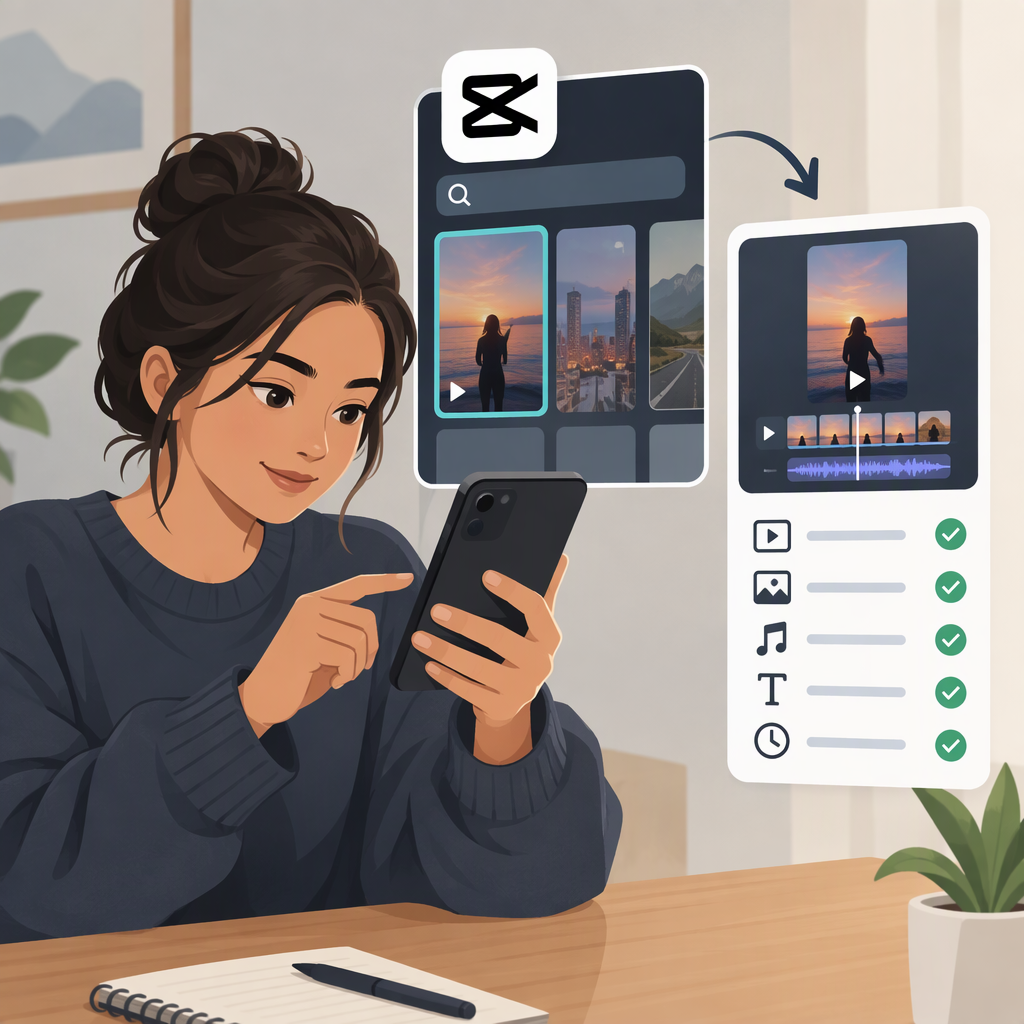
Habibi CapCut Edit: Find a Template and Check What It Requires
What Does “Habibi CapCut Edit” Mean?
It doesn’t point to just one edit. CapCut’s Habibi collection shows multiple options, including “HABIBI,” “Inta Habibi,” and “Habibi trend.” One identifiable example is the creator-made #Habibi template by RD Edits. Its listing specifies four clips and a 9:16 aspect ratio. That makes it a concrete match to explore, not the definitive Habibi edit for everyone. (capcut.com)
How to Find and Try a Matching Template
- Open CapCut’s Habibi template collection and compare the names and previews. Choose the one that matches the edit you have in mind; the collection includes several differently named options. (capcut.com)
- Open the individual template listing and check its stated requirements before choosing media. For the #Habibi example, the listing says it requires four clips and uses a vertical 9:16 frame. (capcut.com)
- If the listing offers an option to open or edit the template in CapCut, follow that flow and add the requested clips. The public listing identifies the template and its clip requirement, but does not establish exact current button labels or guarantee that the template will be available in every app, account, device, or region.
- Preview the result before sharing. If the template page does not offer an edit flow for you, try another listing in the collection rather than assuming all “Habibi” templates are interchangeable.
If You Want to Recreate the Look Manually
The sources identify templates, but they don’t provide a verified, step-by-step manual recipe for reproducing this specific edit. Use the template preview as a visual reference if one is available, but treat any manual recreation as your own interpretation—not as an exact recreation of a verified effect. The #Habibi listing’s four-clip and 9:16 details apply to that listing only; other Habibi templates may differ. (capcut.com)