CapCut Video Editor: Features, Workflow, and Limits
CapCut is a video editor with a documented browser workflow for uploading media, editing clips on a timeline, adding text and audio, and exporting a finished video. Its mobile listings also describe tools such as keyframes, chroma key, stabilization, and automatic captions. These descriptions do not establish identical features or free access across every version.
Which CapCut Version Does This Workflow Cover?
The steps below cover CapCut’s online video editor, because the supplied online-editor page documents an upload-to-export sequence. It describes editing in a web browser without installing a separate editor. [capcut-online]
The iOS and Android listings describe additional app capabilities, including multi-track editing, keyframe animation, chroma key, and stabilization. Treat those as app-listing descriptions, not proof that the same controls appear in the browser editor. [capcut-ios] [capcut-android]
This overview uses public product descriptions rather than hands-on testing. It does not establish feature parity, performance, or which tools are included in a particular account’s plan.
Upload Media and Build a Rough Cut
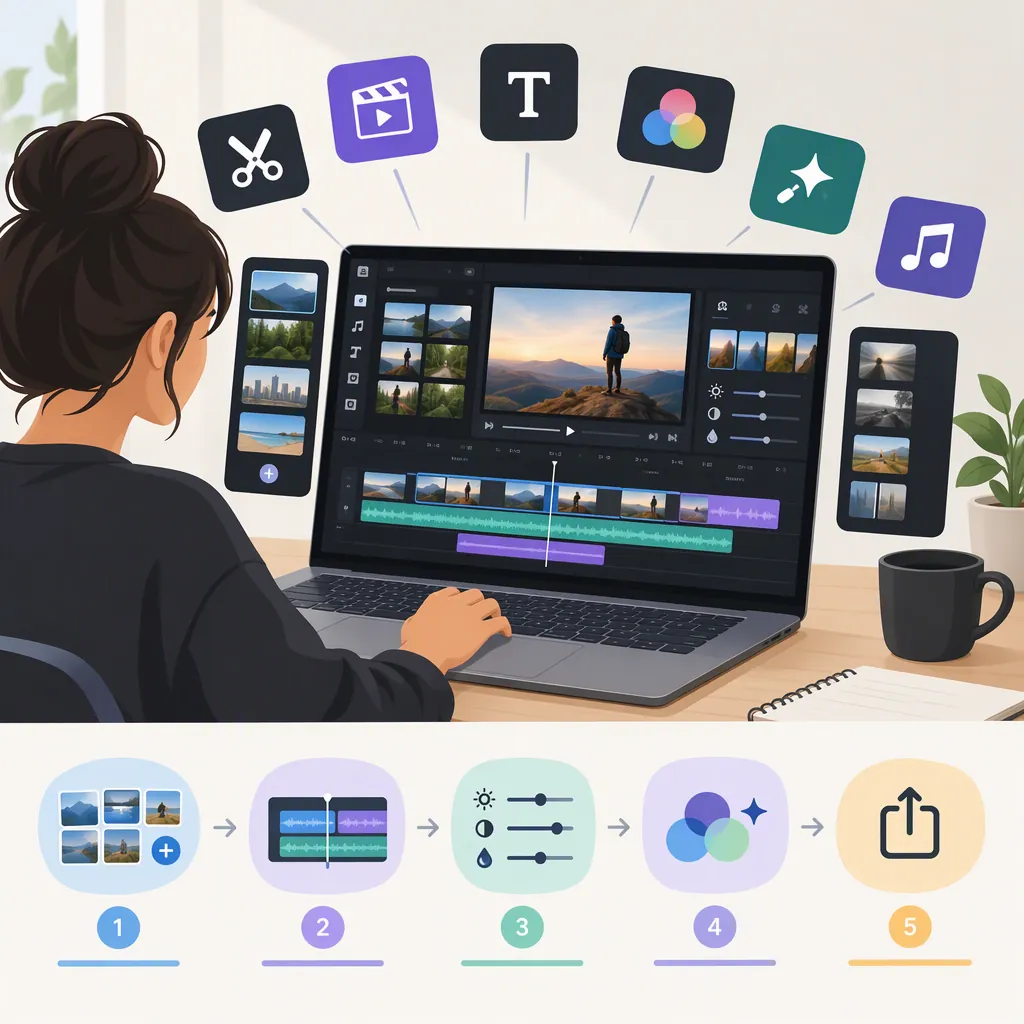
CapCut’s published browser workflow begins with signing in or creating an account and opening a workspace. The page lists uploads from a computer, cloud storage, Google Drive, Dropbox, or a QR-code route. It then instructs users to drag media onto the editing timeline. [capcut-online]
For a first edit, use this sequence:
- Choose footage you have permission to edit and publish.
- Upload the clips needed for the project.
- Place them on the timeline in the intended viewing order.
- Trim unnecessary beginnings and endings.
- Split clips where the sequence needs a cut, then preview the result.
The online-editor page documents trimming, cropping, splitting, reversing, and mirroring clips. Use only the operations that serve the project; an initial rough cut does not need every available tool. [capcut-online]
Before adding effects, check whether the sequence communicates its main point without relying on decorative elements.
Add Captions, Audio, and Visual Elements
The online-editor page lists text overlays, audio, stickers, effects, transitions, filters, and generated captions. It also describes speech-to-text and text-to-speech tools. [capcut-online]
A practical editing order is to finish the main cuts first, then add supporting elements:
- Captions: If using generated captions, review the wording and timing against the spoken audio. Treat the generated text as a draft rather than assuming it is correct.
- Text overlays: Keep titles and labels relevant to the scene. Preview them over the actual footage to judge readability.
- Audio: Listen through the sequence and check that music or effects do not obscure speech.
- Transitions and filters: Add them where they clarify a change or support a consistent visual treatment, rather than applying them to every cut.
The mobile listings separately describe motion tracking, speed curves, optical-flow slow motion, and background removal. They do not establish the quality of those results for your footage or their availability in the browser version. [capcut-ios] [capcut-android]
Export and Check the Finished File
In the documented online workflow, export includes choosing a file name and resolution. Advanced Settings provides controls for quality, frame rate, and format, followed by an Export action for downloading or sharing the video. The source does not enumerate every available setting value. [capcut-online]
Choose settings according to the destination’s requirements rather than assuming the highest available option is necessary. After export, open the resulting file and review it from beginning to end. Check the exported file itself, not just the timeline preview.
The mobile listings advertise support for 4K 60 fps export and smart HDR. That is not evidence that every browser project, device, or account offers those options. [capcut-ios] [capcut-android]
Export Review Checklist
- [ ] Confirm the file name and destination folder.
- [ ] Check the selected resolution, frame rate, and format against the publishing destination’s requirements.
- [ ] Open the exported file and play it from start to finish.
- [ ] Check captions, titles, cuts, and audio in the exported result.
- [ ] Confirm that no unintended sample media or text remains.
- [ ] Confirm permission to publish all included footage, music, and other assets.
Check Cost, Asset Rights, and Privacy
The online-editor page uses free-access language, while the iOS listing identifies the app as free with in-app purchases and Google Play also lists in-app purchases. These sources do not provide a complete feature-by-feature entitlement map. Check the current workspace for paid-feature labels and export restrictions before building a project around a particular tool. [capcut-online] [capcut-ios] [capcut-android]
The online-editor page advises reviewing stock assets and their current usage terms before publishing. Do not treat an asset’s presence in the editor as blanket permission for every use. [capcut-online]
For privacy, the App Store’s disclosure says the developer’s information has not been verified by Apple. Google Play likewise identifies its data-safety information as developer-provided. Neither disclosure should be treated as an independent privacy assessment. Before uploading sensitive footage, review the applicable terms, permissions, and sharing settings. [capcut-ios] [capcut-android]
FAQ
Can I Use CapCut Without Installing an App?
The online-editor page describes a browser workflow that does not require a separate editor installation. Its published steps begin with signing in or creating an account, uploading media, and editing on a timeline. [capcut-online]
Does CapCut Support Automatic Captions?
The online-editor page and both mobile listings describe automatic captions. Review generated captions for wording and timing before publishing; the provided sources do not independently establish accuracy for your recording. [capcut-online] [capcut-ios] [capcut-android]
Are All CapCut Editing Features Free?
The provided sources do not establish that every feature is free. The online page describes free access, but both mobile listings disclose in-app purchases. Confirm access to the specific tools and export options needed in your current version and account. [capcut-online] [capcut-ios] [capcut-android]
Sources
-
[capcut-online] Free Online Video Editor: Create Videos Easily | CapCut
-
[capcut-ios] CapCut: Photo & Video Editor App - App Store
-
[capcut-android] CapCut - Video Editor - Apps on Google Play